Frequently Asked Questions
Search for answers to common questions
87 FAQ articles (sorted by popularity)
-
① The number is printed on the back of the box that contained your smartphone.
② Open the phone dialer and enter “*#06#” to display your EID and IMEI numbers.
③ You can also check your EID and IMEI numbers in your smartphone’s Settings.
▼ For Android devices
Go to “Settings” → “More” or “Wireless & Networks” → “SIM information settings,” then check the information from the menu.
▼ For iOS devices (iPhone)
Go to “Settings” → “General” → “About” to check the information.
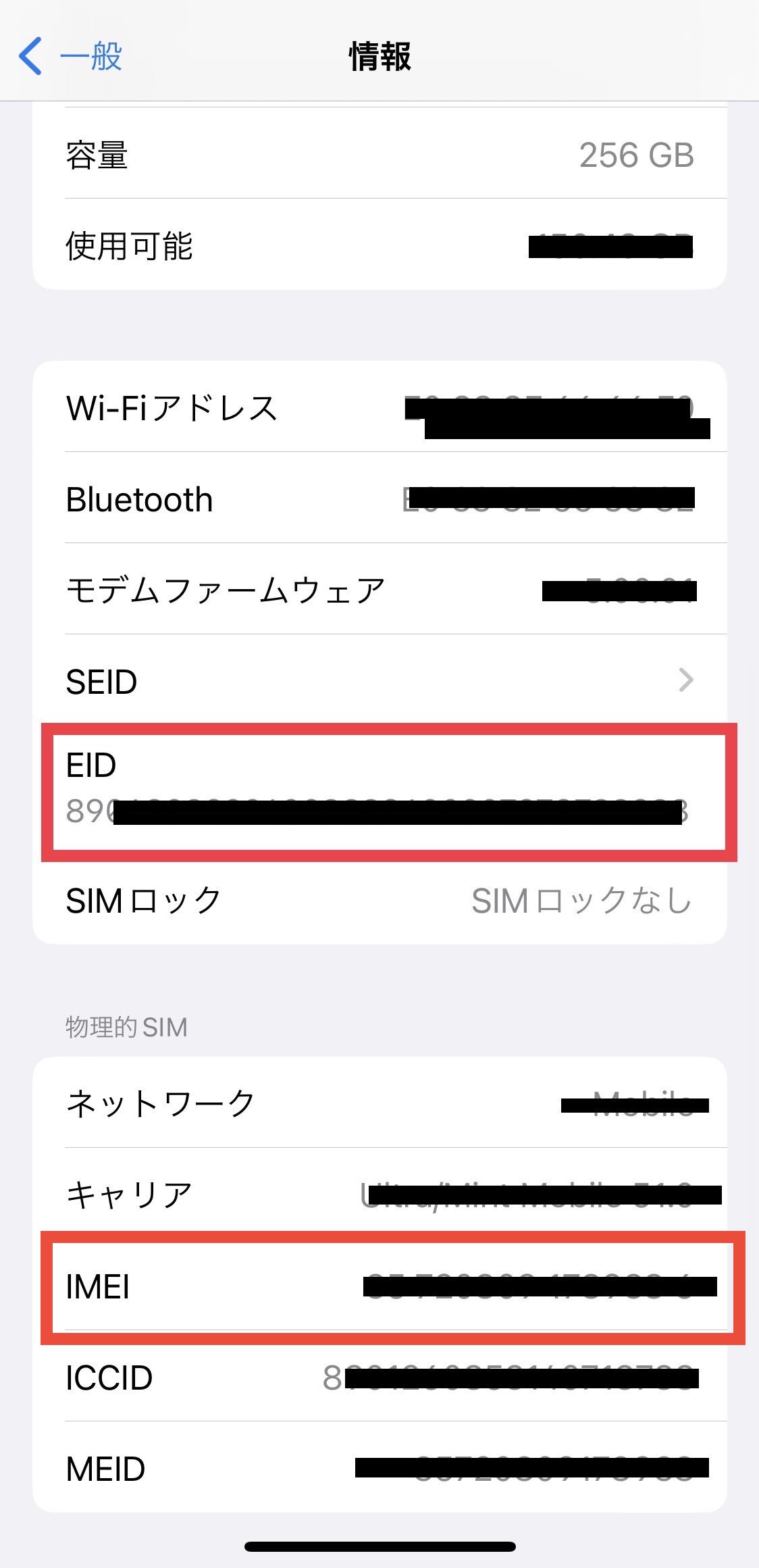
※If your EID is not displayed, your device does not support eSIM (digital SIM).
View detail 1 0 -
You can view your billing details on the UNIVERSAL Mobile website under My Page → “Invoices & Receipts.”
※We do not mail invoices or provide detailed call history statements.
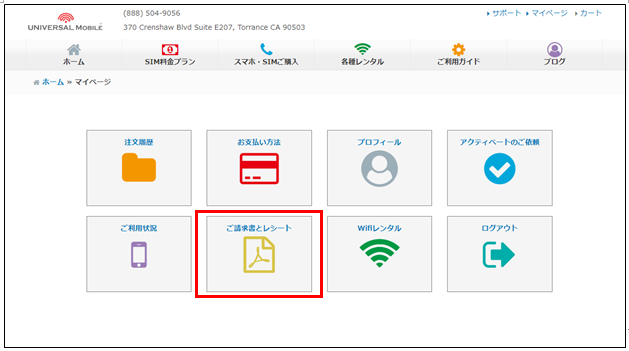
※Invoices are issued on the 10th of each month.
※Your address is not included on the invoice. If you need an invoice that includes your address, please contact Customer Support.
======================
Contact:
UNIVERSAL Mobile Customer Support
Email: customer@universalmobile.us
======================
View detail 0 0 - SIM / eSIM Activation Last updated: September 9, 2025
[US SIM Plan (eSIM)] Steps to Get Started
This guide explains how to get started after ordering your US SIM Plan (eSIM).
Please follow steps ① through ⑤ in order.1Check SIM Unlock Status & Supported Frequency Bands
How to Check SIM Unlock Status
Please confirm that your smartphone is SIM-free or SIM-unlocked.
iPhone
"Settings" → "General" → "About" → scroll down → "SIM Lock"
→ If it shows "No SIM restrictions", your device is unlocked.Android
"Settings" → "About device" → "SIM card status"
→ If it shows "Allowed", your device is unlocked.Menu names may vary by device model or OS version.
If your device is still SIM-locked, please contact your original carrier or retailer to unlock it.Supported Frequency Bands & VoLTE
Your device must support the following:
4G: VoLTE / Band 2, 4, 12, 66, 71
5G: n71, n41
iPhone 6s and later models are all compatible.
To check compatibility, enter your IMEI number at T-Mobile BYOP Check.For more details, see: Can I use my current phone with this plan?
2Order Your US SIM Plan
Visit our plan page, select the US SIM Plan (eSIM), and complete your order by following the on-screen instructions.
For physical SIM cards or other items shipped by mail, please wait until they arrive before proceeding.
3Register Your eSIM Information in My Page
Go to My Page → "Usage Status" and enter the following information, then tap [Save].
• EID number (32 digits)
• IMEI number (15 digits)
How to find your EID & IMEI
iPhone: "Settings" → "General" → "About"
Android: "Settings" → "About device"
Some devices: "Settings" → "System" → "About device"
You can also dial *#06# on your phone to display your EID and IMEI numbers.
If both "IMEI" and "IMEI2" are shown, please use "IMEI". IMEI2 is not required.
For more details, see: How to find your EID & IMEI number4Check for the Registration Confirmation Email
Once your EID is registered, you will receive an email with the subject:
"eSIM Number Registration Confirmation"
Once you receive this email, proceed to the next step.5Submit an Activation Request via My Page
Go to My Page → "Activation Request" and follow these steps:
- Log in to My Page using the email address and password you registered with.
- Under "Activation Request," enter the required information, number transfer details, and optional plans as prompted.
- Enter your ZIP Code and Desired Start Date. Both are required.
You may use the ZIP code of your hotel, workplace, or school. - Review all information and click [Submit Activation Request].
- You will receive a confirmation email with the subject "SIM Activation Request". Your request is then complete.
Activation Completion Email
On your desired start date (US time), you will receive an email with the subject:
"SIM Activation Complete"
This email is usually sent in the morning or afternoon.
Please follow the instructions in the email to complete your eSIM activation.
Activation begins after our business hours start (9:00 AM PST).Important Notes
- Plan charges begin on your activation start date.
- If your start date falls on a weekend or holiday, the activation email will be sent on the preceding Friday or the last business day before the holiday.
- The activation email may be filtered into your spam folder. Please add customer@universalmobile.us to your trusted senders list.
- If you are transferring a phone number from another carrier, your actual start date may differ slightly. Do not cancel your current plan until the transfer is complete.
- Only US mobile phone numbers can be transferred. Japanese numbers cannot be ported in.
- eSIM activation can only be performed within the United States. Please complete this step after arriving in the US.
If you have any questions, please feel free to contact us.
UNIVERSAL Mobile Customer Support
customer@universalmobile.usView detail 4 0 - WiFi / Pocket WiFi Charging Last updated: October 24, 2024
How to Charge Your Pocket WiFi
⚠️ Please verify charging before your departure
After receiving your Pocket WiFi, please confirm that the charging device works correctly before you start using it (before your departure).
? Correct Charging Method
1Always charge directly from a wall outlet
⚠️ Do not charge via a laptop, in a car, or on an airplane. Voltage differences may prevent proper charging and could damage the device.
2Confirm the charging light (blue) is on
The charging light will turn blue while charging. Please make sure it is lit.
If the charging light is not on, check the following:
- Make sure the connector is securely plugged in
- Check for any malfunctions in the charging device
- If you have a similar charger and cable, try using a different charging device
3Charge to 100% with the device powered off
While charging, the battery icon on the screen will animate. When fully charged, "100" will appear on the battery icon.
4Check battery level via the top-right icon when powered on
When the device is on, you can check the remaining battery level by looking at the small battery icon in the top-right corner of the screen.
ℹ️ "No Valid Order" displayed on screen
Before your service start date, you will not be able to connect to the internet and the screen will show "No Valid Order".
On your start date, you will be able to connect to the internet in your selected country.⚠️ What to Do If Charging Does Not Work
- Confirm that the charging cord is securely connected to both the Pocket WiFi and the adapter
- If the device is powered on, turn it off and try charging again
- Try charging from a different outlet
- Wait a few minutes and try charging again
Replacing the charging device may take several days. If you have a compatible charger and cable, please use your own device to charge in the meantime.
If you have any questions, please feel free to contact us.
UNIVERSAL Mobile Customer Support
customer@universalmobile.usView detail 0 0 - SIM / eSIM Short-Term Plan Activation Last updated: June 23, 2025
[US Short-Term SIM Plan (eSIM)] Steps to Get Started
This guide explains how to get started with your US Short-Term SIM Plan (eSIM), from ordering to eSIM setup.
Please follow steps ① through ⑥ in order.? Available Plan Durations
7 days / 10 days / 14 days / 20 days / 25 days / 30 days / 40 days / 50 days / 60 days
1Select Your Plan Duration and Proceed to Cart
Visit the plan page, select your desired duration, then click [Add to Cart] → [Proceed to Checkout].
2Log In to My Page or Create a New Account
If you already have an account, log in to My Page. If this is your first time, please register as a new member.
3Complete Your Order
Follow the on-screen instructions to enter your payment details and complete your order.
4Register Your eSIM Info (EID & IMEI)
When the [Usage Information] screen appears, click [Register eSIM Number] and enter the following, then tap [Save].
・EID number (32 digits)
・IMEI number (15 digits)
※ For instructions on finding these numbers, see How to find your EID & IMEI number.
5Select Your Desired Start Date and Submit Activation Request
When the [Activation Request] screen appears, select your Desired Start Date and click [Submit Activation Request].
✅ Your service will be available from your selected start date (US Pacific Time).
Your phone number will also be confirmed on your start date.6Set Up Your eSIM Using the Email Received the Day Before
The day before your start date, you will receive an email with subject: "eSIM Activation Complete".
Follow the instructions in the email to add and set up your eSIM on your device.? How to Check Your Phone Number After eSIM Setup
Android: "Settings" → "About device" → "Phone number"
iPhone (iOS): "Settings" → "Phone" → "My Number"
※ If your phone number is not displayed, try restarting your device.
※ For detailed eSIM setup instructions, see eSIM Setup Guide (Short-Term SIM Plan).⚠️ eSIM activation can only be performed within the United States. Please complete this step after arriving in the US.
? About Your Plan Period
- The plan period includes your start date.
- Your plan will be automatically cancelled at the end of the period (no cancellation procedure required).
- The service cannot be used outside the United States or for international calls.
- If you wish to use Japan Call, please purchase the plan that includes Japan Call.
- Other optional plans are not available with this plan.
[Example] 10-Day Plan
Start date: July 3
Available period: July 3 – July 12⚠️ Important Notes
- The activation email may be filtered into your spam folder. Please add customer@universalmobile.us to your trusted senders list.
If you have any questions, please feel free to contact us.
UNIVERSAL Mobile Customer Support
customer@universalmobile.usView detail 0 0 -
◆◆You can change your credit card information for payment at any time from My Page.◆◆
After logging in to My Page at the top right of the UNIVERSAL Mobile website, please change your information under Payment Method.
https://universalmobile.us/mypage/login?redirecturl=/mypage
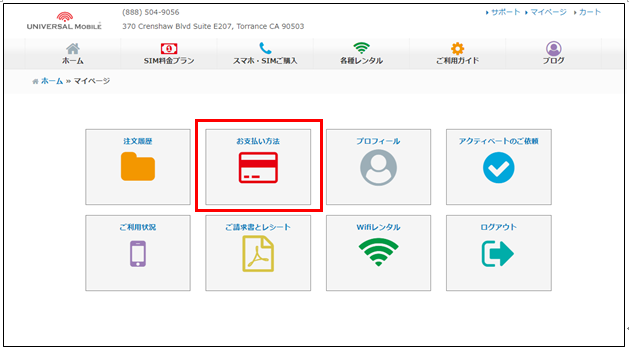
We accept credit cards and debit cards issued in the United States or Japan.
(VISA, MasterCard, American Express, JCB)
※ Depending on the card issuer, some debit cards may not be accepted.
※ Payment processing is conducted within the United States. If you use a credit card issued outside the United States, your card issuer may charge an additional fee. Please contact your credit card issuer for details.
※ When you change your credit card information, a temporary authorization of $1 may be made to verify that the card is valid and that the card number is correct. This is only a temporary authorization and will not result in an actual charge. The authorization will be canceled within approximately 3–5 business days.
If you later check your statement and find that you have actually been charged $1 by UNIVERSAL Mobile,
please contact our customer support team below.
Contact Information:
UNIVERSAL Mobile Customer Support
Email: customer@universalmobile.us
Phone: 888-504-9056
View detail 0 0 - Troubleshooting Signal / Data Speed Last updated: January 11, 2025
Troubleshooting: Weak Signal, Slow Data Speed, or No Signal (SOS Only)
If you are experiencing sudden signal loss, slow data speeds, or your phone shows "SOS only", please try the following steps in order.
? Steps to Try
1Restart your smartphone
2Remove and reinsert your SIM card
Gently clean the gold contacts on the SIM card with a cotton swab or soft cloth before reinserting.3Turn off Wi-Fi and Bluetooth, power off your device, wait about 1 minute, then turn it back on
4Enable Airplane Mode for about 30 seconds, then disable it
5Toggle Mobile Data off and on several times
6Check for carrier settings updates and update to the latest iOS / OS version
7Reset Network Settings (iPhone)
"Settings" → "General" → "Reset" → "Reset Network Settings"
⚠️ This will erase all saved Wi-Fi passwords. Please note this before proceeding.
8Temporarily disable or uninstall any antivirus apps (e.g., Norton)
9Turn off any VPN settings
10Reconfigure your APN settings (Android only)
※ For APN setup instructions, see APN Settings Guide.⚠️ If the issue persists after trying all the above
Please contact our customer support with the following information:
- Account holder name
- Phone number
- Device make, model name, and IMEI number (15 digits)
※ Dial "*#06#" on your phone to display the IMEI number. - Location of use (ZIP code or city name)
If you have any questions, please feel free to contact us.
UNIVERSAL Mobile Customer Support
customer@universalmobile.usView detail 1 0 - WiFi / Pocket WiFi How to Use Last updated: October 24, 2024
UNIVERSAL Mobile Pocket WiFi User Guide
⚠️ Please verify the device is working before your departure
Once you receive your Pocket WiFi kit, please make sure to check that the charging equipment is functioning properly before you begin using it (before your departure).
→ How to charge your Pocket WiFiHow to Connect
1Press and hold the power button on the right side of the device for approximately 3 seconds to turn it on.
Press the power button briefly, or press the display toggle key to wake the screen.2Turn on the WiFi setting on your device (smartphone, laptop, etc.) and look for the SSID shown on the WiFi display, then select it.3When prompted to enter a password, type in the password (PWD) shown on the WiFi display.※ Internet access will be available within the country of your selected plan starting from your service start date.Display Information
- The display shows battery level, network connection status, data usage, and device info (SSID & PWD).
- Press the display toggle key to cycle through the information screens.
- The display will automatically turn off after 15 seconds.
- Press the power button or toggle key briefly to turn the screen on or off.
⚠️ The "Purchase Package" feature is not available. Please do not scan the QR code on the device.
Powering Off & Charging
⏻ How to Power Off
Press and hold the power button on the right side for approximately 3 seconds to turn off the device.
? How to Charge
Connect a cable to the charging port (USB Type-C) at the bottom of the device and plug it into a power outlet.
Battery life is approximately 15 hours of continuous use from a full charge (may vary depending on usage). To save power, we recommend turning the device on only when needed.Troubleshooting Connection Issues
- Restart both the Pocket WiFi device and the device you are trying to connect.
- Try reducing the number of connected devices.
- Wait a moment and then try reconnecting.
- Check that the WiFi setting on your device has not been turned off.
⚡ If the Device Won't Turn On or Off
- Use the appropriate charging cable and adapter, charge the device fully, then try restarting. Also check that the charging port is not loose.
- Check that the power button is not loose or damaged.
- If the device powers on, press and hold the display toggle button for approximately 10 seconds while the device is on to perform a force reset.
⚠️ Lost or Stolen Device
If the Pocket WiFi device or any accessories are lost or stolen, the following charges will apply (if you are not enrolled in the Protection Plan).
Item Fee Pocket WiFi Device $400 Charging Equipment $20 Carrying Case $20 Portable Battery $200 Changing, Extending, or Canceling Your Rental Period
Please contact our customer support team directly.
→ Rental period changes, extensions, and cancellationsContact Us
UNIVERSAL Mobile Customer Support: customer@universalmobile.us
View detail 0 0 - Pocket WiFi ご利用案内
ポケットWiFi レンタル期間変更・延長・キャンセル・返却について
UNIVERSAL Mobile Customer Support
Please contact to UNIVERSAL Mobile Customer Support during our business hours.
Email : customer@universalmobile.us
Hours: 9:00 a.m. to 5:00 p.m. (Monday - Friday) *Closed on Saturday, Sunday, and holidays (U.S. West Coast time)
お問い合わせ・レンタル期間変更について
ポケットWi-Fiのレンタル期間変更、延長、キャンセルは、下記受付時間内にカスタマーサポートまでご連絡ください。
お問い合わせ先:UNIVERSAL Mobile カスタマーサポート
Eメール:customer@universalmobile.us
受付時間:午前9時~午後5時(月~金)※土・日・祝日はクローズ(米国西海岸時間)
■ To Change
To change your Rental Date, Please contact Customer Support before the Start Date with the following information.
*Reservation Number
*Reservation Name
*Email address
*New Rental Date■ 期間変更
レンタル期間変更は、ご利用開始日までにカスタマーサポートまでご連絡ください。
・予約番号
・お名前
・Eメールアドレス
・変更希望の日程■ To Extension
To extend your Rental Date, Please contact Customer Support before your Rental Period during our business hours with the following information.
*Reservation Number
*Reservation Name
*Email address
*Extension Date■ 延長
レンタル期間の延長は、ご利用終了日までにカスタマーサポートの営業時間内にご連絡ください。
・予約番号
・お名前
・Eメールアドレス
・延長期間■ To Cancel
To Cancel your order, Please contact Customer Support before the Start Date with the following information.
*Reservation Number
*Reservation Name
*Email addressIf you cancel your order after the start date, we will charge the fee based on the number of days passed.
If you cancel your order after we shipped the wifi , we won't refund the shipping fee.
■ キャンセル
キャンセルをご希望の場合はカスタマーサポートまでご連絡ください。
キャンセル料金はかかりませんが、ご連絡をいただいたタイミングによりご返金額が異なります。
●ポケットWiFi発送前のキャンセル(郵送の場合) 全額ご返金いたします ●ポケットWiFi発送(受取)後、利用開始日前のキャンセル(郵送の場合) 送料を除く金額を返金いたします ●ポケットWiFi発送(受取)、利用開始日後のキャンセル(郵送の場合) 送料、利用開始日を経過した日数分のレンタル費用を除く金額を返金いたします ※料金はご利用台数ごとに発生します
■ Late Fee
Return Due Date is the next business day of the Returning Date.
Please send / drop of the Pocket WiFi within the next business day of the Returning Date.
We will charge you the following late fee until we receive the wifi after the due date.
- Late Fee: $12 per day ( plus Rental Insurance Fee)
If the rental cost exceeds $12, the original rental price will be charged for the days overdue.
■ 延滞料金
返却期限:
- ご帰国日の翌営業日までに発送手続きをしてください
- 持込で返却される場合はご帰国日の翌営業日までにReturn Boxへ返却してください
ご返却の確認ができない場合、延滞料金として[1日あたり一律$12、( + 安心補償パック)× 超過日数分]が請求されます。
※レンタル費用が$12を超えるプラン場合は、レンタル費用× 超過日数分をご請求させていただきます。
View detail 0 0 -
Yes, eSIM is supported.
〈For New Customers〉
When ordering a U.S. SIM plan, please select [eSIM (built-in SIM)].
〈For Existing Customers〉
If you are currently using UNIVERSAL Mobile and would like to switch from a physical SIM card to eSIM,
please contact Customer Support with your EID number (32-digit eSIM identification number) and IMEI number (15-digit number).
For information about changing your plan:
======================
Contact Information:
UNIVERSAL Mobile Customer Support
Email: customer@universalmobile.us
======================
How to Check Your EID and IMEI Numbers
① Check the EID label on the side of the box that your smartphone came in.
② Check your EID and IMEI numbers in your smartphone settings.
For Android devices
Settings → Other or Wireless & Networks → SIM Information Settings → EID Display / IMEI Display.
For iOS devices
Settings → General → About.
Alternatively, open the Phone app and dial “*#06#”. Your EID and IMEI numbers will be displayed.
View detail 0 0 - SIM / eSIM Optional Services Last updated: September 23, 2021
What is Japan Call?
? Japan Call ① ― 050 Number (Incoming Call Option)An optional service that gives you a Japanese phone number starting with 050 in addition to your US number. People in Japan can call you in the US at domestic Japanese call rates — making it easy and affordable for family and friends back home to reach you.
✅ Key Features
- Get a Japanese phone number beginning with 050
- People in Japan can call you at domestic Japanese rates
- No charge for receiving calls within the US
⚠️ Important Notes
- The 050 number is for incoming calls only. You cannot make calls or send/receive SMS from it.
- Cannot be used as a registration number for apps that require SMS verification (e.g., LINE).
- Incoming calls may display as 【Unknown Caller】 or 【Scam Likely】. If you have call-blocking enabled for such labels, please disable it to receive calls.
- As an IP phone number, it may not be accepted as an official contact number on formal documents.
- Members on the $15/month minimum plan will be charged an additional $0.25/min when using the 050 number.
? Japan Call ② ― Unlimited Calls to Japan (USD $10/month)An optional plan that lets you make unlimited calls to Japanese landlines and mobile phones from within the US for just $10/month. The recipient in Japan is not charged for incoming calls.
✅ Key Features
- Unlimited calls to Japanese landlines and mobile numbers from the US
- No charge to the recipient in Japan
- Only $10/month
? How to Make a Japan Call
- Dial the Access Number (see note ※1)
- Follow the voice guidance and enter Country code 81 + recipient's phone number (see note ※2)
※1 The access number will be provided after signing up. You can also find it on My Page under 【Usage Status】.
※2 If the recipient's number begins with 0, omit the leading 0. (Example: 090-xxxx-xxxx → dial 81-90-xxxx-xxxx)
⚠️ Important Notes
- Calls to Japanese toll-free numbers (0120) are not supported.
- Members on the $15/month minimum plan will be charged an additional $0.25/min even with this option active.
? To Sign Up or for Inquiries
Please contact our customer support team at: customer@universalmobile.us
View detail 0 0 -
① Open the “Settings” app on your smartphone and tap “Mobile Service.”

② Tap “Add eSIM.”
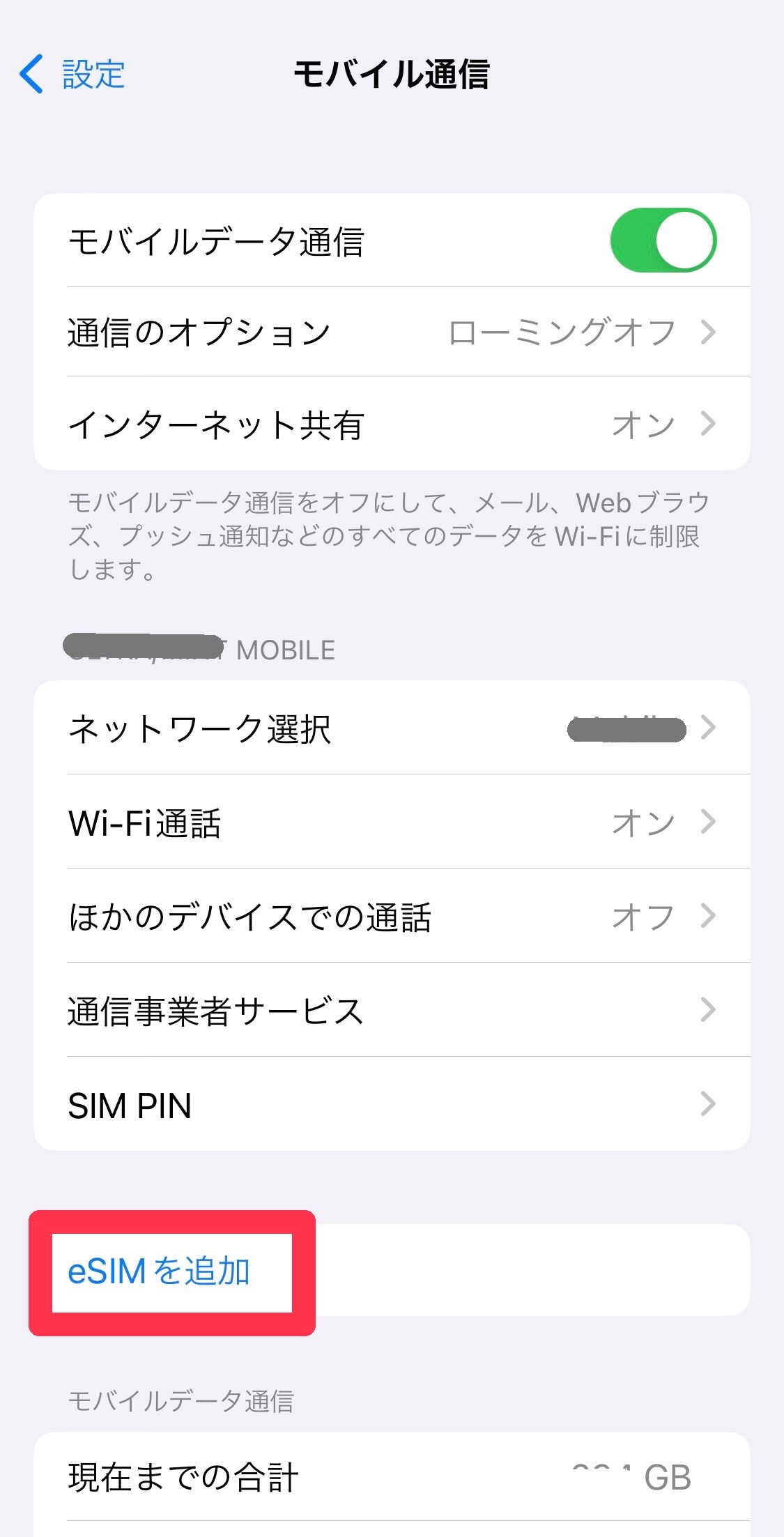
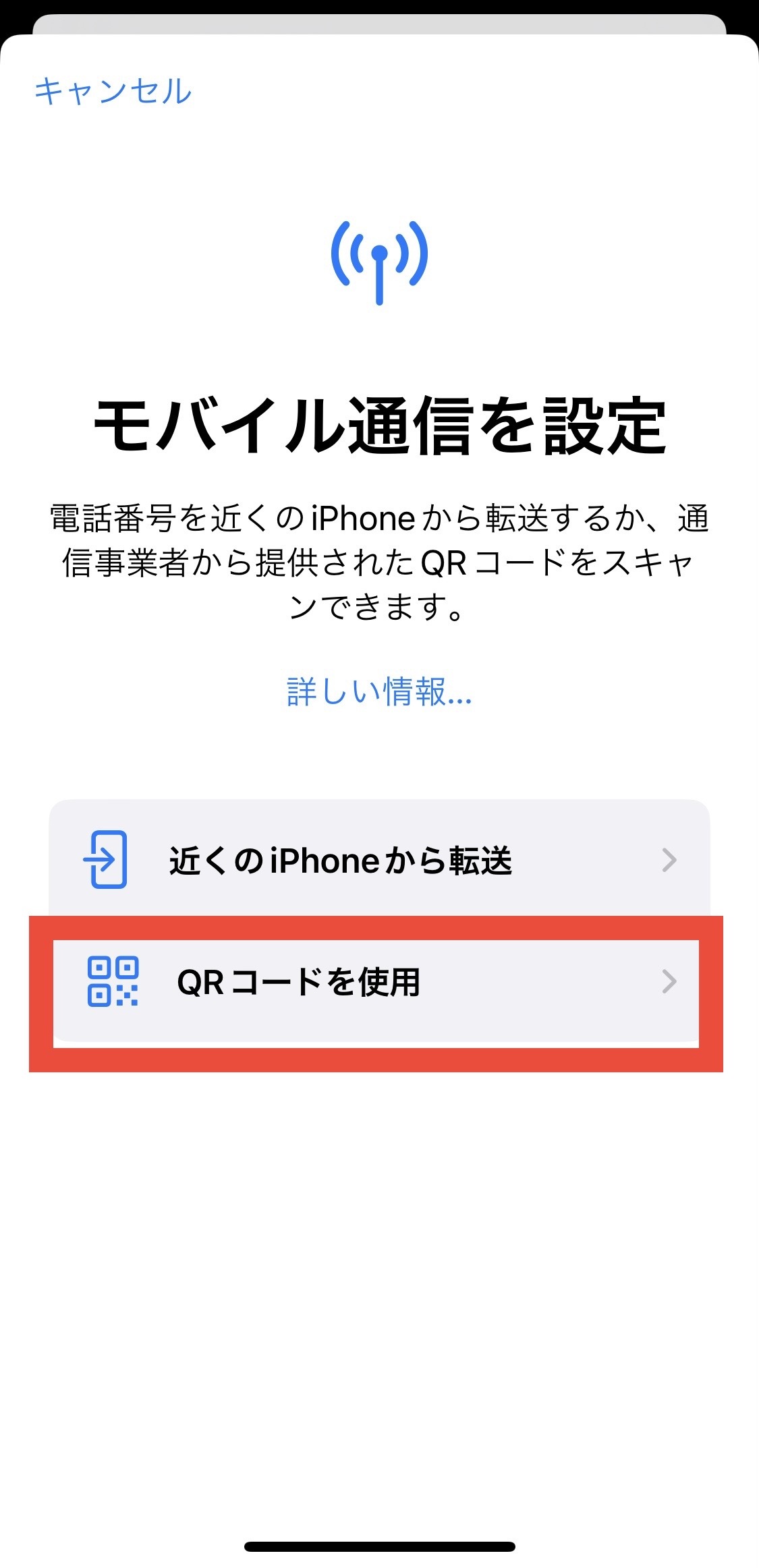
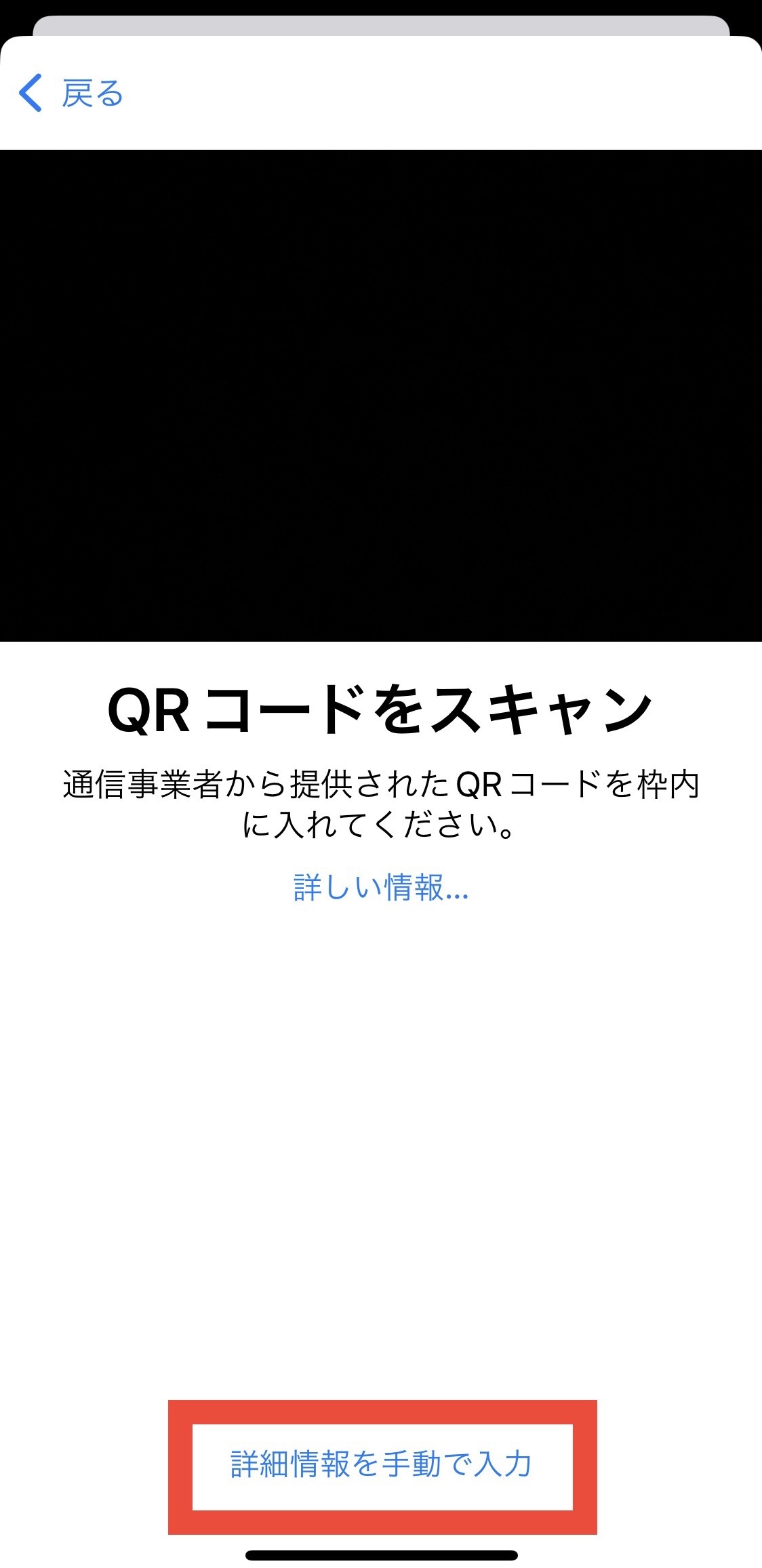
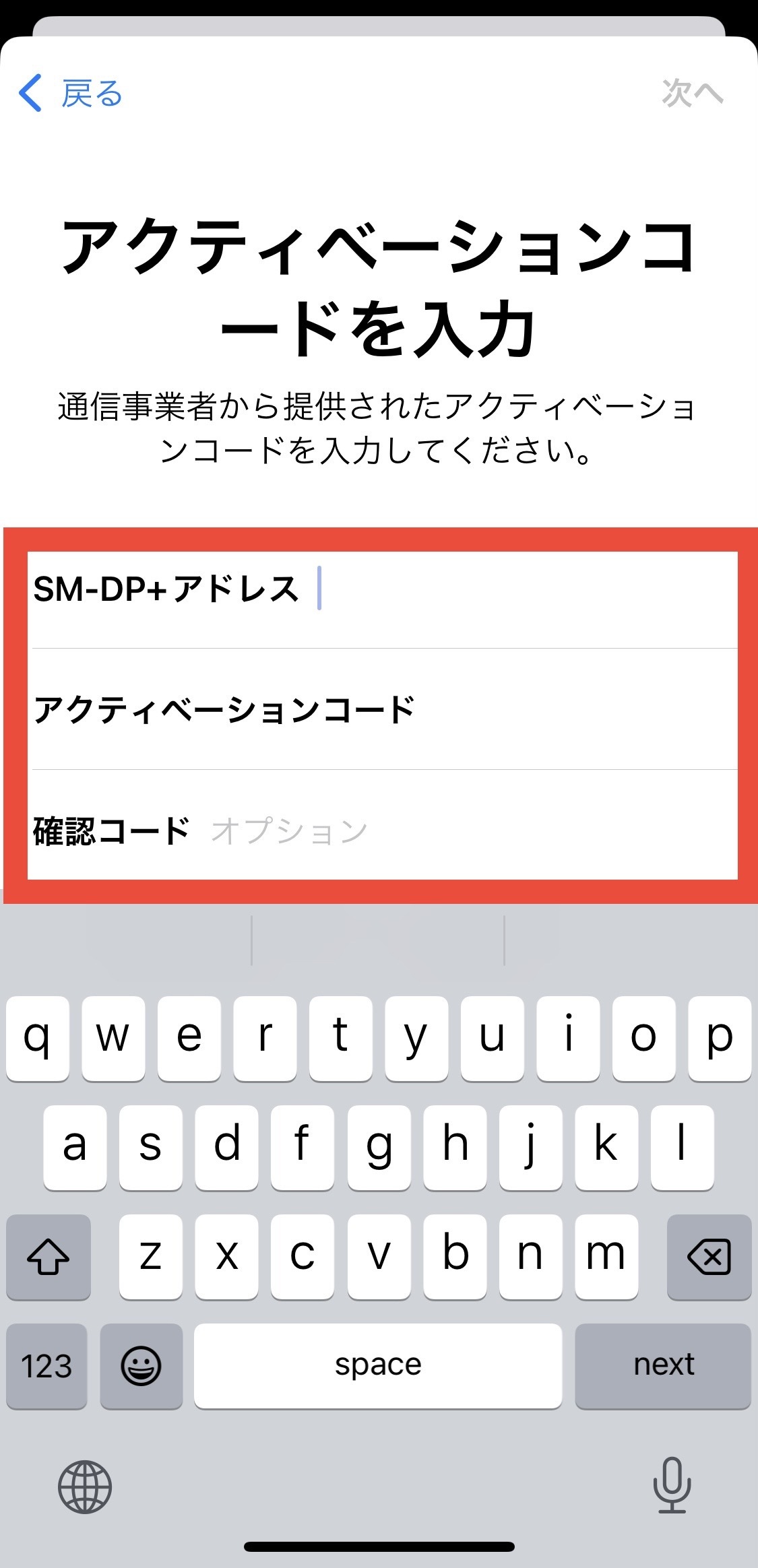
③ Tap “Use QR Code” → “Enter Details Manually.”
SM-DP+ Address: Enter T-MOBILE.GDSB.NET
Do not enter the Activation Code or Confirmation Code. Tap “Next” to continue.
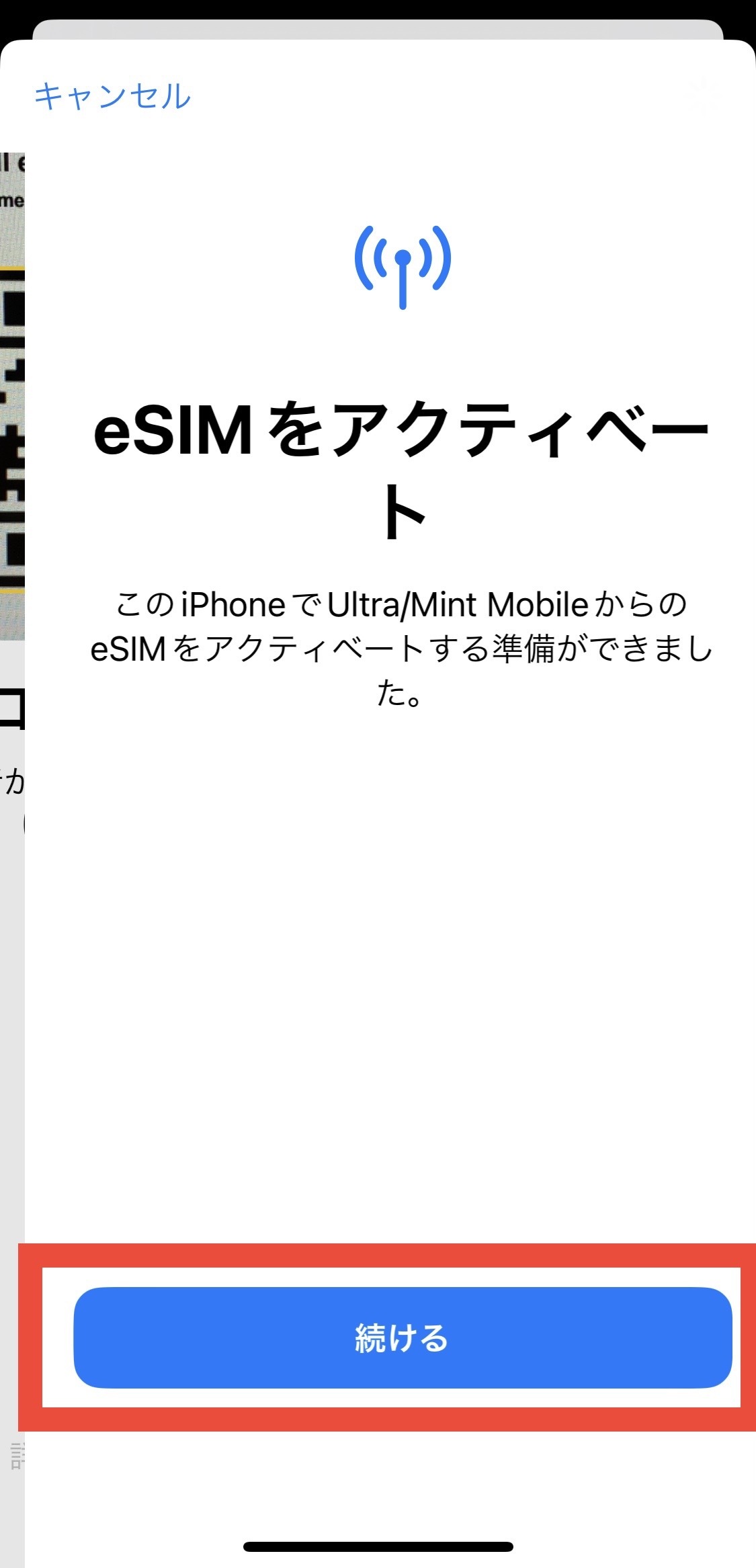
④ When “Activate eSIM” appears, tap “Continue.”
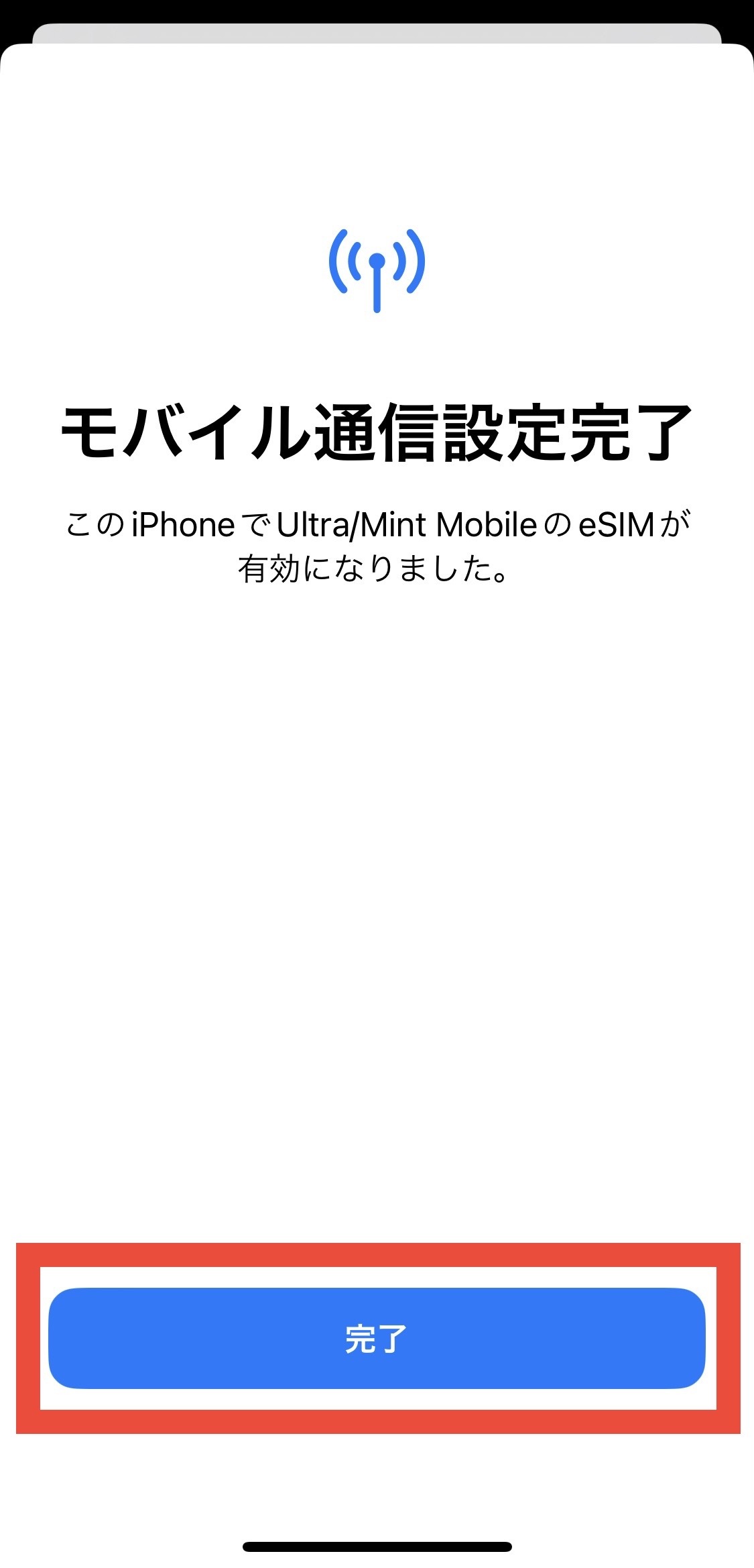
⑤ When “Mobile Service Setup Complete” appears, tap “Done.”
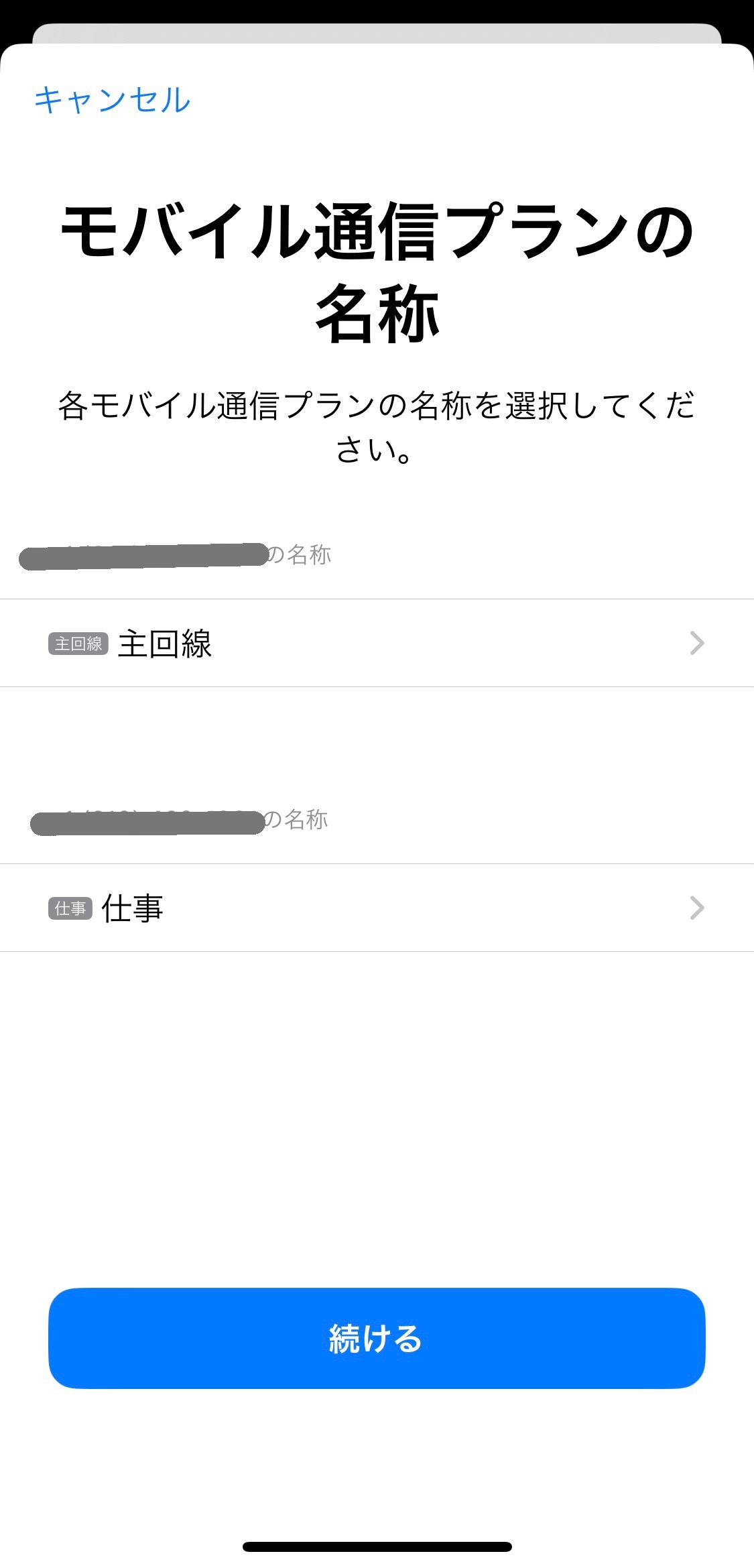
⑥ Set a name for your mobile service plan and tap “Continue.”
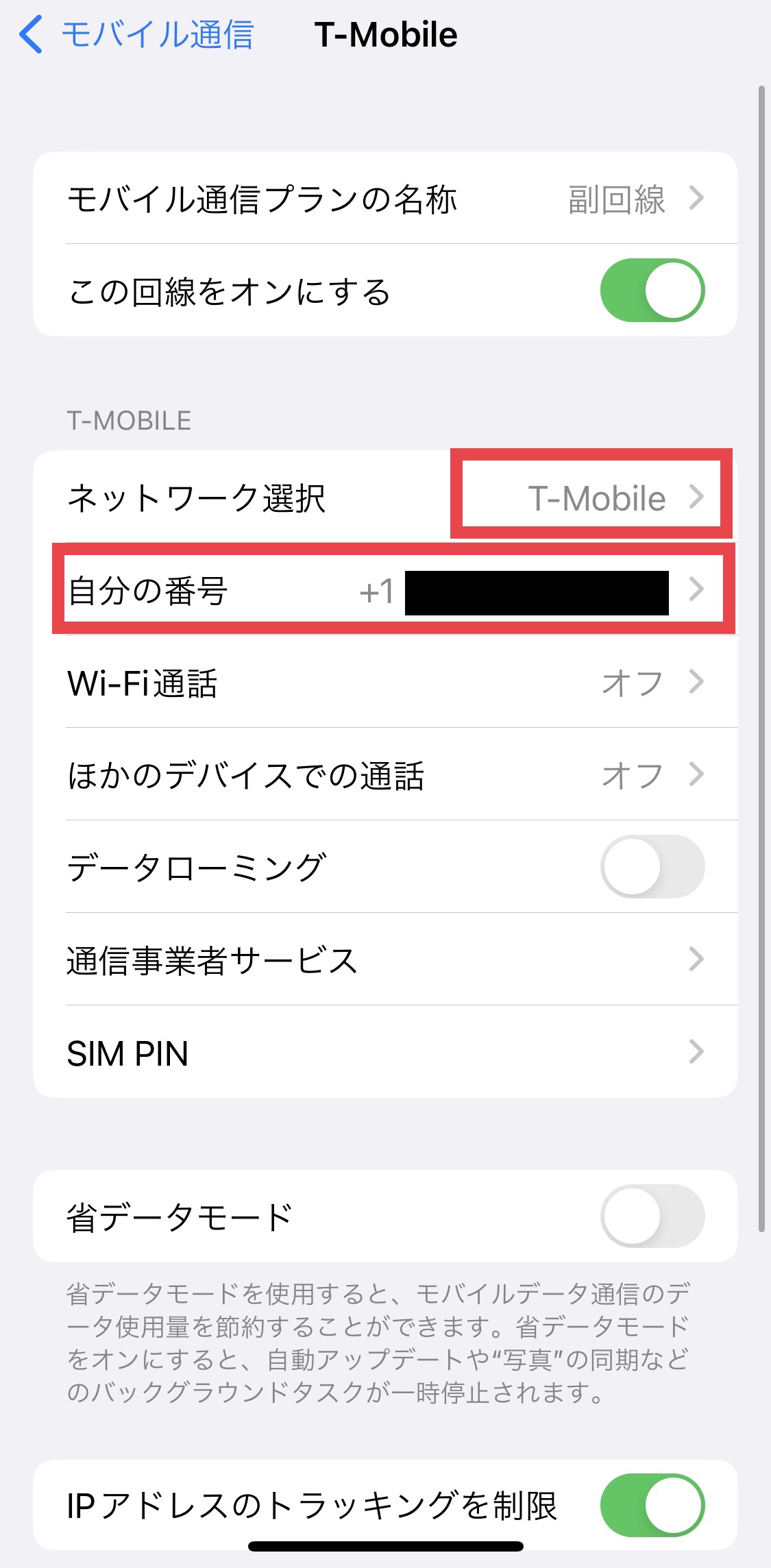
⑦ In the “Mobile Service” section of the “Settings” app, make sure that your phone number is displayed under “SIMs.”
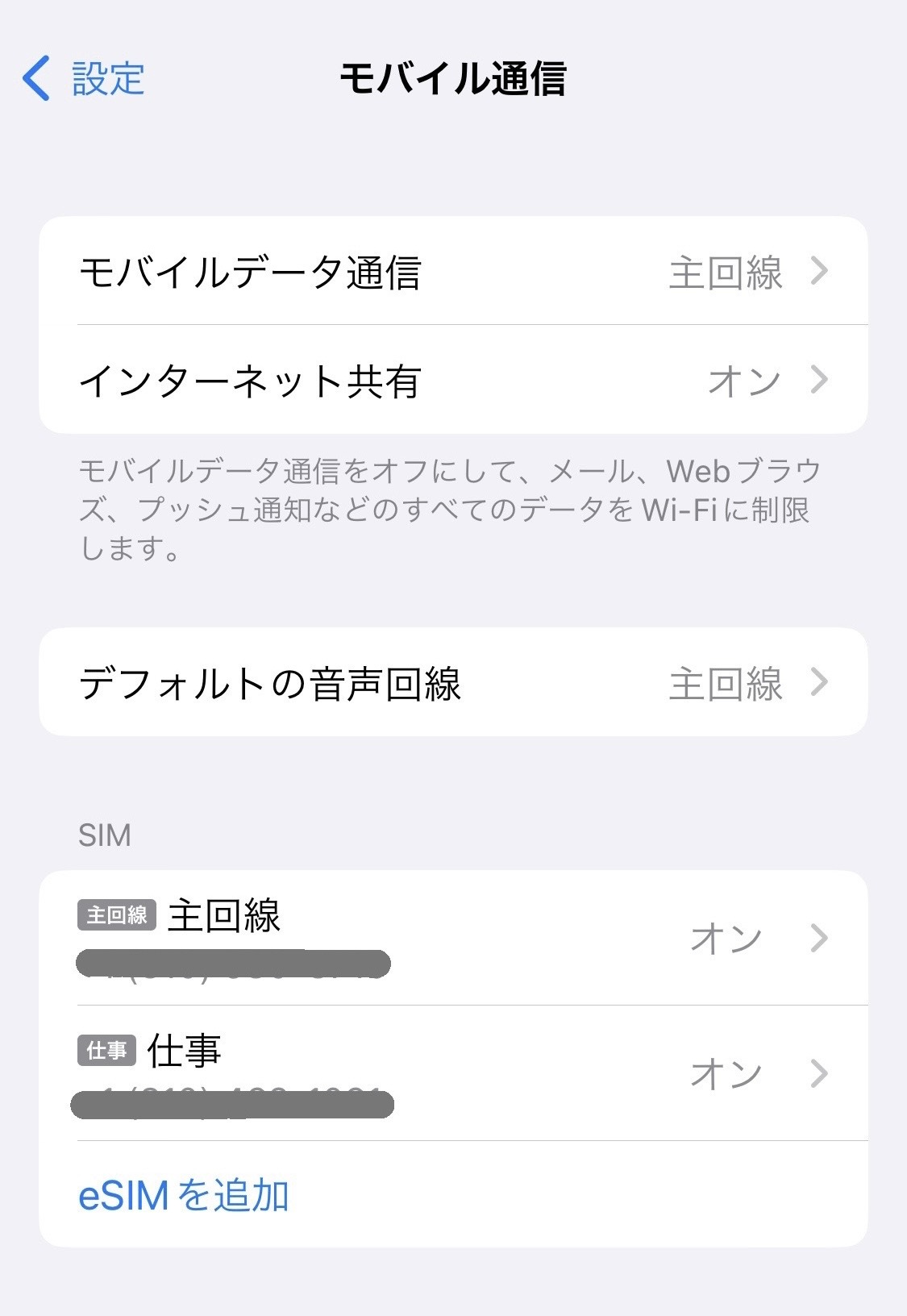
Once you confirm that your device has a cellular signal, the eSIM activation is complete.
=====================
Troubleshooting: If you are unable to add the eSIM
・Try adding the eSIM while connected to Wi-Fi.
・ Check for a carrier settings update and make sure your iPhone is updated to the latest version of iOS.
・ Turn Airplane Mode on for about 30 seconds, then turn it off again.
・ Reset your network settings.
“Settings” → “General” → “Transfer or Reset iPhone” → “Reset” → “Reset Network Settings”
※Please note that resetting your network settings will remove your saved Wi-Fi settings.
・ Turn off any VPN or antivirus/security apps (such as Norton).
View detail 0 0 -
To use your existing smartphone with UNIVERSAL Mobile, your device must meet both of the following requirements: ① the device must support the required frequencies, and ② the device must be SIM-unlocked (or have the SIM lock removed).
1. Your device must be SIM-free or SIM-unlocked
How to check whether your smartphone is SIM-unlocked
〈 iPhone 〉
Go to “Settings” → “General” → “About” → scroll down to “Carrier Lock.” If it says “No SIM restrictions,” your iPhone is SIM-unlocked.
〈 Android 〉
Go to “Settings” → “About phone” → “SIM card status.” If the status shows “Allowed,” your device is SIM-unlocked.
※The menu names and display may vary depending on your smartphone model and software version.
2. Your device must support the required frequencies
Apple iPhones from iPhone 6 and later are compatible with the required frequencies.
For Android devices, please make sure your device supports VoLTE as well as Band 2 and Band 4.
〈Frequency / Band〉
4G / LTE Bands
Band 2 (1900 MHz)
Band 5 (850 MHz)
Band 4 (1700/2100 MHz)
Band 12 (700 MHz)
Band 66 (Extension of Band 4 on 1700/2100 MHz)
Band 71 (600 MHz)
5G Bands
Band n71 (600 MHz)
Band n41 (2.5 GHz)
Band n260 (39 GHz)
Band n261 (28 GHz)
※The more supported frequency bands your device has, the more coverage areas it can access.
※Even if your device supports the frequencies listed above, it cannot be used if it does not support VoLTE.
 Note 1) If you plan to continue using a smartphone purchased from another carrier, please make sure in advance that the SIM unlock process has been completed.
Note 2) Many smartphones manufactured by Japanese electronics companies, including SONY and SHARP, may not support the frequency bands used in the United States. Please check compatibility before using your device.
※Please note that UNIVERSAL Mobile cannot be held responsible for malfunctions or other issues with devices not purchased from us.
※Please note that refunds are not available if you are unable to use the service due to compatibility issues with your smartphone, including supported frequency bands.
If you are unsure whether your smartphone is compatible, please provide the 15-digit IMEI number of your smartphone to the customer support team below.
You can display your IMEI number by dialing [ *#06# ] on your smartphone.
======================
Contact Information:
UNIVERSAL Mobile Customer Support
Email: customer@universalmobile.us
======================
View detail 0 0 -
The "UC" icon displayed next to the 5G signal indicator stands for "5G Ultra Capacity."
This icon appears when you are connected to T-Mobile's Ultra Capacity 5G network, which provides high-performance and top-tier data speeds.
View detail 0 0 -
We send an notification email when payment cannot be processed from your registered credit card due to reasons such as a change in card number, expiration, or insufficient funds.
If you need to update your payment card information, please log in to My Page at the top right of the UNIVERSAL Mobile website and update your details under "Payment Method".
Additionally, if you receive a payment notification email even though your card details and balance are normal, please re-register your card information to update the system.
Log in to My Page
https://universalmobile.us/mypage/login?language=en
 View detail 0 0
 -
You do not need a U.S. address to sign up for a U.S. SIM.
If you are using a physical SIM card (not an eSIM) and would like to have the SIM card delivered to your address in Japan before departing for the United States, please enter your Japanese delivery address when placing your order.
View detail 0 0 -
Unless you manually initialize or reset your device yourself, changing or replacing your SIM card will not delete any data saved on your smartphone.
View detail 1 0 -
◆◆ Please be sure to request SIM activation before your service starts. ◆◆
To request SIM activation, please complete the procedure through My Page, which can be accessed from the upper-right corner of the UNIVERSAL Mobile website.

① Log in to My Page using the email address and password you registered when creating your account.
② Select “Request Activation” and enter or select the required information, phone number transfer information, and optional plans by following the instructions on the screen.
③ Be sure to register your ZIP Code and desired service start date.
※ You may also enter the ZIP Code of your hotel, workplace, or school.
④ After reviewing all the information, if everything is correct, click “Request Activation.”
Once you receive the email with the subject “SIM Activation Request”, your request has been successfully submitted.
Your phone number and instructions for using optional plans will be provided in the“SIM Activation Completed” email on yourdesired service start date (U.S. date).※ Your plan charges will begin on your service start date.
※ If you are transferring your phone number from another carrier, the actual service start date may be earlier or later than your requested date. Please do not cancel your current service until the number transfer has been completed.
※ Japanese mobile phone numbers such as 090 or 080 cannot be transferred to our U.S. SIM.
◆◆ Phone Number Transfer (Number Portability) ◆◆
Before submitting your request, please confirm with your current carrier that all payments for your mobile device have been completed,
and that the SIM lock on your mobile device has been removed.
To transfer your phone number, you will need your current carrier name, account number, and PIN/password.
※ Please contact your current carrier if you need information such as your account number.
During the approximately half-day to 3-business-day period required to complete the number transfer, please continue using your current SIM card.
Once the number transfer is complete, your current SIM card will stop receiving cellular service.
At that time, please replace it with the SIM card we send to you.
As a precaution, we recommend carrying your new SIM card with you after submitting your SIM activation request.
If the information provided is incorrect, or if your previous carrier takes time to approve the transfer, there may be various reasons why the process is delayed.
In some cases, the transfer may not be completed within the expected timeframe.
Therefore, please make your SIM activation request well in advance to allow sufficient time for the process.
======================
Contact:
UNIVERSAL Mobile Customer Support
Email: customer@universalmobile.us
======================
View detail 0 0 -
Once your service start date (U.S. time) arrives, add the eSIM to the smartphone you will be using.
※You cannot set up the eSIM before your service start date.
① Connect to Wi-Fi, then tap [Settings] → [Cellular].
※Please make sure Airplane Mode is turned off.
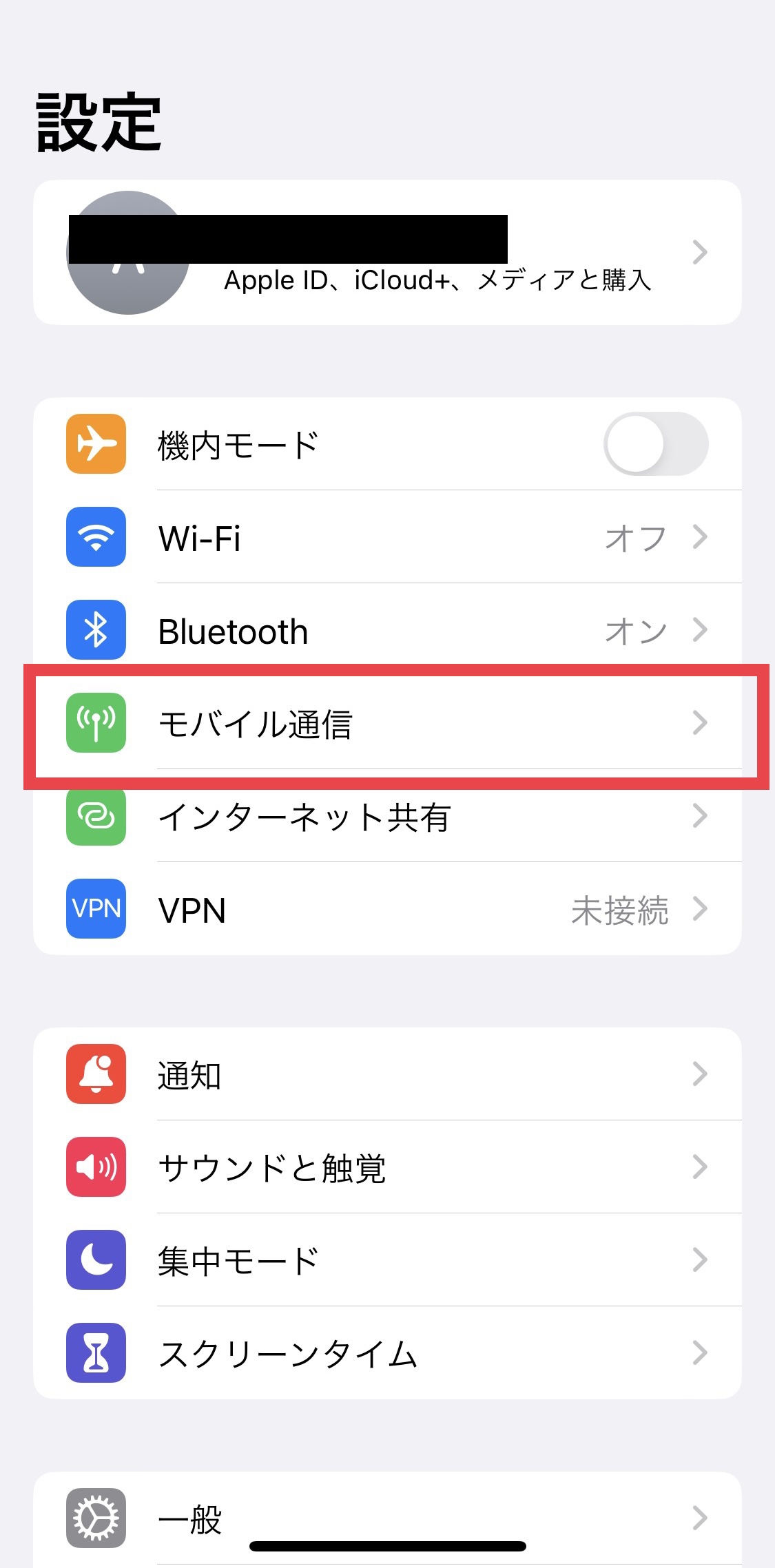
② Tap [Add eSIM].
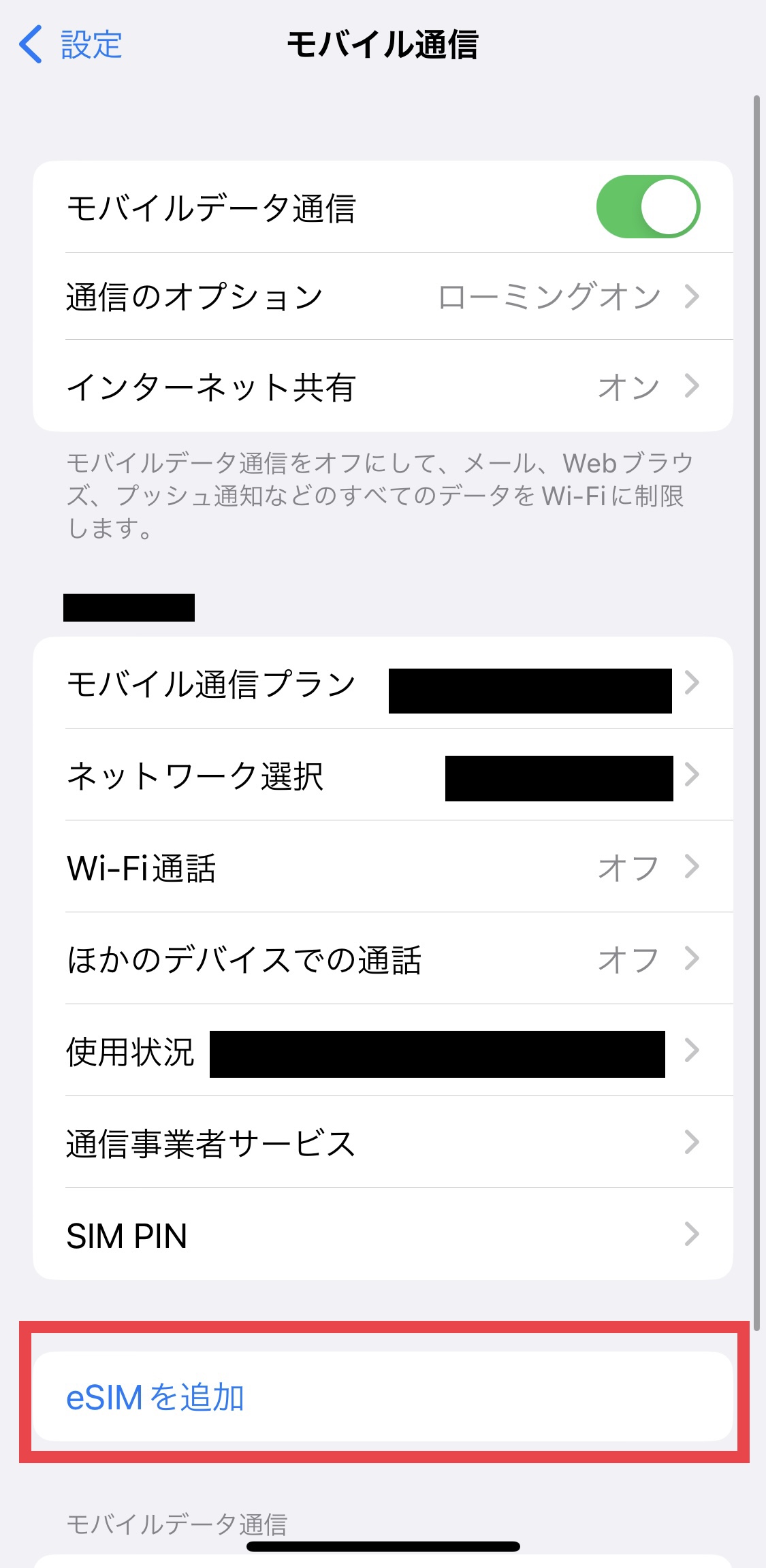
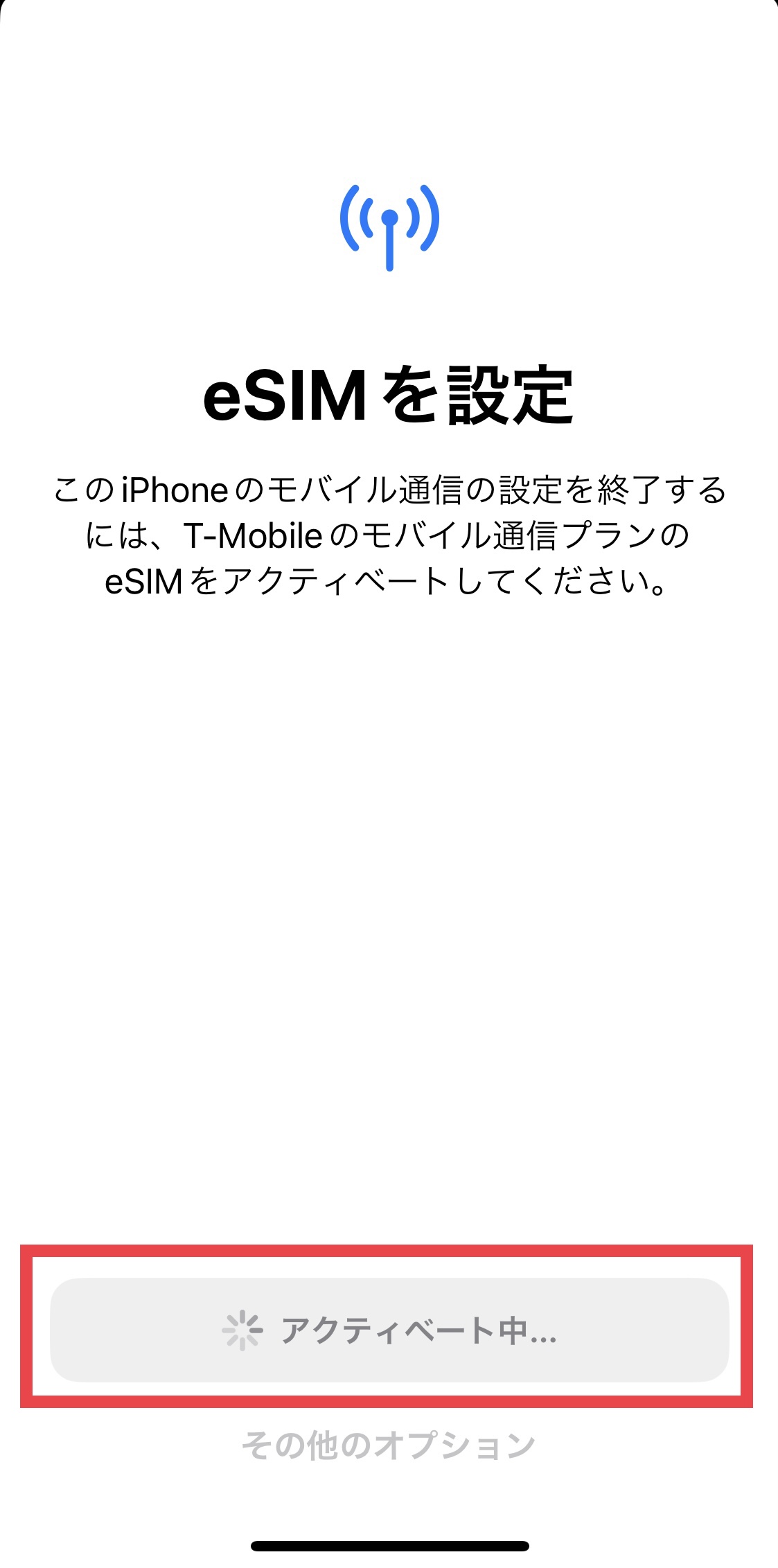
③ Tap [Set Up eSIM].

Setup takes approximately 30 seconds.
Please wait while the screen displays [Activating].
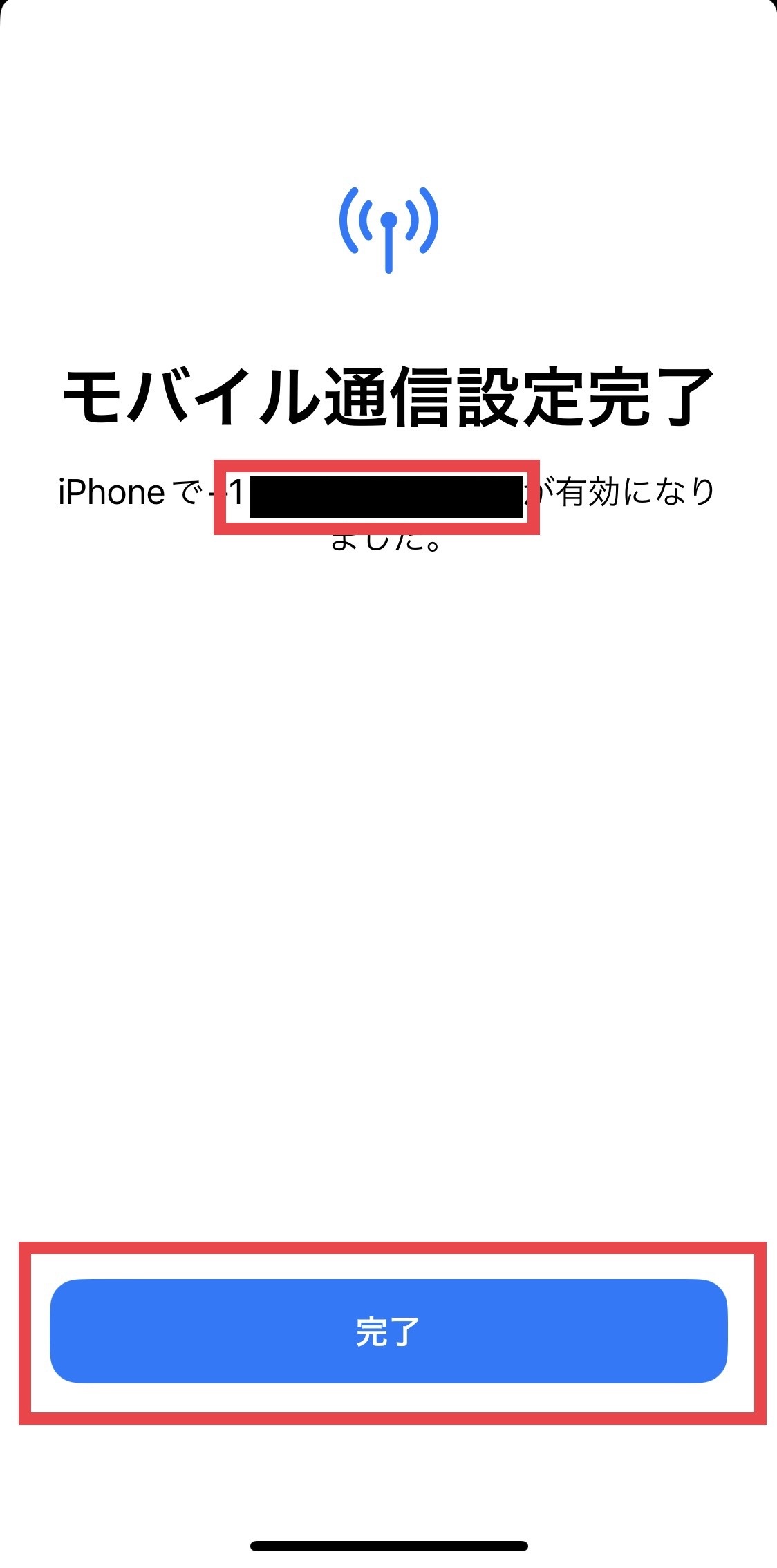
④ The message “Cellular Setup Complete” will be displayed.
The phone number displayed on the screen is your assigned phone number.
Tap [Done] to proceed to the next screen.
⑤ Set a name for your cellular plan.
You can choose any name you like.
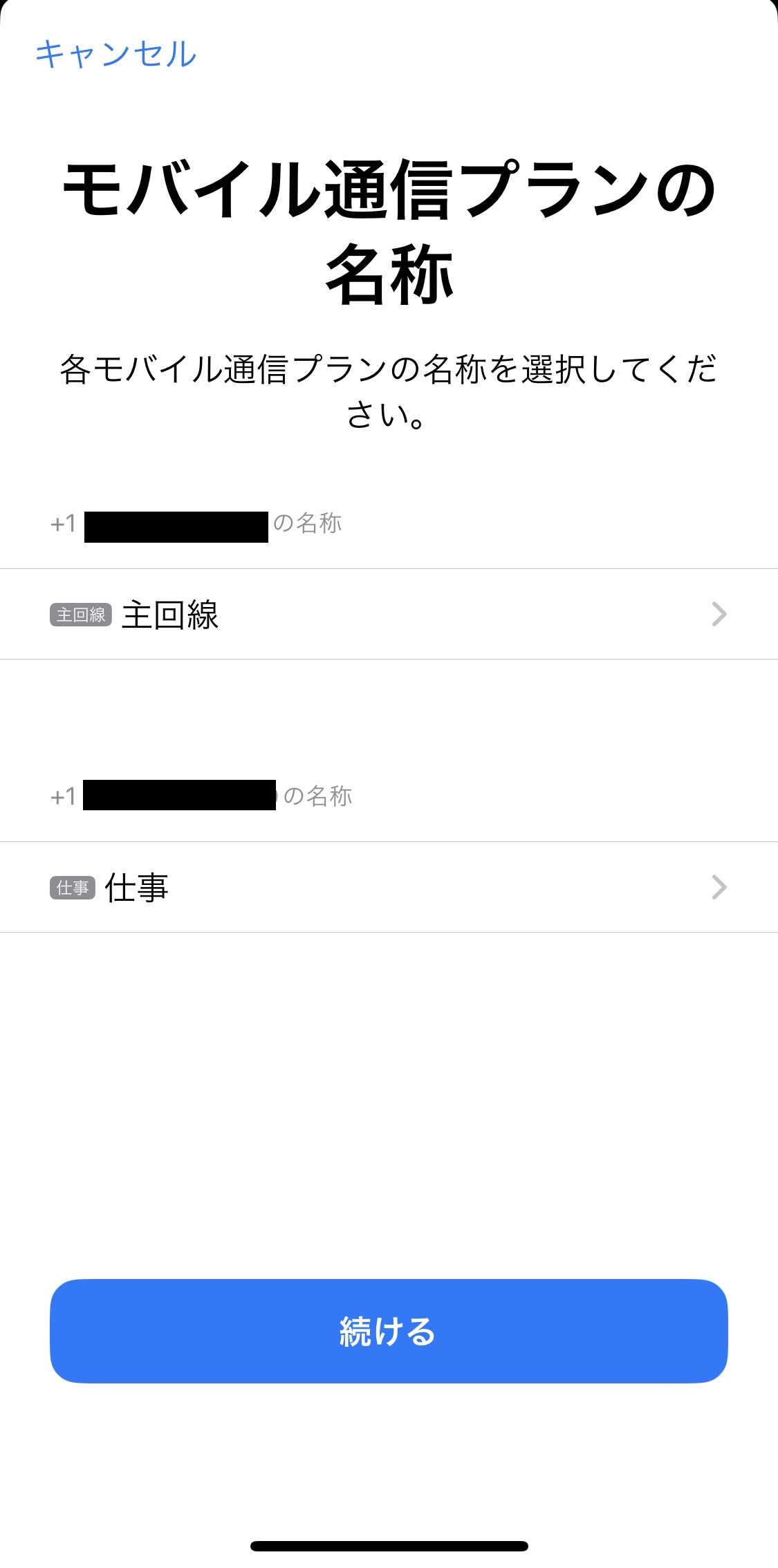
On the next screen, select the newly added eSIM (the plan name you just set) as the default cellular plan.
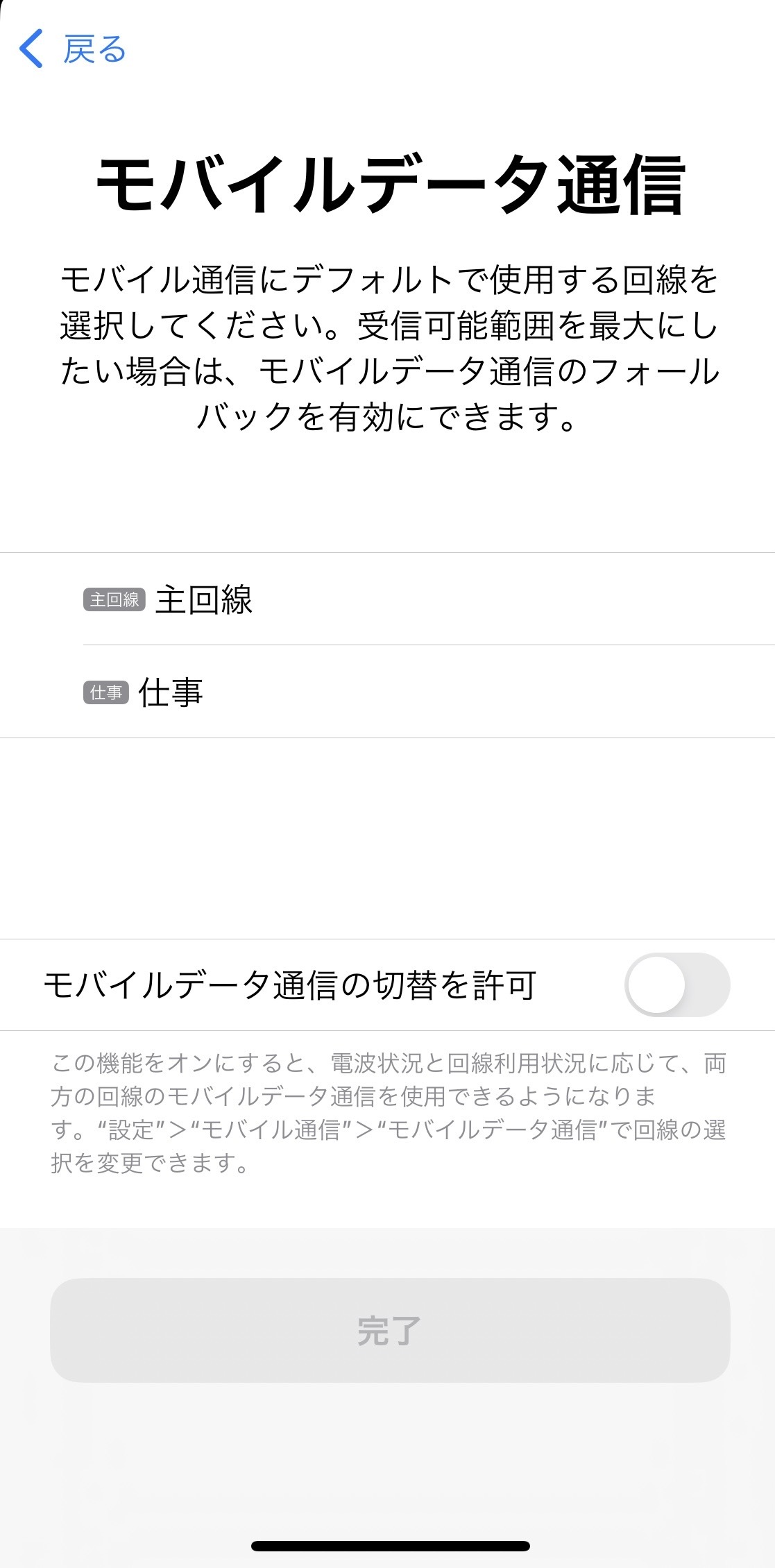
⑥ T-Mobile and your assigned phone number will be added under [Cellular].
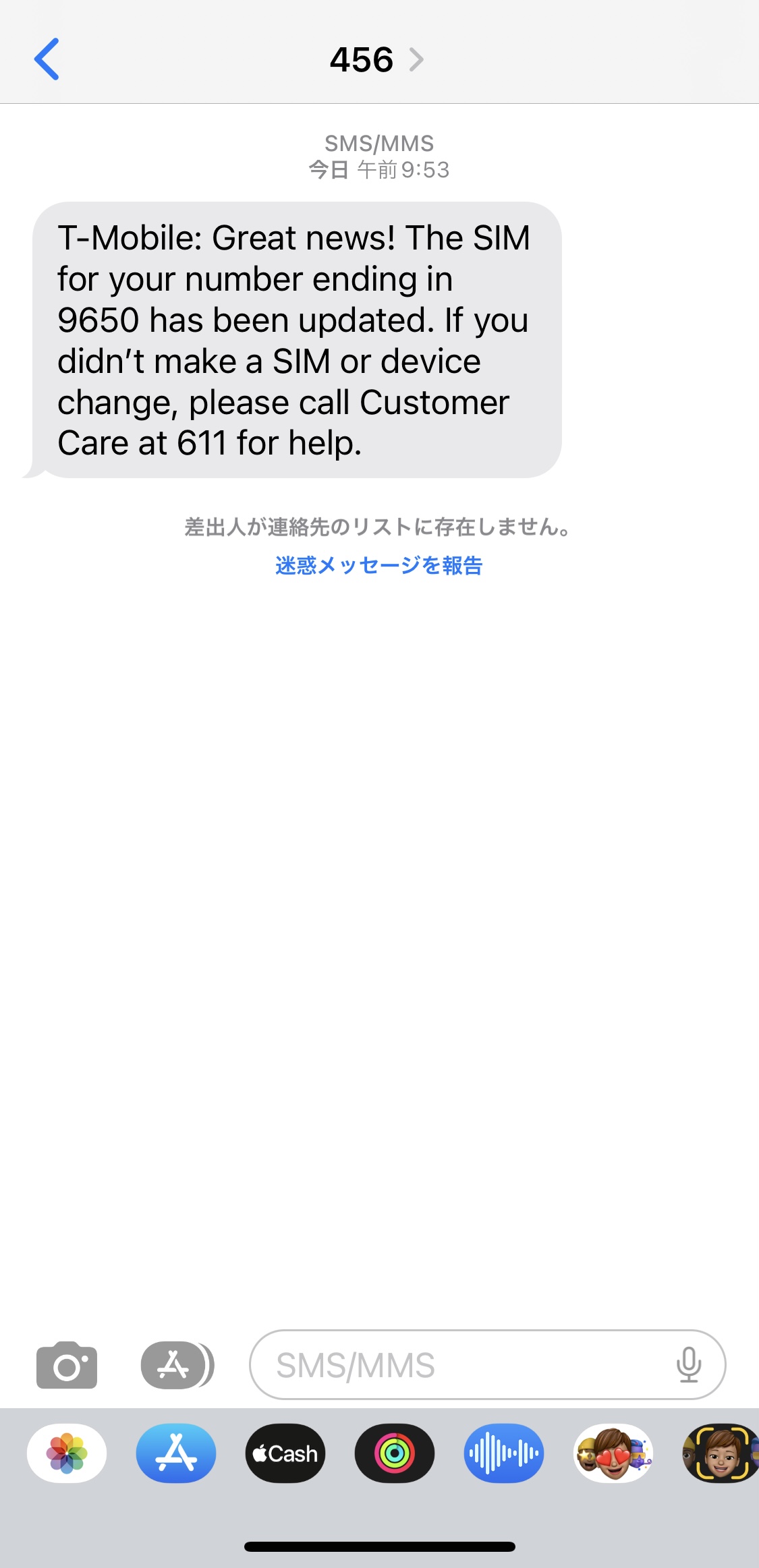
Once the eSIM has been added and set up, you will receive an SMS.
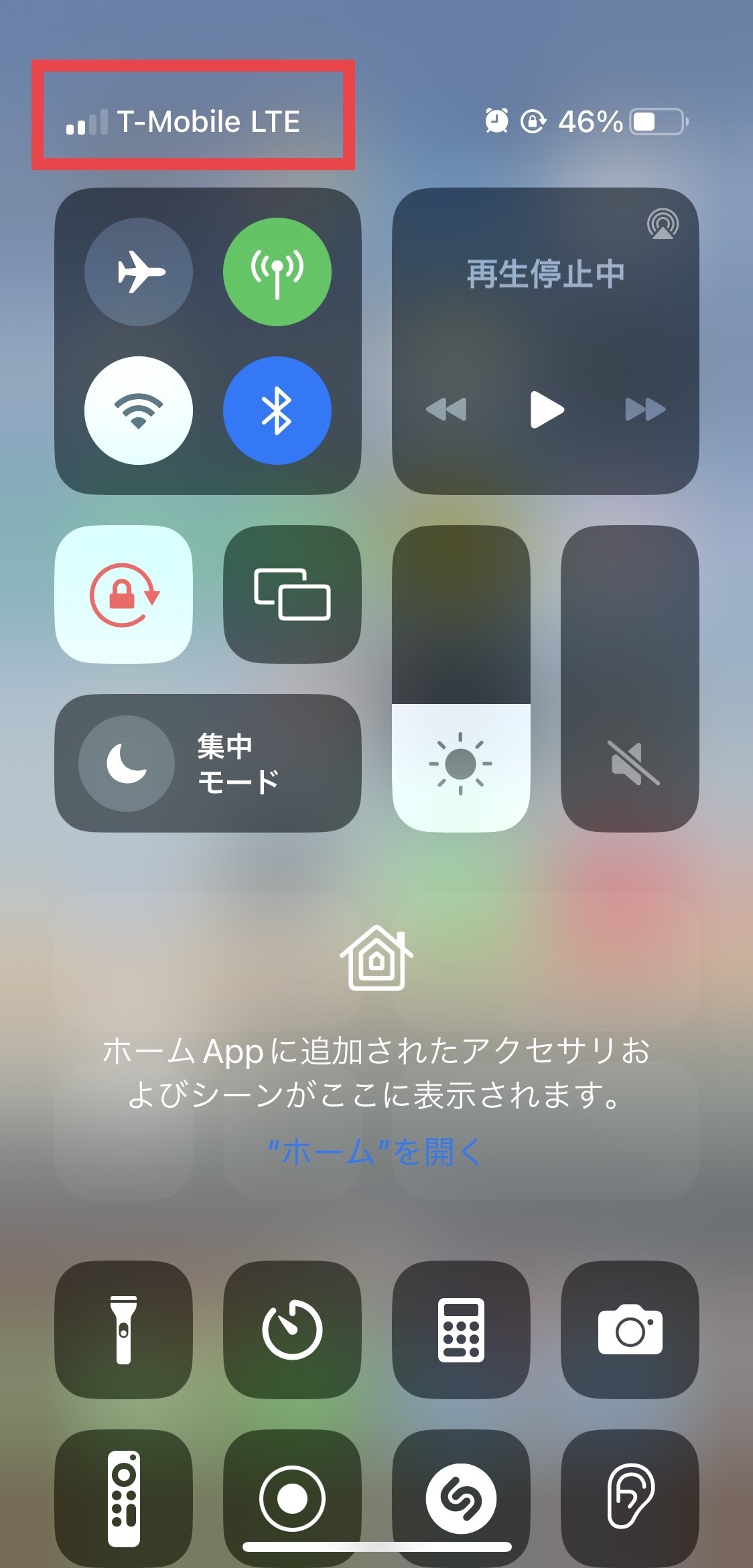
⑦ Check that you have a T-Mobile signal.The eSIM setup is now complete.
=====================
〈How to Check Your Phone Number〉
▼For Android devices
[Settings] → [About Phone] → [Phone Number]
▼For iOS devices (iPhone)
[Settings] → [Phone] → [My Number]
※If your phone number is not displayed, please restart your smartphone.
=====================
〈Troubleshooting: If You Cannot Add the eSIM〉
・Try adding the eSIM after connecting to Wi-Fi.
・Check for any carrier settings updates and update your iPhone to the latest version of iOS.
・Turn Airplane Mode on for about 30 seconds, then turn it off again.
・Reset your network settings.
[Settings] → [General] → [Transfer or Reset iPhone] → [Reset] → [Reset Network Settings]
※Please note that resetting your network settings will also reset your saved Wi-Fi settings.
・Turn off VPNs and antivirus/security software (such as Norton).
View detail 0 0 -
To change your monthly SIM plan or optional plan, please contact Customer Support and provide the following information:
● Account holder's name
● Phone number
● Requested plan change
● Effective date (immediately or starting on the 11th)
======================
Contact:
UNIVERSAL Mobile Customer Support
Email: customer@universalmobile.us
======================
Note 1) UNIVERSAL Mobile's billing cycle closes on the 10th of each month. Monthly base charges for the period from the 11th through the 10th of the following month are billed in advance.
The new plan will take effect on the 11th.
Example:
・Request date: August 5
・Plan change effective date: August 11
・Plan change: From the $45/month Business Plan to the $60/month Premier Plan
・Additional charge: None
Note 2) For same-day monthly SIM plan changes or additions of optional plans, the following charges will be added to your next bill.
■ Monthly plan change: The prorated cost of the new SIM plan from the effective date through the billing cycle closing date (the 10th)
Example:
・Request date: August 5
・Plan change effective date: August 5
・Plan change: From the $45/month Business Plan to the $60/month Premier Plan
・Additional charge: $12.00 (6 days × prorated daily rate of $2 for the $60/month Premier Plan)
■ Optional plans: The full monthly cost of the optional plan will be charged.
Example:
・Request date: August 5
・Plan change effective date: August 5
・Plan change: Add Japan Calling
・Additional charge: $15.00 (Optional plans are not prorated, so the full monthly fee will be charged.)
Note 3) Monthly SIM plan change fee: $20.00
Note 4) Customers currently using a legacy SIM plan, legacy rate, or special rate cannot return to their previous plan or rate once they change plans.
Note 5) Customers currently using an optional plan at a legacy rate cannot re-enroll at the same legacy rate after canceling the optional plan.
Note 6) If you wish to change your plan again, you must wait until at least 30 days have passed since your previous plan change.
Note 7) The $60/month Premier Plan requires a dedicated SIM card or eSIM. When changing to or from this plan, you will need to replace your physical SIM card or switch your eSIM.
Note 8) If you wish to switch to the $60 Premier Plan, or from the $60 Premier Plan to the $45, $35, or $15 plans, the plan change cannot be processed while you are outside the United States.
※
View detail 0 0 -
How you can use the service depends on your plan.
********************************************
For customers on the following plans
● $45/month Business Plan
● $30/month Lite Plan
● $15/month Minimum Plan
⇒ Available via Wi-Fi Calling and Wi-Fi data.
********************************************
For customers on the following plan
● $60/month Premium Plan
⇒ Available via Wi-Fi Calling, Wi-Fi data, or international roaming.
〈 What is International Roaming? 〉
International roaming allows you to connect to a local mobile network in the country you are visiting without needing a Wi-Fi router.
You will be charged only for the services you use, based on the applicable rates in the country you are visiting.
※ International roaming charges will appear as “Usage Charges” on the bill for the month following your usage.
※ International roaming is available only with the $60/month Premium Plan.
For questions about your plan, please contact Customer Support .
● International Roaming Rates in Japan
・Data - Unlimited ※ Speeds are limited to 2G
・SMS - Unlimited
・Calls - $0.25/minute ※ Charges apply to both outgoing and incoming calls, as well as optional services.
● Please check the international roaming rates for each country .
〈 How to Use International Roaming 〉
International roaming is available only with the Premium Plan (dedicated SIM card).
Please contact Customer Support if you have questions about your plan.
〈 Smartphone Settings 〉
Configure your smartphone as follows.
〈 iPhone 〉
【1】Turn on Data Roaming
Open the Settings app
Tap Cellular
Tap Cellular Data Options
Turn Data Roaming on
→ When the switch is green, it is enabled.
【2】Turn on Voice Roaming (if needed)
In Cellular Data Options, turn on Voice Roaming.
→ This is required if you want to make and receive calls while abroad.
〈 Troubleshooting International Roaming Issues 〉
1. Turn Airplane Mode on for about 30 seconds, then turn it off again.
Your smartphone will automatically select the best available network.
2. If the date and time are incorrect after arriving at your destination, go to Settings > General > Date & Time and make sure Set Automatically is turned on.
3. Turn off Automatic under Network Selection.
Available networks will appear after a short wait. This may take about 2 minutes.
Return to the main Settings screen and wait for your smartphone to connect to the appropriate network.
If the issue persists, please contact UNIVERSAL Mobile Customer Support and provide the following information:
your current country/area and your smartphone make and model.
********************************************Contact Information:
UNIVERSAL Mobile Customer Support
Email: customer@universalmobile.us
********************************************〈 Other Ways to Use the Service Outside the United States 〉
・Use UNIVERSAL Mobile's Pocket Wi-Fi Rental Service .
・Purchase a local SIM plan.
・Connect to local Wi-Fi.
View detail 0 0 - SIM / eSIM Number Transfer Last updated: January 11, 2022
About Number Portability (MNP)
Your US phone number can be transferred to UNIVERSAL Mobile through number portability (MNP), so you can keep using the same number.
? Information Required for Transfer
- Your current carrier name
- Account number
- Password or PIN number (Transfer PIN)
⚠️ Transfer is not possible if the phone line is inactive or if the number is a non-US phone number.
【Transfer Process】
↓②Request SIM Activation
During activation, enter your account number and PIN in the required fields.↓③Number transfer on your requested start date
UNIVERSAL Mobile will process the number transfer on your desired activation date.
You will receive a 「SIM Activation Complete」 email when the process is done.↓④Insert the UNIVERSAL Mobile SIM and restart your device
After the transfer is fully complete, cancel your previous carrier contract.⚠️ Important Notes
- Transfer will fail if your current contract is cancelled, deactivated, or if a prepaid plan has expired before the transfer is complete.
- Due to incorrect information or delays from the previous carrier, the transfer may not complete on the expected date. Please allow extra time when requesting number transfer.
- Japanese phone numbers cannot be transferred through this process.
- Prepaid contract holders may experience longer transfer times. In rare cases, a transfer may be denied and a new number will be assigned instead.
- If you are using a device purchased from another carrier, please confirm that the SIM lock has been removed before proceeding.
? Contact Us
For questions, please contact us at customer@universalmobile.us.
View detail 0 0 -
The SIM activation process is fully completed once your device connects to the network in the United States.
Therefore, even if your SIM is activated in Japan before your departure, your service will not work while you are still in Japan.
*Please restart your phone after arriving in the United States to begin using your service.
If you experience any issues connecting to the network or using your service after arriving in the U.S., please contact Customer Support.
======================
Contact Information:
UNIVERSAL Mobile Customer Support
Email: customer@universalmobile.us
======================
View detail 0 0 -
• For iPhone Users
Setting Up Visual Voicemail on iPhone
1. Open the Phone app and tap "Voicemail".
2. Enter your default password. The default password is the last four digits of your phone number.
3. Create a new password to complete the setup.
• For Android Users
1. Press and hold "1", or dial "123" to connect to Voicemail.
2. If prompted for a password, enter the last four digits of your phone number as the default password.
3. Create a new password to complete the setup.
• Voicemail Main Menu
1 - Listen to messages
2 - Send a message
3 - Create a greeting
4 - Mailbox options
5 - Password security
0 - Help
• How to Reset Your Password
1. Open the keypad in the Phone app, enter "#793#", and press the Call button.
2. Once the message “Your Voicemail Password has been reset to the last 4 digits of your mobile number.” appears on your screen, the reset is complete.
View detail 0 0 -
◆ Tethering (Personal Hotspot) is a feature that allows you to use your smartphone as a Wi-Fi access point to connect devices such as computers and gaming consoles to the internet.
◇ Please turn ON the tethering (Personal Hotspot) setting on your mobile device to use this service.
◇ No application or registration is required.
◇ Please check in advance, as tethering may not be supported depending on your device model.
◇ High-speed 4G LTE tethering data allowances vary depending on your plan.
• $15/month Plan ⇒ Up to 2GB of 4G LTE tethering
• $30/month Plan ⇒ Up to 2GB of 4G LTE tethering
• $45/month Plan ⇒ Up to 6GB of 4G LTE tethering
• $60/month Plan ⇒ Up to 10GB of 4G LTE tethering
*Once the 4G LTE tethering data limit above is exceeded, tethering will remain available at reduced speeds up to 2G.
View detail 0 0 -
If your item does not meet your expectations, we accept returns and exchanges within 14 days of your agreement date.
Please contact Customer Support (customer@universalmobile.us) with the reason for your return.
We will reply with details on how to proceed with the request.
*Please note that we cannot accept returns or exchanges due to customer preference.
*Service charges already incurred (monthly base plan fees, talk charges, SMS charges, and data charges) are non-refundable.
Additionally, please note that the plan fee for the first month will not be prorated.
*We may decline returns or exchanges in the event of customer-inflicted damage or missing accessories.
View detail 0 0 -
If your mobile phone is lost or stolen, you will need to suspend your SIM card and request a replacement.
Please contact Customer Support with the following information:
• Account Holder Name
• Lost or Stolen Phone Number
• Shipping Address for Replacement SIM Card
======================
Contact Us:
UNIVERSAL Mobile Customer Support
Email: customer@universalmobile.us
======================
*Please note that once a SIM card is suspended, it becomes permanently deactivated and cannot be reused even if found.
*SIM replacement fee: $20
View detail 0 0 -
Pocket WiFi User Guide
Troubleshooting Connection Issues
- Restart the Pocket WiFi and the device you want to connect.
- Try reducing the number of connected devices.
- Wait for a while and try connecting again.
- Check whether the WiFi setting on the device you want to connect has been accidentally turned off.
View detail 0 0 -
Charges will begin on your service start date.
Billing Information
※ Invoices are issued on the 10th of each month, and payment is automatically withdrawn around the 15th business day.
※ Payment is automatically charged to your credit or debit card.
※ The monthly base fee is billed in advance (for the period from the 11th through the 10th of the following month).
※ For your first month, a prorated charge from the completion of activation (your service start date) through the 10th will be added to your bill.
Initial Billing Details
・ Prorated monthly base fee from the completion of activation through the 10th 【Partial Charge】
・ Monthly base fee for the following month 【Monthly Recurring Charge】
・ Prorated optional plan fee from the completion of activation through the 10th
・ Optional plan fee for the following month
・ TAX 【Taxes & Surcharges】Approximately $4 (※The amount may vary slightly each month depending on the exchange rate.)
・ Line usage fee 【Other Charges】Approximately $5–6 (※The amount may vary slightly each month depending on the exchange rate.)
・ Activation fee $35 【Activation Fee】
・ Other charges, such as call charges 【Usage Charges】
Subsequent Billing
・ Monthly base fee 【Monthly Recurring Charges】
・ Optional plan fee
・ TAX 【Taxes & Surcharges】Approximately $4 (※The amount may vary slightly each month depending on the exchange rate.)
・ Line usage fee 【Other Charges】Approximately $5–6 (※The amount may vary slightly each month depending on the exchange rate.)
・ Other charges, such as call charges 【Usage Charges】
For information about initial fees, click here .
View detail 0 0 -
About eSIM
eSIM (Embedded SIM) is a digital SIM built into devices such as smartphones and tablets, eliminating the need for a physical SIM card.
Instead of replacing a physical SIM card, you can download a profile containing your mobile service information directly to your device and connect to a carrier's network.View detail 0 0 -
International calls can only be made if you are subscribed to an applicable optional calling plan.
********************************************
For customers subscribed to the $60/month Premium Plan
● $60/month Premium Plan*1
*1) Available only to customers using the Premium Plan with the dedicated SIM card (pink SIM card).
----------------------------------------------
〈 Special International Calling Rates (Optional Plan) 〉
Option fee: $20.00/month
This option allows you to make international calls at special international calling rates.
※ Available on a monthly basis.
● International calls to Japanese phone numbers
Landlines - Unlimited
Mobile phones - $0.07 / minute
To subscribe to the Special International Calling Rates option, please contact Customer Support.
********************************************
For customers subscribed to the following plans
● $45/month Business Plan
● $30/month Lite Plan
● $15/month Minimum Plan
● $60/month Premium Plan*2
⇒You can only make calls to Japanese landline and mobile numbers if you are subscribed to the Japan Call option.
*2) Customers using the Premium Plan with the SIM card provided before the SIM card change.
----------------------------------------------
〈 Japan Call (Optional Plan) 〉
Option fee: $15.00/month
This optional plan provides unlimited calls to Japanese landline and mobile numbers.
※ Available on a monthly basis.
● International calls to Japan
Landlines - Unlimited
Mobile phones - Unlimited
To subscribe to Japan Call, please contact Customer Support.
----------------------------------------------
Contact Us:
UNIVERSAL Mobile Customer Support
Email: customer@universalmobile.us
View detail 0 0 -
Wi-Fi Calling is a feature that allows you to make phone calls and send SMS over a Wi-Fi network.
With Wi-Fi Calling, you can make/receive calls and send/receive text messages even in areas with weak coverage, outside service areas, or outside the U.S.
● No separate plan application required
● No extra charge for using the Wi-Fi Calling feature (Note 1)(Note 2)
(Note 1) For Premier Plan (T-Mobile), calling charges of $0.25/min apply for each call (outgoing/incoming).
(Note 1) For Premier Plan (Verizon), Wi-Fi Calling is not available.
(Note 2) For Minimum Plan, calling charges of $0.25/min apply for each call (outgoing/incoming).
==============================
■ Making / Receiving calls to/from U.S. phone numbers
・$60/mo Premier Plan ⇒ Yes (Note 1)
・$45/mo Business ⇒ Yes
・$30/mo Lite Plan ⇒ Yes
・$15/mo Minimum Plan ⇒ Yes (Note 2)
■ Sending / Receiving SMS to/from U.S. phone numbers
・$60/mo Premier Plan ⇒ Yes
・$45/mo Business ⇒ Yes
・$30/mo Lite Plan ⇒ Yes
・$15/mo Minimum Plan ⇒ Yes
【 When using the Wi-Fi Calling feature in Japan 】
■ Making calls to Japanese phone numbers (Japan Call)
・$60/mo Premier Plan ⇒ Yes (Note 1)
・$45/mo Business ⇒ Yes
・$30/mo Lite Plan ⇒ Yes
・$15/mo Minimum Plan ⇒ Yes (Note 2)
■ Receiving calls from Japanese phone numbers
・$60/mo Premier Plan ⇒ Yes (Note 1)
・$45/mo Business ⇒ Yes
・$30/mo Lite Plan ⇒ Yes
・$15/mo Minimum Plan ⇒ Yes (Note 2)
■ Sending / Receiving SMS to/from Japanese phone numbers
・$60/mo Premier Plan ⇒ Yes
・$45/mo Business ⇒ Yes
・$30/mo Lite Plan ⇒ Yes
・$15/mo Minimum Plan ⇒ Yes
==============================
< Smartphone Setup Instructions >
iPhone
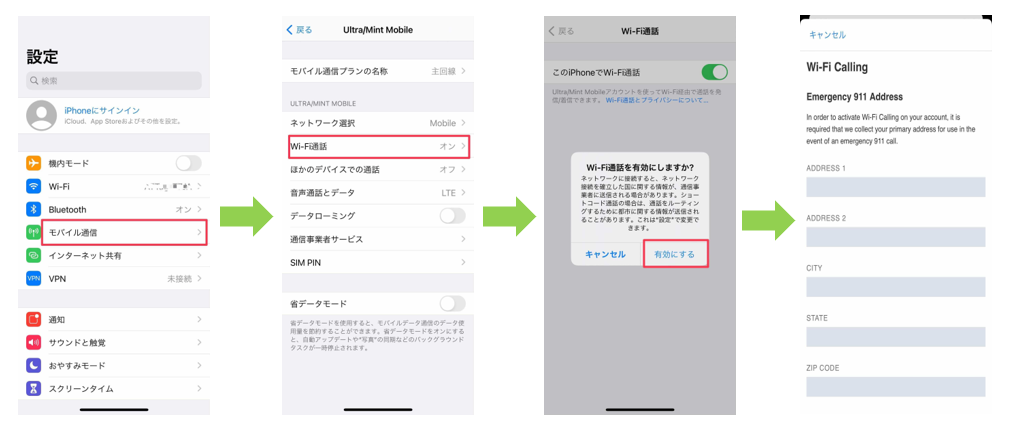
Settings > Cellular > Wi-Fi Calling > On > Enable > Register Emergency 911 Address
*Please register a U.S. address for the Emergency 911 Address
*When using the Wi-Fi Calling feature, please set Data Roaming to OFF
Android
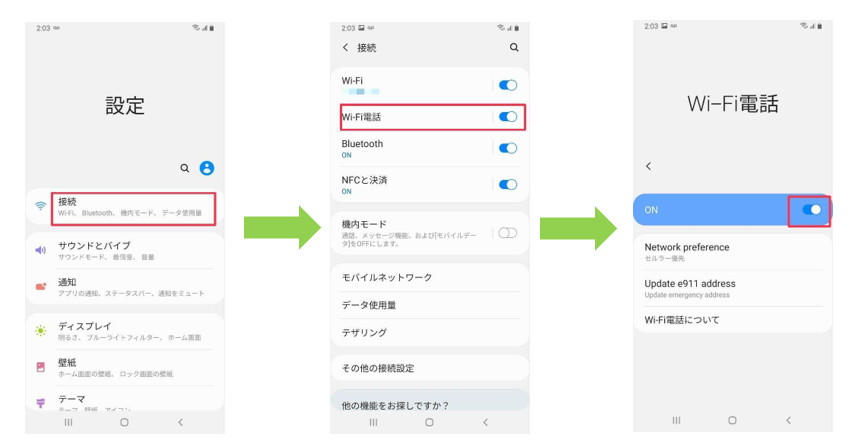
Settings > Connections > Wi-Fi Calling > On > Register Emergency 911 Address
*Please register a U.S. address for the Emergency 911 Address
*Depending on the smartphone model, you may not be able to register this Emergency 911 Address. If you cannot use the Wi-Fi Calling feature due to registration issues, please contact UNIVERSAL Mobile Customer Support.
*Menu options may differ depending on your smartphone model.
*When using the Wi-Fi Calling feature, please set Data Roaming to OFF
==============================
About UNIVERSAL Mobile Pocket Wi-Fi Rental!
● Available in over 120 countries worldwide, including Japan, Canada, and Mexico.
● Affordable rental rates starting from $5/day.
■ Click here to check details on Pocket Wi-Fi rentals for over 120 countries worldwide.
=========================
Contact Us:
UNIVERSAL Mobile Customer Support
Email: customer@universalmobile.us
=========================
View detail 0 0 -
★ How to Reserve Pocket Wi-Fi for Use in Japan ★
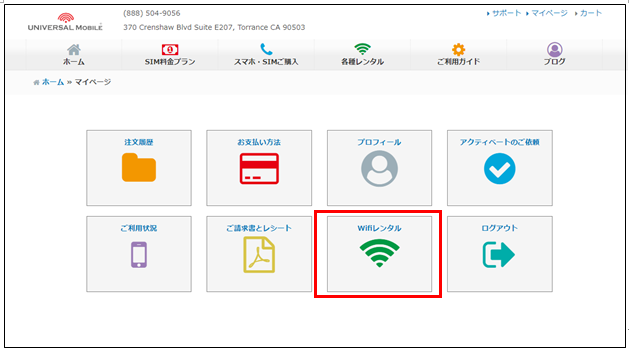
① UNIVERSAL Mobile US SIM Plan members: First, please Log in to My Page
↓ ↓ My Page ↓ ↓
https://universalmobile.us/mypage/login?redirecturl=/mypage
② From [Rental Wi-Fi] on My Page, please access <Wi-Fi Rental Form>
③ Enter your rental information
Note: Please select [Japan Pocket Wi-Fi (Members Only)] for your rental plan
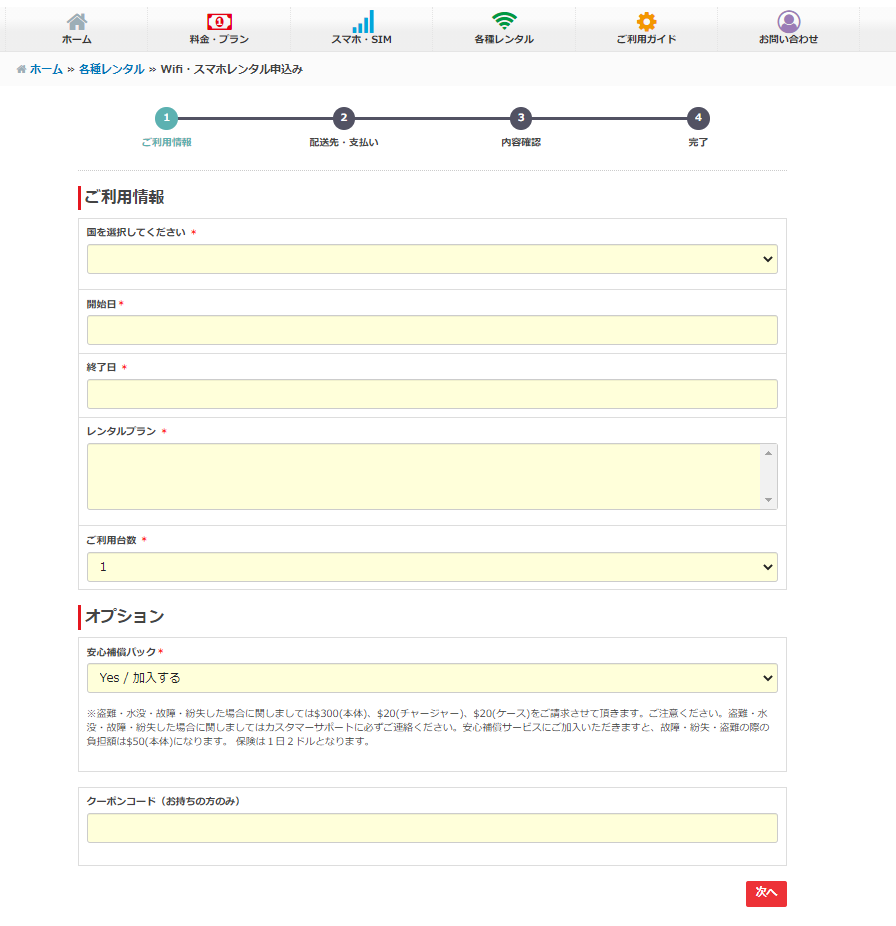
* Member Discount Price: $35 (Up to 30 days. From day 31, regular daily rates apply)
You can check the total price after clicking "Next".
* Discounts do not apply to Minimum Plan members.
* [Japan Pocket Wi-Fi (Members Only)] quantity is limited.
* The member-exclusive plan cannot be selected if out of stock.
* [Japan Pocket Wi-Fi (Members Only)] is limited to 1 unit per person.
{ Pocket Wi-Fi Pick-up & Shipping Options }
[ Delivery by Mail ]
● Shipped via USPS Priority Mail from Torrance, CA to US addresses only.
* We do not ship to Japan.
● Orders are shipped to arrive by your specified pick-up/start date.
● Shipping Fee: $10 (An additional $10 applies if a return envelope & label are requested).
* For last-minute orders, delivery by your desired date may not be possible.
In some cases, we may have no choice but to cancel your reservation, so please make your reservation well in advance.
[ Office Pick-up ]
● We will notify you by email once your Pocket Wi-Fi is ready.
You can pick it up at our office listed below on or after your start date.
UNIVERSAL Mobile
370 Crenshaw Blvd Ste E202K Torrance, CA 90503[ Return Due Date ]
● Please return the device by the "Return Date (End Date)" selected at the time of reservation.
[ Extension & Late Fees ]
● For details regarding Pocket Wi-Fi extension and late fees, please check here.
View detail 0 0 -
There are several possible reasons for this issue, including the following:
● Unstable network coverage or network routing delays may cause verification codes to arrive late.
● If you have enabled call or SMS blocking for unknown numbers, verification codes may be blocked.
● If your Apple ID or Google Play Store account region is set to another country (e.g., Japan), you may not receive verification codes sent from U.S. websites. Please update your account region to match the country you are currently using the service in.
Due to the variety of potential causes, it is difficult to determine the exact issue. If you still cannot receive verification codes after checking the above, please contact the service sender (the service requiring 2-factor authentication) to inquire about their verification policies and requirements.
View detail 0 0 -
In some cases, incoming calls may go straight to voicemail without ringing.
Here are 4 possible reasons and troubleshooting steps to resolve this issue:
1. Check "Do Not Disturb" Mode
If "Do Not Disturb" mode is turned on, incoming calls will not ring, will go straight to voicemail, and will only show as missed calls in your call log.
→ Go to "Settings" → "Focus" → turn off "Do Not Disturb".
2. Check Your Speaker
A speaker issue may prevent incoming call ringtones from sounding.
→ Open "Voice Memos" → tap the red button to record your voice → tap the play button to listen. If you hear no sound even after adjusting the volume, your speaker may be malfunctioning.
3. Network Signal
If your phone rings sometimes but not always, it may be due to signal conditions.
In areas with poor reception, incoming calls will not ring and will automatically go straight to voicemail, leaving only a missed call notification.
→ Try moving to a different spot or turning off Wi-Fi.
4. Reset Network Settings
Resetting your iPhone's network settings may help resolve the issue.
→ Go to "Settings" → "General" → "Transfer or Reset iPhone" → "Reset" → "Reset Network Settings"
*Please note that resetting network settings will clear your saved Wi-Fi connections and passwords.
If the issue persists after trying the steps above, please contact Customer Support with your iPhone's 15-digit IMEI number, city name, and ZIP code.
======================
Contact Us:
UNIVERSAL Mobile Customer Support
Email: customer@universalmobile.us
======================
View detail 0 0 -
International SMS to numbers outside the U.S. is included at no extra charge with unlimited usage.
*Available on all SIM plans.
View detail 0 0 -
Please check your smartphone settings.
• iPhone
1. Open the Settings app
2. Tap **"Cellular" or "Mobile Data"**
3. Check the **"Cellular Data" or "Current Period"** section
Your data usage for the current period will be displayed (in GB or MB).
Scroll down to view data usage by individual apps.
• Android
1. Open the "Settings" app
2. Tap "Network & internet" or "Connections"
3. Select "Mobile network" or "Data usage"
4. Check "App data usage" or "Mobile data usage"
5. Your monthly data usage will be displayed in a graph or list format
You can adjust the display to match your billing cycle (monthly) by tapping "Data usage cycle" or "Billing cycle" near the top of the screen.
*Menu names may vary depending on the Android version and manufacturer (e.g., Samsung, Google Pixel).
Depending on your device model or software version, data usage details may not appear in the settings menu.
In such cases, downloading a data tracking app is another helpful option.
Examples:
• My Data Manager
• Data Usage
• Mobile Data Tracker
• Data Counter
View detail 0 0 -
Following an iOS update, issues such as inability to make phone calls or connect to the internet may occur.
If you suddenly experience issues on your iPhone, please try the following steps first:
• Remove and reinsert your SIM card• Restart your iPhone
• Toggle Airplane Mode on and off several times
• Toggle Cellular Data on and off several times
• Reset Network Settings
Go to "Settings" → "General" → "Transfer or Reset iPhone" → "Reset" → "Reset Network Settings"
*Please note that resetting network settings will clear your saved Wi-Fi connections and passwords.
If the issue persists after trying the steps above, please contact UNIVERSAL Mobile Customer Support.Contact Us:
UNIVERSAL Mobile Customer Support
Email: customer@universalmobile.us
Phone: 888-504-9056
View detail 0 0 -
Fees Charged When Signing Up for a SIM Plan
• SIM Card Fee: $10 (Triple-Cut SIM Card)
• Shipping Fee: $10 (If shipped by mail)
• Activation Fee: $35
*These fees will be charged on your first invoice.
Please click here for details about your first month's charges.
View detail 0 0 -
This optional service provides you with a Japanese phone number starting with 050 in addition to your U.S. mobile phone number.
• Japanese phone numbers starting with 050 are for incoming calls only.
• Callers from Japan can reach subscribers staying in the U.S. at Japanese domestic call rates, making it a convenient feature for those calling you from Japan.
• Incoming calls received within the U.S. are free of charge.
(Note) Subscribers to the $15/Month Minimum Plan will be charged a calling rate of $0.25/minute even when receiving calls on a 050 number.
*Making outgoing calls or sending/receiving text messages (SMS) using the 050 number is not supported.
Additionally, this number cannot be used to register for apps that require SMS verification codes, such as LINE.
*Because the 050 number functions as a call-forwarding number, incoming caller ID display may vary depending on the caller's device and Japanese carrier, sometimes appearing as "Unknown Caller" or "Scam Likely". If you have call-blocking settings enabled for "Scam Likely" or unknown numbers, you may not receive incoming calls on your 050 number. Please disable call blocking to ensure calls go through.
*Please note that while internal testing confirms the functionality of 050 numbers, connection issues may occasionally occur due to local signal conditions or other external factors.
*050 numbers are VoIP numbers, and it is not uncommon for them to be unaccepted as official contact numbers for certain documents or services. Please keep this in mind when subscribing.
To add this optional plan, please contact Customer Support.======================
Contact Information:
UNIVERSAL Mobile Customer Support
Email: customer@universalmobile.us
======================
View detail 0 0 -
Because UNIVERSAL Mobile uses the network of a T-Mobile-affiliated carrier,
you may occasionally receive SMS messages directly from the carrier.
These messages are often related to SIM card insertion or warnings about international calling, and no action is required on your part.
Please also be aware that you may occasionally receive scam messages impersonating the carrier. Do not click on any links in suspicious messages.
If you would like us to review the content of an SMS message you received, please contact UNIVERSAL Mobile Customer Support using the information below.
Contact Information:
UNIVERSAL Mobile Customer Support
Email: customer@universalmobile.us
Phone: 888-504-9056
View detail 0 0 -
• Other Charges, Taxes & Surcharges
These are standard fees required to maintain your phone line. They apply to all active phone numbers and include taxes, regulatory surcharges, State 911 fees, the Teleconnect Fund, and other mandated government fees.
*Please note that these amounts may vary slightly each month based on updated tax rates and government fees.
• Usage Charges (LOCAL AIRTIME, LONG DISTANCE, and INTERNATIONAL CHARGES)
These include calling fees for both domestic and international calls.
*For $15/Month Minimum Plan subscribers, domestic calling charges will be billed on the invoice following the month of use.
*International calling fees will be billed one to two months after the month of use.
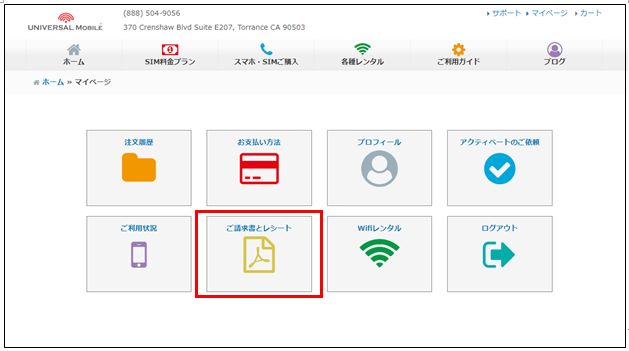
You can check your billing statements under "Invoices and Receipts" on "My Page".
https://universalmobile.us/mypage/login?redirecturl=/mypage
 View detail 0 0
 -
• Temporary high-speed data top-ups or upgrades are not available.
*If you need more high-speed data, you will need to change your monthly SIM plan.
If you run out of your high-speed data allowance before your monthly renewal date, your connection speed will be reduced.
Once your next renewal date arrives, your high-speed data allowance will reset and become available again.
◆◆ To change your monthly plan, please contact UNIVERSAL Mobile Customer Support ◆◆
For more information on changing your monthly SIM plan, please click here.
Contact Information:
UNIVERSAL Mobile Customer Support
Email: customer@universalmobile.us
Phone: 888-504-9056
View detail 0 0 - • The billing cycle closes on the 10th of each month. Your monthly billing cycle runs from the 11th through the 10th of the following month.
• Invoices are issued between the 11th and 15th, and payments are automatically charged around the 15th on a business day.*You can update your payment card information anytime on My Page.
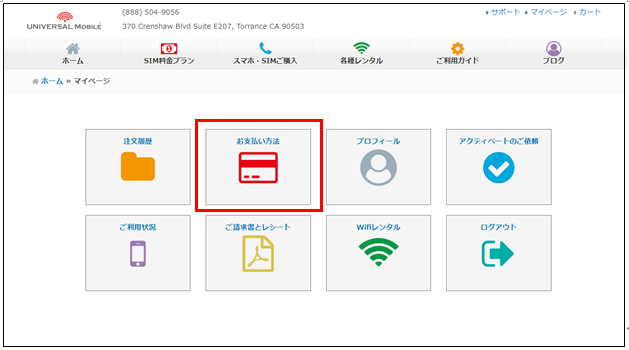
• Payment is made via automatic recurring charges to your credit card or debit card.
(We accept both U.S. and Japanese credit/debit cards.)
*For step-by-step instructions on updating your credit card details, please click here.
View detail 0 0 - WiFi / Pocket WiFi Portable Charger Last updated: September 21, 2023
Portable Charger User Guide
The Portable Charger can charge your Pocket WiFi, smartphones, tablets, and other devices. It also supports USB-C and wireless charging.
? Parts Description
▼ Body (Front)
The battery level of the Portable Charger is displayed at the top.
You can also charge a wireless-charging-compatible smartphone by placing it on top of the unit.▼ Body (Right Side)
Short press the button on the side to display the remaining battery level.
*The display will turn off automatically.▼ Body (Top Side)
There are 4 cable outlets.
Port Type Qty QC (Output) USB Type-A 2 Input Micro USB Type-B 1 PD (Output) USB Type-C 1 ? Charging Instructions
?Charging Pocket WiFi from the Portable Charger
Use a [Micro USB Type-B] cable to charge your Pocket WiFi.
?Charging the Portable Charger itself
Use a [Micro USB Type-B] or [USB Type-C] cable to charge from a wall outlet.
⚡ Battery Specifications
Item Specification Battery Capacity 30,800mAh (133.96Wh) Type-C Input 5V/3A, 9V/2A (Max) Type-C Output 5V/3A, 9V/2.77A (Max), 12V/1.67A USB QC Output 5V/3A, 9V/2A, 12V/1.5A, 4.5V/5A Micro USB Input 5V/2.1A, 9V/2A Wireless Charging Output 15W (Max) ✈️ Airline Carry-On Notice
If you plan to bring this battery on a plane, please check your airline's restrictions on carry-on batteries in advance.
We cannot accept cancellations or refunds due to inability to carry the item on board after your rental has started.? Contact Us
For questions, please contact us at customer@universalmobile.us.
View detail 0 0 -
If you cannot get a signal after completing SIM card activation,
or if you have a signal but cannot use mobile data or make/receive calls, please check the following items:
• Make sure the SIM card is inserted correctly.
• Make sure Airplane Mode is turned off.
• Make sure "Cellular Data" (or "Mobile Data") is turned on in your device settings.
• Check if your phone is carrier-unlocked and supports the required frequency bands (Band 2 and Band 4).
• Check if any APN profile settings from your previous carrier are still installed on your device.
• Try disabling or temporarily uninstalling any antivirus or security software (such as Norton) on your device.
If you are still unable to connect after checking all of the above, please contact Customer Support for further assistance.
======================
Contact Information:
UNIVERSAL Mobile Customer Support
Email: customer@universalmobile.us
======================
View detail 0 0 -
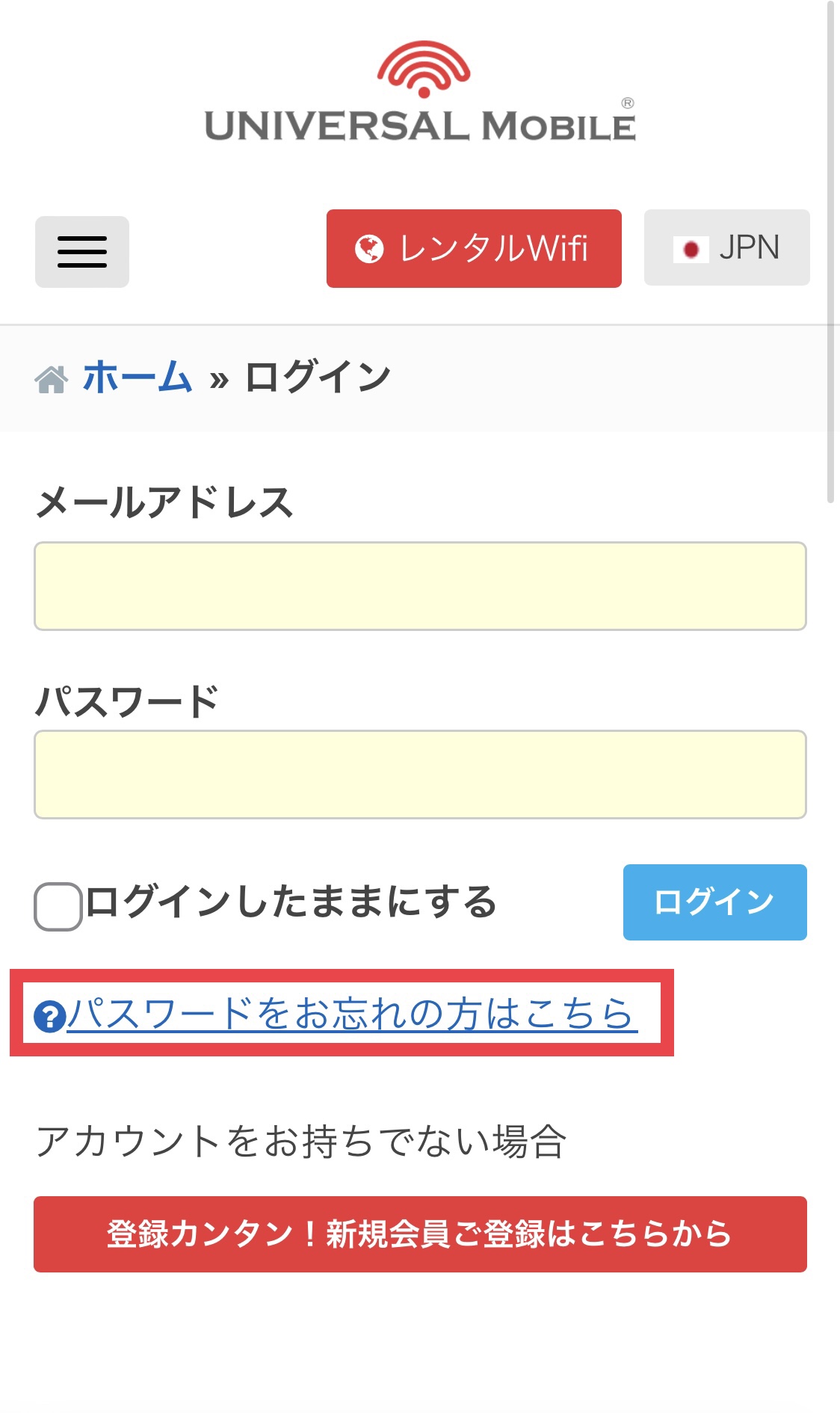
If you have forgotten your My Page login password, you can reset it by following the steps below.
Click here to reset your password.
Step 1: Tap "Forgot Password?"
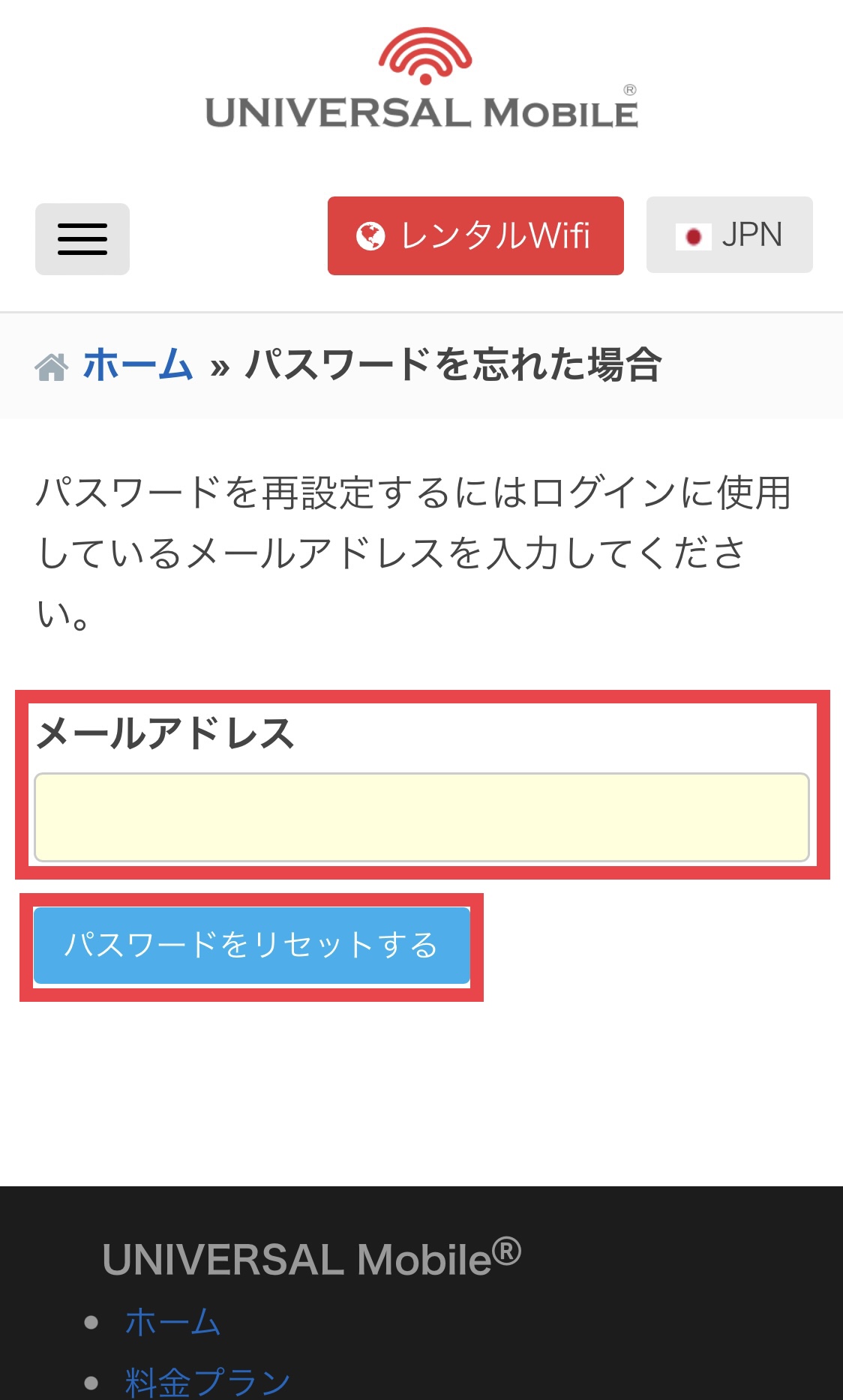
Step 2: Enter your email address and tap "Reset Password"
Step 3: Open the password reset email you received and click the link provided
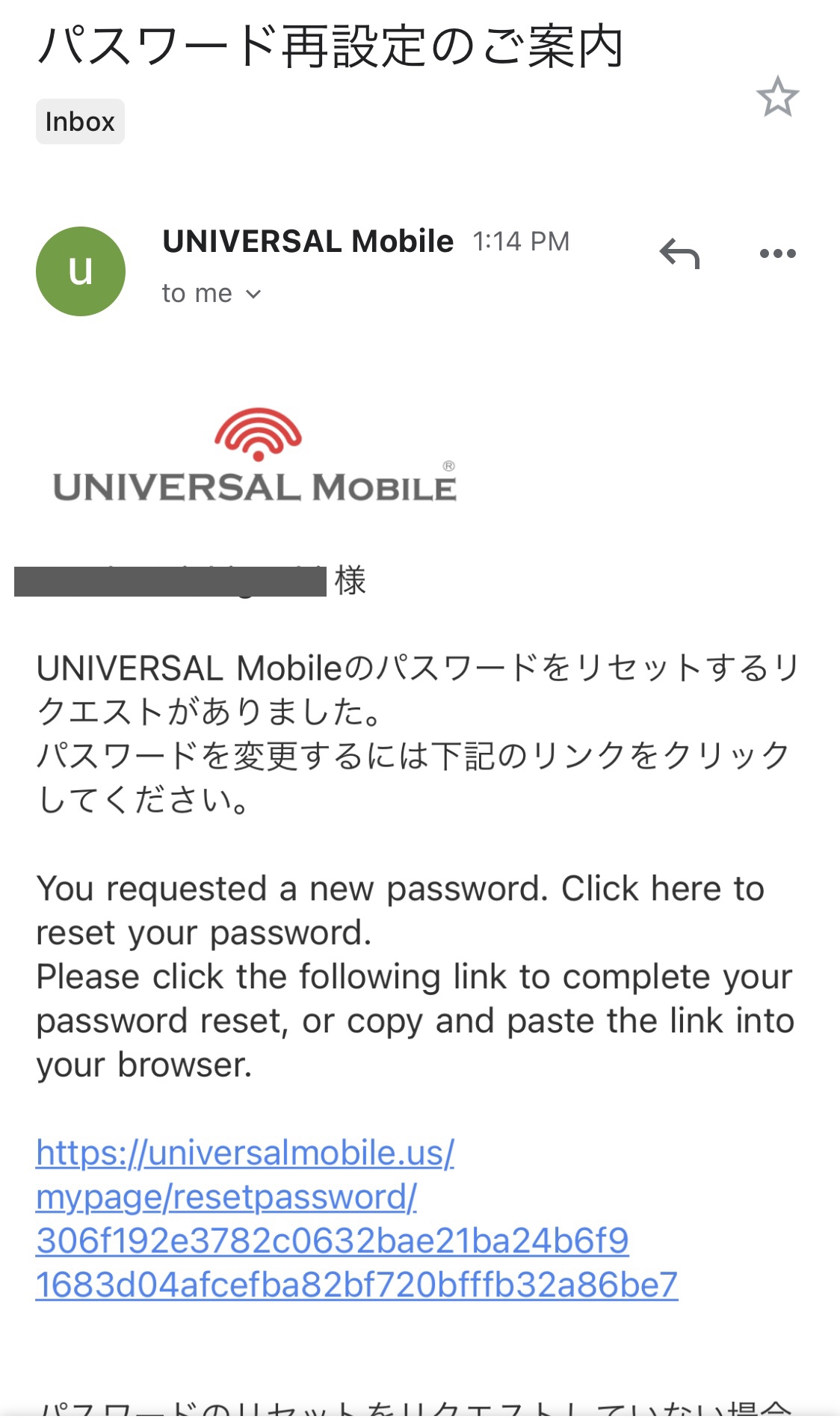
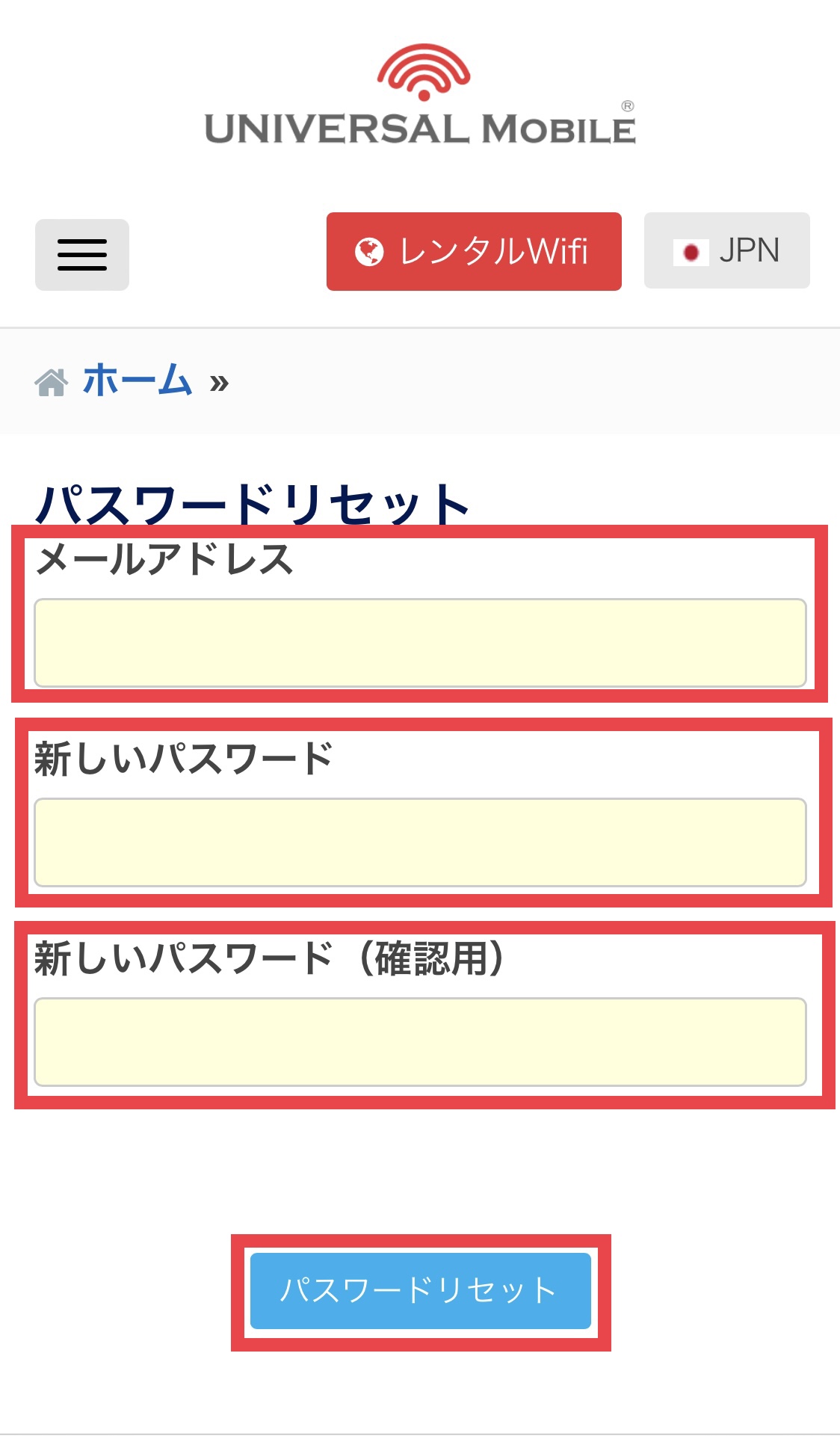
Step 4: Enter your email address and your new password, then tap "Reset Password"
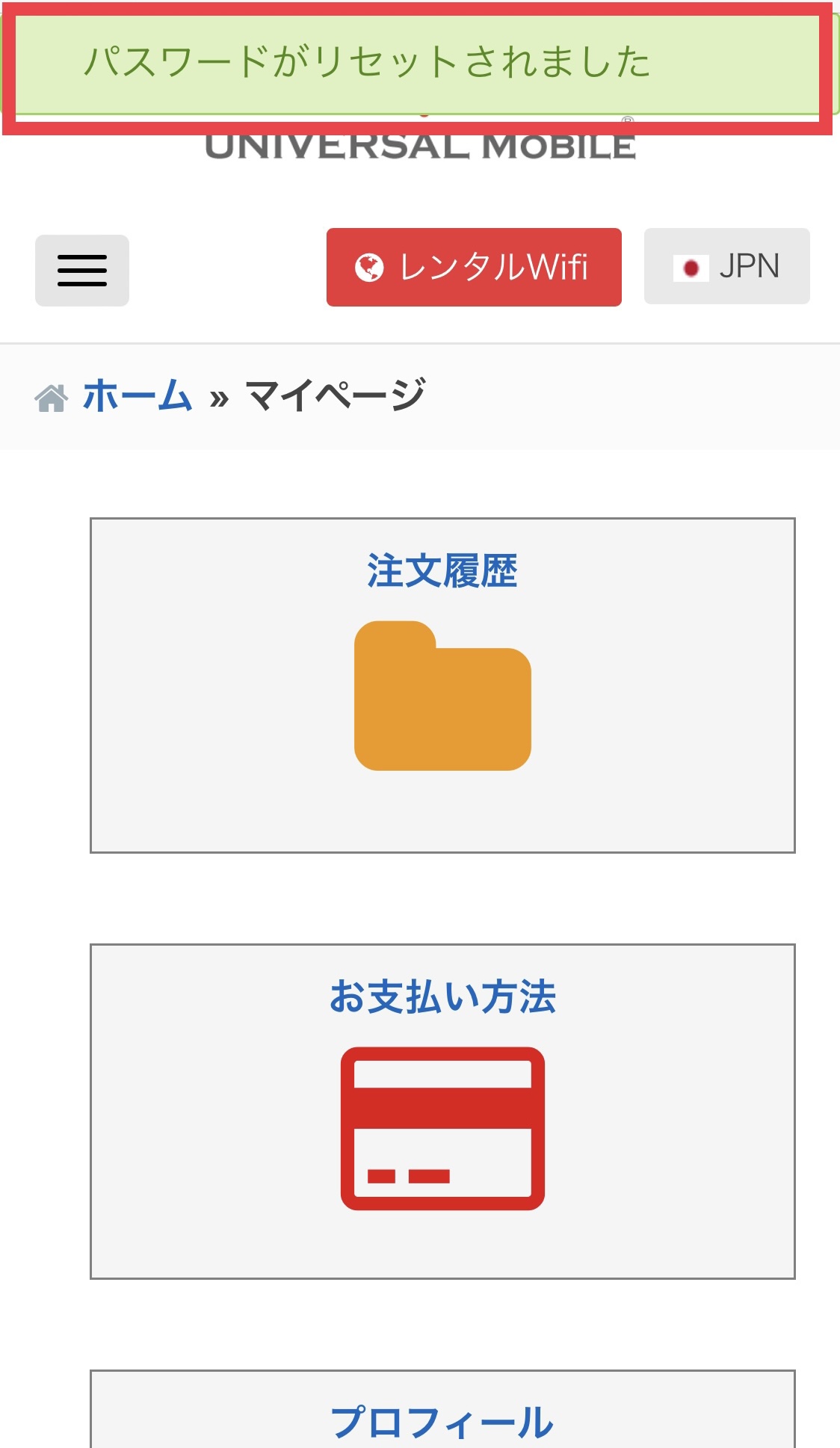
Step 5: A message saying "Your password has been reset" will appear on the screen
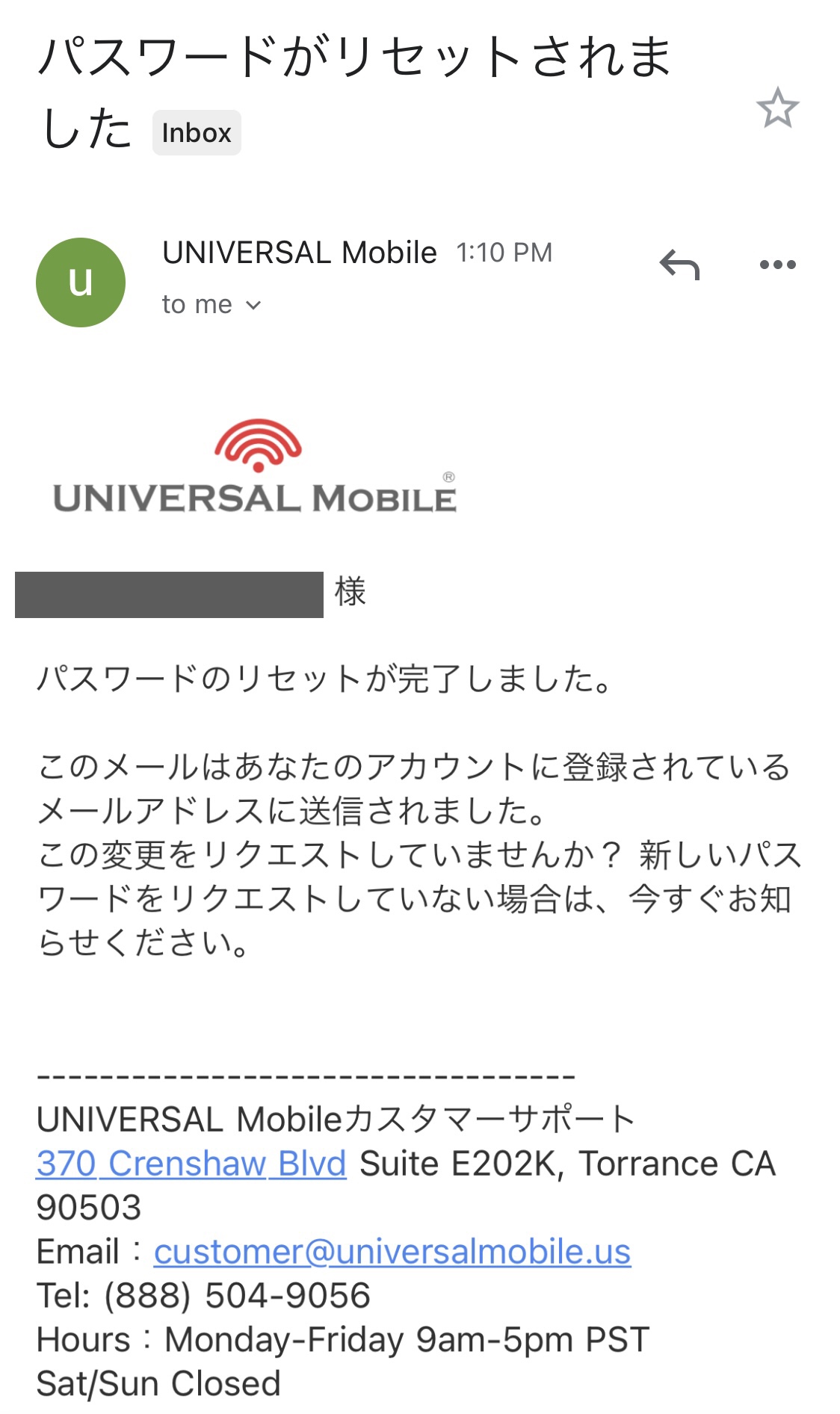
You will also receive a confirmation email ("Password Reset Completed"), indicating that the reset process is complete.
 View detail 0 0
 -
*Please note that temporary service suspensions are not available.*
If you wish to stop your service, you will need to process a contract cancellation.
Please note that once your contract is canceled, your current phone number will be lost.
If you sign up again in the future, a new phone number will be issued.
View detail 0 0 -
To request your account number and PIN, please contact UNIVERSAL Mobile Customer Support.
Information required when contacting us:
• Account Holder Name
• Phone Number
======================
Contact Information:
UNIVERSAL Mobile Customer Support
Email: customer@universalmobile.us
======================
*Transfer your phone number to another provider
View detail 0 0 -
We offer SIM card shipping to addresses in both the U.S. and Japan.
• For deliveries within the U.S., your SIM card will arrive in 2 to 5 business days after placing your order.
Once shipped, we will provide you with a USPS tracking number.
*Shipped from Torrance, California.
• For deliveries within Japan, your SIM card will arrive in 2 to 5 business days after placing your order.
Once shipped, we will provide you with a Japan Post tracking number.
Please submit your application at least 1 week prior to your departure for the U.S.
*Shipped from Tokyo, Japan.
If you need to receive your SIM card urgently, please contact Customer Support.
*Delivery to hotels, workplaces, or schools is also available.
If you wish to have your SIM card shipped to an address other than your home, please confirm with the location in advance whether they can accept deliveries on your behalf.
View detail 0 0 -
When using your phone within the United States, there are no charges for receiving incoming international calls.
*The caller will be responsible for any international calling charges.
View detail 0 0 -
The SIM card we send you can be used in three different sizes.
(Standard SIM, microSIM, nanoSIM)
Please pop out the correct size according to your mobile device.
The SIM card can be easily detached by pushing it up with your finger.
*iPhone 5 and all newer iPhone models use a nanoSIM.
View detail 0 0 -
When purchasing an iPhone from UNIVERSAL Mobile with a 24-month installment plan,
for identity verification purposes required by processing procedures, you will need to provide an ID showing your U.S. address or driver's license, along with your Social Security Number.
Customer Support will contact you via email after you place your order.
Since the item will be shipped after verification is complete, delivery may take approximately 1 week to 10 days after placing your order.
Monthly phone payments will be automatically billed together with your monthly plan charges.
View detail 0 0 -
For the plans listed below, data speeds will be reduced once your monthly data usage reaches the plan limit.
The amount of high-speed 5G / 4G LTE data available to you depends on your monthly plan.
• $15 Plan - Up to 2GB of 5G / 4G LTE Data
• $30 Plan - Up to 2GB of 5G / 4G LTE Data
• $45 Plan - 5G / 4G LTE Data up to 6GB
• $60 Plan - 5G / 4G LTE Data Unlimited
*If your monthly data usage reaches the limit, your data speed will be throttled to a maximum of 3G (upload/download) until the next billing cycle.
Although speeds are reduced, you can continue using data without limit.*Even if your monthly data usage reaches the limit and speeds slow down, no overage charges will occur.
*Your monthly data allowance resets on your service start date each month.
For details on rate plans, click here.For details on plan changes, click here.
View detail 0 0 -
\\\\ Easy Online Application ////
■ First-time UNIVERSAL Mobile users, please complete "New Member Registration".
■ If you have already registered an account with UNIVERSAL Mobile, please log in to "My Page" before submitting your application.
◆ SIM Plans ◆
https://universalmobile.us/pages/plan
Select your desired monthly SIM plan and click "Add to Cart" to complete your purchase.
◆ Mobile Devices ◆
https://universalmobile.us/products/products
Select your smartphone model, storage capacity (GB), and color, then click "Add to Cart" to purchase.
*Mobile devices cannot be purchased standalone. Please purchase a SIM plan together with your device.
◆ Pocket Wi-Fi ◆
https://universalmobile.us/pages/pocketwifi
Please fill out the required information on the "Reservation Form" to place your reservation.
View detail 0 0 -
◆◆ If you are using an eSIM, you will need to submit your new device details to proceed with the transfer process. ◆◆
Please submit your new device's EID number and IMEI number via our Contact Form.
Please refer to this guide for instructions on how to check your EID number and IMEI number.
◆◆ If you are using a physical SIM card, you do not need to contact Customer Support when changing devices. ◆◆
Simply remove the SIM card from your current device, insert it into your new device, and proceed with the device setup.
There is no need to repurchase or reactivate your SIM card, so you can start using it immediately after setting up your device.
■ Transferring Data from iPhone to iPhone
https://support.apple.com/ja-jp/HT210216
■ Transferring Data from Android to iPhone
https://support.apple.com/ja-jp/HT201196
■ Transferring Data to Android (from Android or other smartphones)
■ Transferring LINE Account Data
https://guide.line.me/ja/migration/
active
View detail 0 0 -
When you update your registered credit card information with us, a temporary authorization charge of $1 will be placed on your card to verify its validity and ensure the card details are correct.
Please note that this is only a temporary authorization hold, not an actual charge.
If you check your credit card statement later and find an actual $1 charge from UNIVERSAL Mobile, please contact Customer Support using the information below.
UNIVERSAL Mobile Customer Support
Email: customer@universalmobile.us
Tel: 888-504-9056
Hours: 10:00AM - 5:00PM (Mon - Fri) Sat/Sun Closed (PST)
View detail 0 0 -
If you insert an activated SIM card into your smartphone and "Invalid SIM" is displayed, the following reasons may be responsible.
● The device is SIM-locked
⇒ Please check with the carrier or retailer where you purchased your smartphone for instructions on how to unlock the SIM lock.
● Poor contact or dirty SIM card
⇒ If fingerprints or dirt are attached to the SIM card, the device may not be able to read it properly.
Gently wipe the SIM card and SIM tray with a soft cloth, reinsert the card, and try restarting your device.
● SIM card malfunction or physical damage
⇒ If the SIM card is damaged or scratched, it may no longer be readable by your device.
In this case, a SIM card replacement is required. Please contact Customer Support at the details below.
======================
Contact Us:
UNIVERSAL Mobile Customer Support
Email: customer@universalmobile.us
======================
View detail 0 0 -
In the United States, it is very common to receive spam calls, wrong numbers, and wrong text messages shortly after getting a new phone number.
One reason for this is a shortage of phone numbers in the U.S., which leads all carriers to recycle phone numbers after an account is canceled.
Canceled numbers are typically held for a short holding period (usually 3 months to 1 year, or as short as 1 month) before being reassigned to new users.
Additionally, telemarketers and robocallers use automated machines to call numbers at random, making it difficult to block spam calls completely.
〈Recommended Solutions〉
1. Use a Spam Call Blocker App
If you are using a smartphone, you can use mobile apps to block spam calls, wrong numbers, and spam text messages.
2. Avoid Answering Calls from Unknown Numbers
If you let unknown calls go unanswered and individually block those numbers afterwards, the frequency of spam calls, wrong numbers, and spam texts may decrease.
【How to Block Callers on iPhone】
Go to Recents ⇒ Tap the info icon (the "i" symbol) next to the number you want to block ⇒ Scroll down to the bottom and tap "Block this Caller" ⇒ Tap "Block Contact".

【Silence Unknown Callers】*Feature available on iPhone iOS 13 or later
Enabling the "Silence Unknown Callers" setting will automatically silence incoming calls from numbers not saved in your contacts and send them straight to voicemail.
Settings ⇒ Phone ⇒ Silence Unknown Callers ⇒ Toggle ON / Green

3. Change Your Phone Number
We can change your phone number upon request.
If you would like to request a number change, please contact UNIVERSAL Mobile Customer Support.
*Please note in advance that changing your phone number does not guarantee that the new number will be free of spam calls or text messages.
View detail 0 0 -
Below are instructions on how to fill out and sign the "UNIVERSAL Mobile iPhone Order Contract" using the Markup feature.
Click here for the official Apple support page:
https://support.apple.com/en-us/119875
1. Open the attached file in the Mail app on your iPhone, iPad, or iPod touch, and tap the mark in the upper right corner.

2. Select "Markup".

3. Tap the plus button "+" in the bottom right corner, select "Text" or "Signature", and fill out or sign the document.


4. Attach the completed file to an email and reply to UNIVERSAL Mobile.
=========================
Contact Information:
UNIVERSAL Mobile Customer Support
Email: customer@universalmobile.us
=========================
View detail 0 0 -
Please replace your SIM card with the designated SIM card once you receive the switching completion notification, or when your current SIM card loses signal connection.
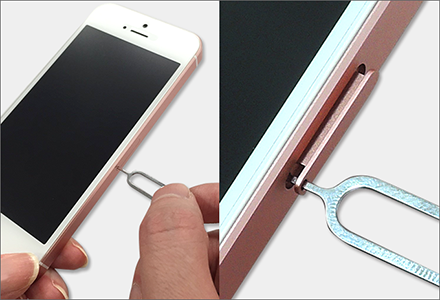
1. Remove your current SIM card from your smartphone
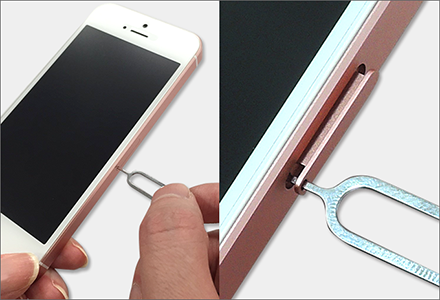
Insert the included SIM ejector pin into the small hole on the SIM card tray on the side of your device and press lightly to pop open the tray.
Once the tray pops out, gently pull it out with your fingers.
*Depending on your smartphone model, you may be able to open the tray without using a pin.
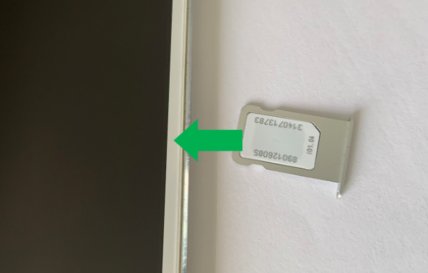
2. Replace with the new SIM card
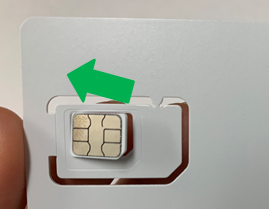
Detach the designated SIM card from the card holder according to your smartphone's SIM size,
place the SIM card onto the tray, and reinsert it back into your device.
*The SIM card can be punched out into 3 different sizes.
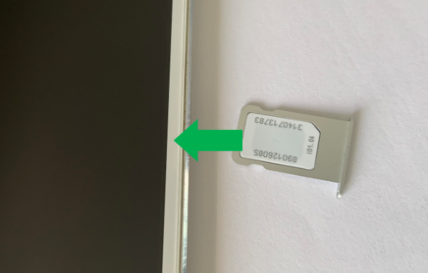
*The orientation of the gold IC contact chip may vary depending on your smartphone model.
3. Restart your smartphone and check for signal connection
Restart your smartphone, confirm that the new SIM card connects, and once the signal stabilizes, the process is complete.
The old SIM card is no longer needed, so please dispose of it at your convenience.
===========================
If you need to complete initial Voicemail setup, please follow these instructions.
〈Voicemail Initial Setup Guide〉
===========================
*In the unlikely event that you experience issues such as no signal or inability to make phone calls after inserting the designated SIM card,
do not discard your old SIM card and contact UNIVERSAL Mobile Customer Support via the "Contact Support Form".
View detail 0 0 -
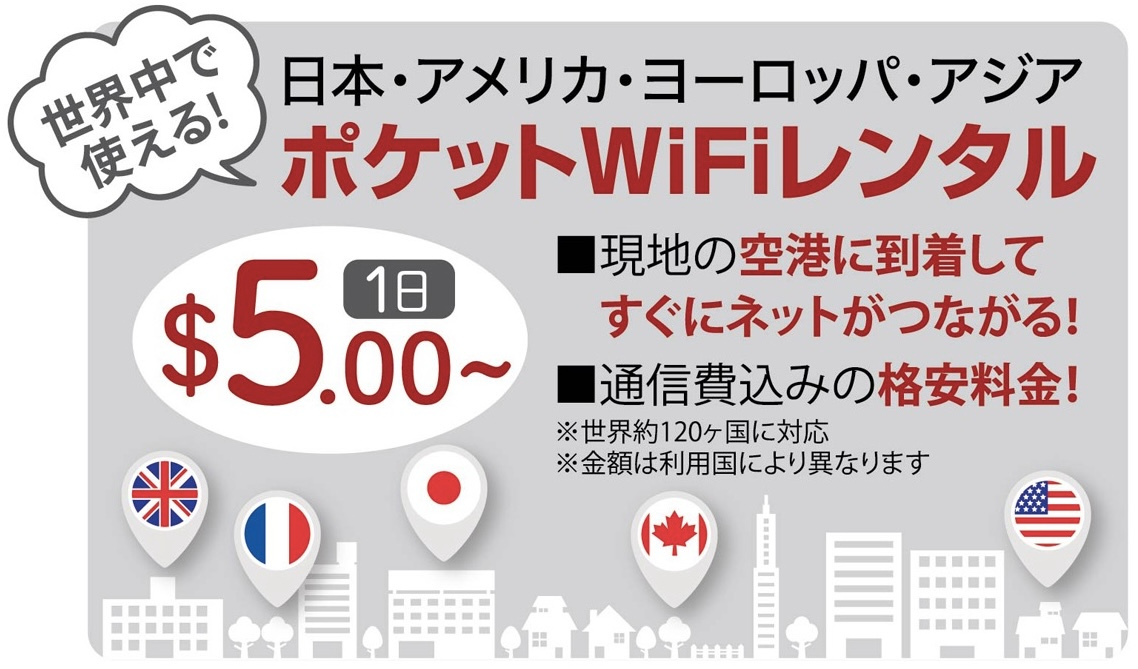
★☆Our products are available to use in 120 countries in the world - United States, Japan, Mexico, Europe, and Asia☆★
↓↓Click the link for Reservation↓↓
https://universalmobile.us/pages/pocketwifi?language=en
***Please make a reservation in advance because it may be impossible to rent the product immediately depending on the status of stocks.
【Plan & Price】
● $5〜 / day*
*Our price is subject to change depending on the area and seasons to use.
【User Guide】
● Please click the following link to check how to use the Pocket WiFi.
https://www.youtube.com/watch?v=JEi36HCZzYs
【How to Receive the Pocket WiFi】
● Option 1. Shipping (USPS)
- We will deliver by USPS from Torrance, CA to your U.S. address. *We will not deliver to Japan.
- The ordered items will be arrived by at least three days before your departure date.
*** Please note that we may not deliver the items before your departure date if you place an order at the last minutes. In that case, we may have to cancel your request. So, please place an order in advance.
● Option 2. Pickup at our office
- We will send you the email when your item is ready to pick up. You can pick it out at our office since "pick-up start date" shown in the email.
<Our office location>
Universal Mobile
370 Crenshaw Blvd Suite E207, Torrance, CA 90503
<Business hours>
10am-5pm (Mon-Fri), Sat, Sun, Holiday is closed (Pacific Standard Time)
【How to Return the Pocket WiFi】
● Please return the item within 5 business days after the end of use. You can return it by shipping or dropping it off to our office.
【Extension & Late Fees】
● Please click here to check for extension the Pocket WiFi and late fees.
View detail 0 0 -
A. You can update your credit card information at any time from "My Page" on online. Please login "My Page" at the top right of the Universal Mobile Website, and update your card information from "Payment Method". Website Link: https://universalmobile.us/mypage/login?redirecturl=/mypage
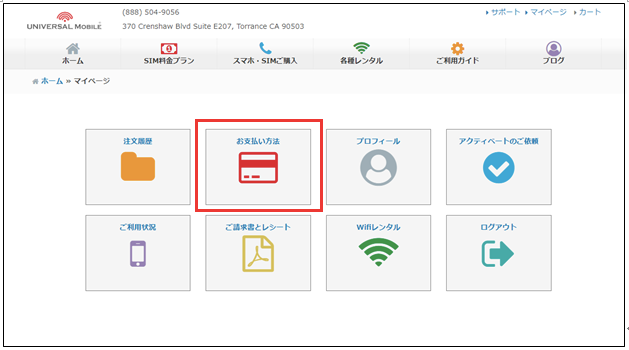
We accept the U.S. or Japanese credit cards and debit cards. (VISA/Master Card/American Express/JCB)
***Note***
1) Some debit cards may not be accepted depending on the issuer.
2) Withdrawal procedures are carried out in the United States. If you use the credit card issued other than the United States, some credit card's companies will charge a separate fee. Please confirm with your credit card company if you want to know more details.
3) When you update your credit card information, you may be tentatively charged $1 to verify if your credit card is valid and if your card number is correct. However, it is a provisional bill, so you will not be actually billed. (it will be canceled in about 3 to 5 business days after confirming). If you receive the $1 bill by us when you confirm the statement at a later date, please contact to our customer support as below.
UNIVERSAL Mobile Customer Support
Email✉:customer@universalmobile.us(24hours reception)
Phone☎:888-504-9056 (US domestic)
Hour?:10:00AM~5:00PM(Mon - Fri)Sat, Sun, Holiday closed
View detail 0 0 -
A. Yes. Please tell the following information to our customer support to change your monthly SIM plan and optional plan.
●User name
●Phone number
●Details of changes for plans
●Applicable date of changes (Immediately or from 11th)
======================
Contact Information:
UNIVERSAL Mobile Customer Support
Email: customer@universalmobile.us
======================
***Notes***
*1) Monthly billing cycle of UNIVERSAL Mobile closes on the 10th of every month, and monthly basic rate (10th of the next month from 11th) is prepaid.
Normally, new plans will be applied from the 11th after the monthly billing is closed on the 10th.
<e.g.>
・Requested date of changes: August 5
・Applicable date of changes: August 11
・Details of changes: Change to the premium plan ($60 per month) to the business plan ($45 per month).
・Additional fees: None
*2) If you change your plan or add an optional plan immediately, we will charge the below fees to your invoice for the next month.
■The monthly plan is changed: You will be charged SIM plan's fee prorated from the applied date of changes to the closing date of 10th.
<e.g.>
・Requested date of changes: August 5
・Applicable date of changes: August 5
・Details of changes: Changing to the premium plan for $60 per month to the business plan for $45 per month.
・Additional fees: $12 (6days*$2 =$12)
■The optional plan is added: You will be charged monthly optional plan's fee.
<e.g.>
・Requested date of changes: August 5
・Applicable date of changes: August 5
・Details of changes: Adding the Japan call plan
・Additional fees: $10
*3) Changing fee for Monthly SIM plans is $20
*4) Members who are applying for the old SIM plan cannot return to the original old plan once the SIM plan is changed.
*5) Members who apply for the optional plan at the old rate cannot re-enroll at the original rate after canceling the optional plan.
*6) Premium plan ($60 per month) is required using the SIM card made for it. So, you will need to exchange your current SIM card to the SIM card made for Premium plan only. In addition, you will need to exchange the SIM card when you change to Minimum/Light/Business plan from Premium plan as well. ※We will deliver a replacement SIM card in about 3 to 6 business days after receiving the request for the change of plans.
■Changing plans with replacement the SIM card
Case ① Current plan→Minimum plan ($15 per month) or Light plan ($30 per month) or Business plan ($45 per month)
New plan→Premium plan ($60 per month)
Case ② Current plan→Premium plan ($60 per month)
New plan→Minimum plan ($15 per month) or Light plan ($30 per month) or Business plan ($45 per month)
■Changing plans without replacement the SIM card
Case ① Current plan→Minimum plan ($15 per month)
New plan→or Light plan ($30 per month) or Business plan ($45 per month)
Case ② Current plan→Light plan ($30 per month)
New plan→ Minimum plan ($15 per month) or Business plan ($45 per month)
Case ③ Current plan→Business plan ($45 per month)
New plan→ Minimum plan ($15 per month) or Light plan ($30 per month)
View detail 0 0 -
A. You will get charged from the day when SIM activation is completed. (It means "Service start date")
◇ An invoice will be issued on the 10th of every month. The payment will be auto-withdrawn by credit cards or debit cards on business days around the 15th.
◇ The monthly basic charge is prepaid. (11th to 10th next day)
◇ For the first month, the charge from the date when activation is completed to 10 days will be billed on a daily basis.
◎Details for Initial Billing Amount◎
・ [Partial Charge] Monthly basic charge calculated on a pro-rated basis from the completion of activation to 10 days.
・ [Monthly Recurring Charge] Monthly basic charge for the next month.
・ [Optional Plan's Fee] Optional plan's fee calculated on a daily basis from the completion of activation to 10 days.
・ [Optional Plan's fFee] Optional plan's fee for the next month.
・ [Taxes & Surcharges] Tax is approximately $4. (* The amount may change slightly depending on the rate.)
・ [Other Charges] Line usage fee is approximately $4. (* The amount may change slightly depending on the rate.)
・ [Activation Fees] Activation fee is $35.
・ [Usage Charges] Other call charges, etc.
〇Details for Billing Amount From the Second Billing〇
・ [Monthly Recurring Charges] Monthly basic charge
・ [Optional Plan's Fee] Optional plan's fees
・ [Taxes & Surcharges] Tax is approximately $4. (* The amount may change slightly depending on the rate.)
・ [Other Charges] Line usage fee is approximately $4. (* The amount may change slightly depending on the rate.)
・ [Usage Charges] Other call charges, etc.
Please click here for the initial cost.
View detail 0 0 -
A. You can easily extend your Pocket Wi-Fi rental period directly from My Page.
How to Extend via My Page1. Select "Wifi Rentals" on My Page
Log in to your account and click the "Wifi Rentals" icon on the My Page dashboard.
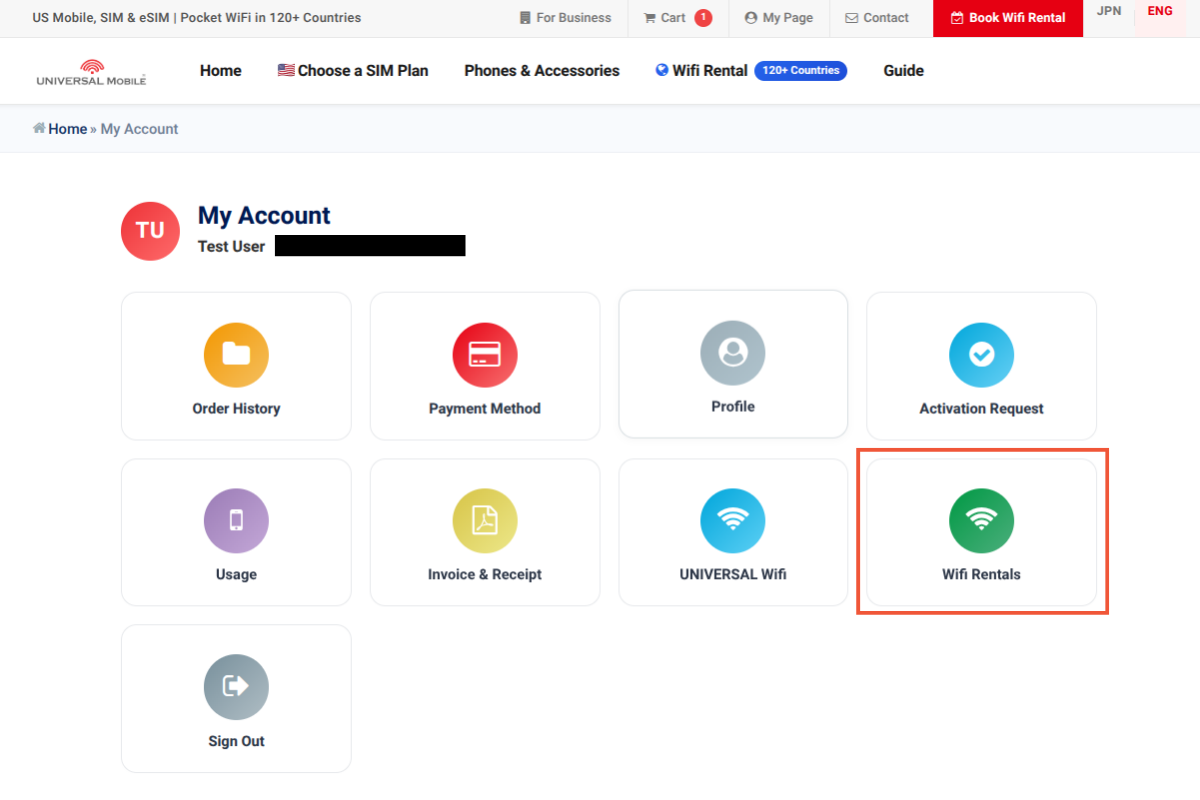
2. Click "Extend" for your order
Locate your current rental order and click the "Extend" button on the right.
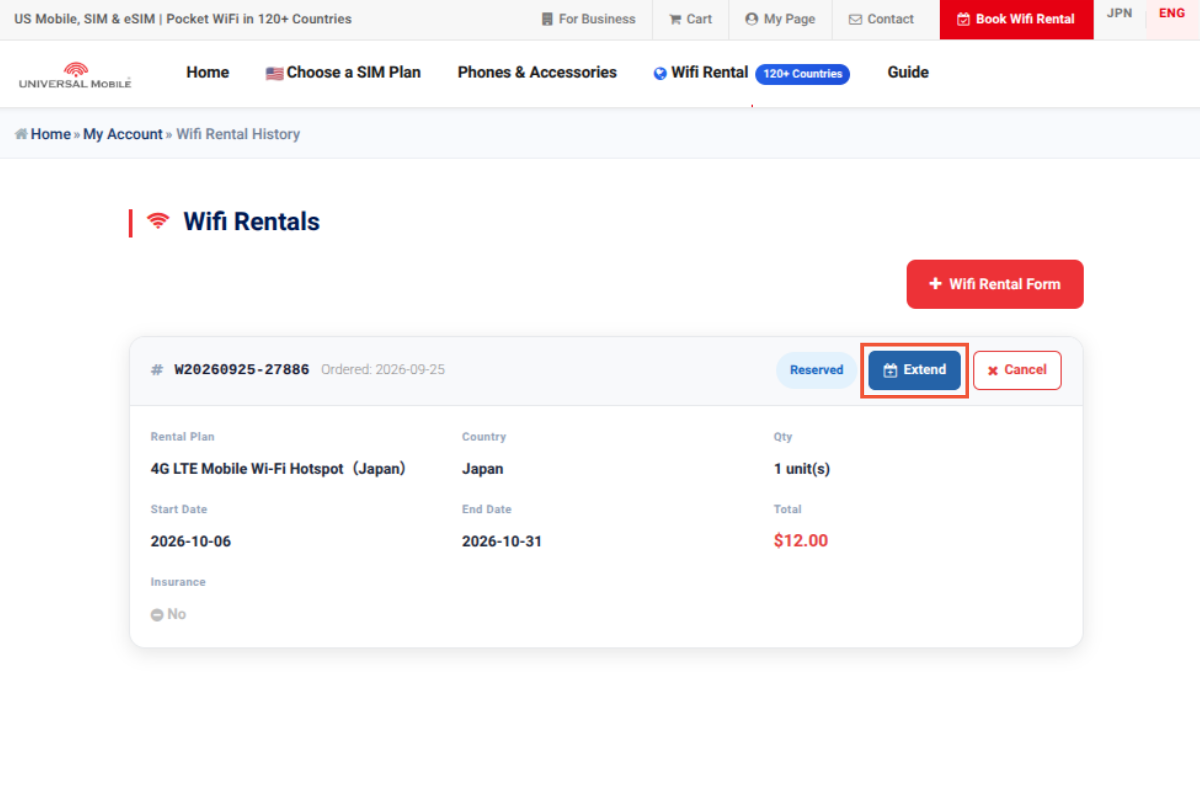
3. Select your new return date
Choose your preferred new return date under "New Return Date", confirm the quantity, and click "Proceed to Payment".
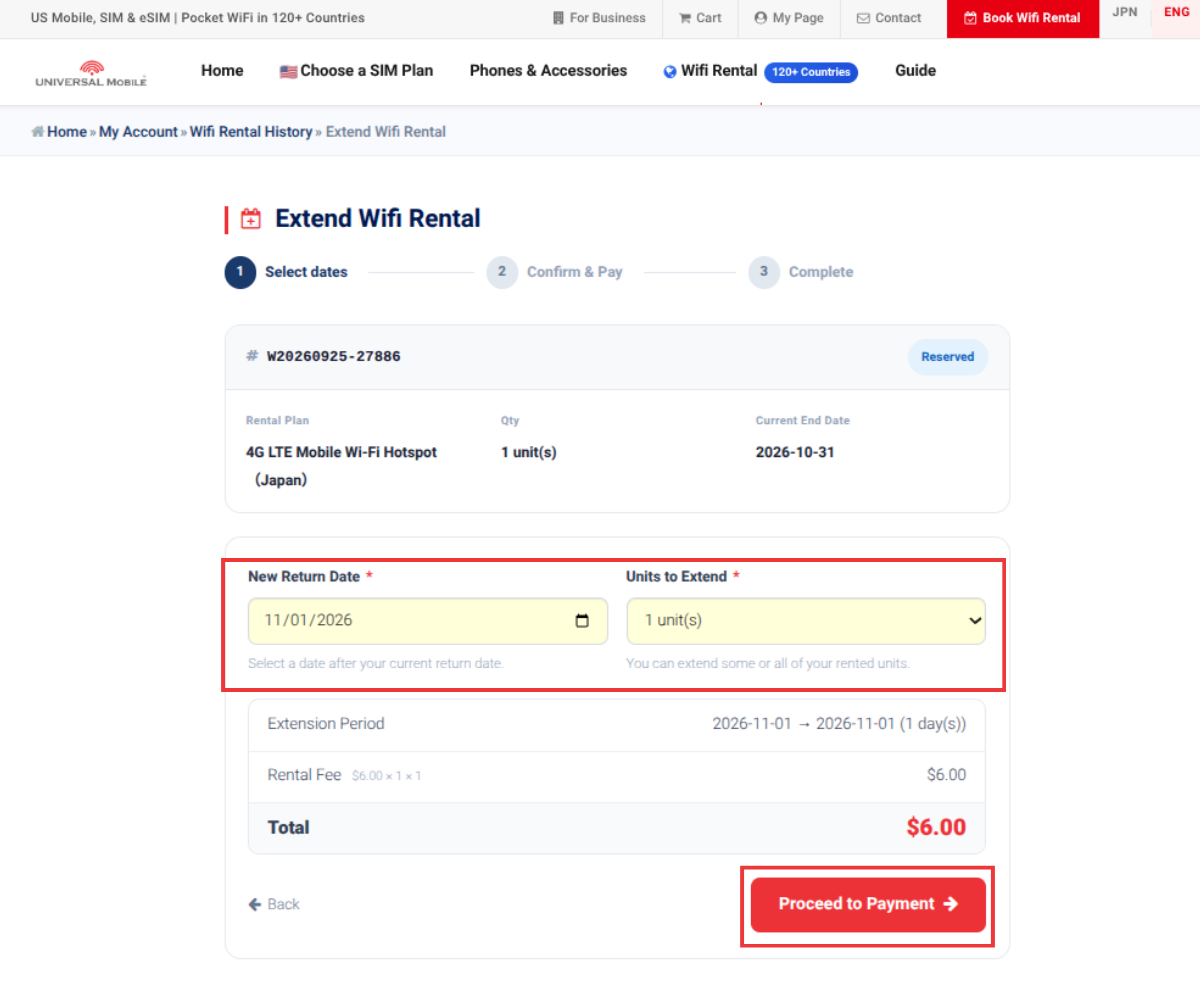
4. Complete the payment
Enter your credit card details and click "Pay & Extend" to complete the extension.
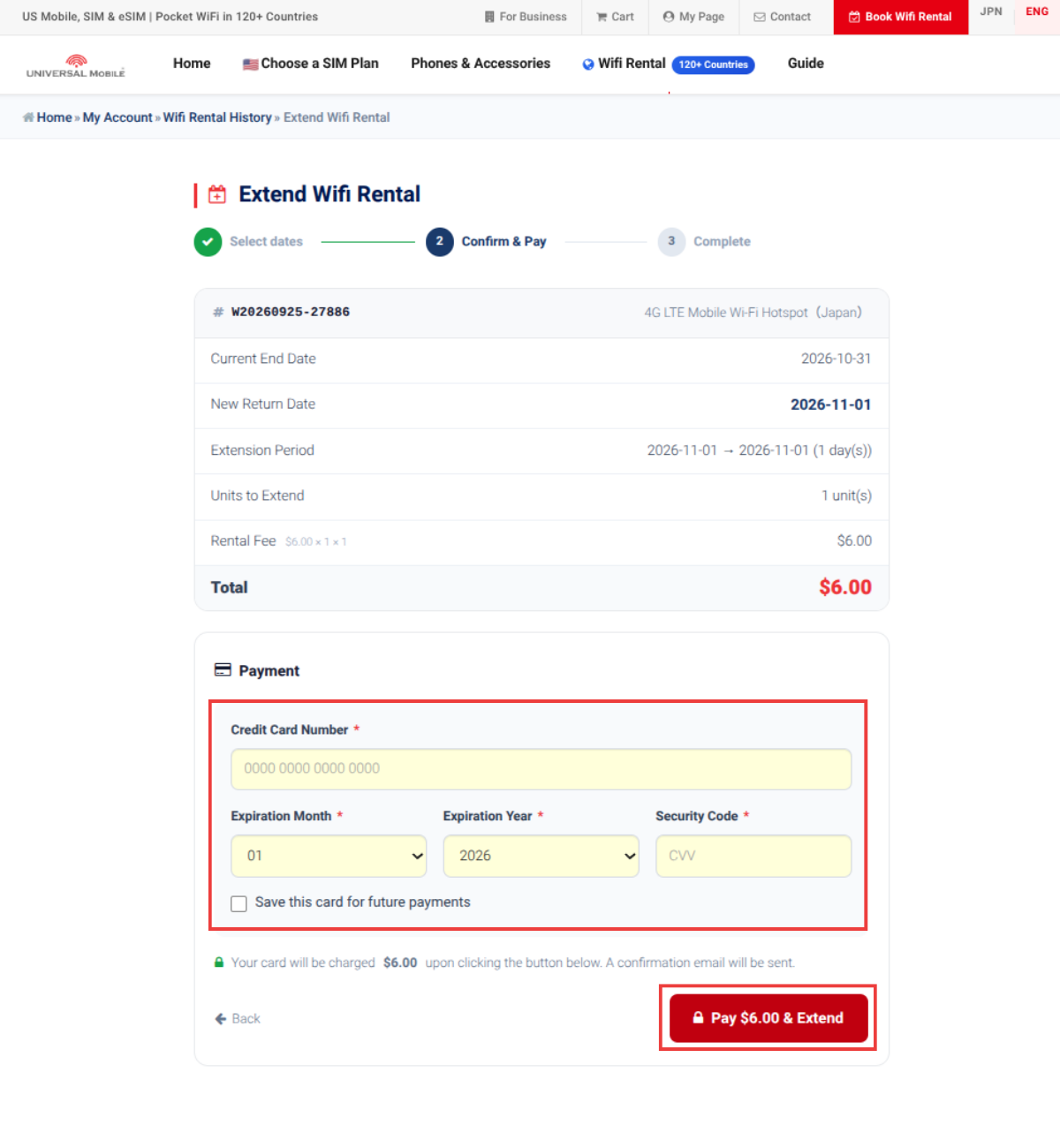
Need Help?
If you have difficulty completing the process through My Page, you can also contact our customer support team to request an extension, change your plan, or pay the applicable fees. Please provide the following information:
・ Reservation name
・ Email address
・ Extension period (new return date)
Important: Fees and return rules vary depending on whether you request an extension in advance or return the device late without prior notice.
If you request an extension in advanceIf you contact customer support before your scheduled return date and receive approval, your request will be processed as a standard rental extension. The extension fee is calculated based on the regular daily rate for your destination multiplied by the number of extended days. If you have selected any optional services, such as Safety Compensation Coverage ($2.00/day), the applicable daily fee will also be charged for each extended day.
Example 1
Extending 5 days in the United States ($7.50/day) with Safety Compensation Coverage.
Extension fee ⇒ $7.50 × 5 days = $37.50
Safety Compensation ⇒ $2.00 × 5 days = $10.00
Total ⇒ $47.50
Example 2
Extending 3 days in Japan ($6.00/day) without Safety Compensation Coverage.
Extension fee ⇒ $6.00 × 3 days = $18.00
If you do not contact us in advance to request an extensionIf the device is not returned by the due date and no prior notice is provided, the following schedule and policies will apply.
1–13 Days Overdue
We will send you a return reminder email. No additional late fees or penalties will be charged during this period (up to Day 13). Please return or drop off the device as soon as possible.
14+ Days Overdue (Lost / Unreturned Device)
If the device is not returned within 14 days after your rental end date, it will be considered lost, and the following replacement fees will be charged to your credit card:
• Main Unit (Pocket Wi-Fi): $400.00
• Power Bank: $200.00
• Charger: $20.00
• Carrying Case: $20.00
*If you subscribed to the Safety Compensation Service ($2.00/day), all of the replacement fees above will be waived in full.
Return due date: Please return the device by the next business day following your rental end date (or the extended rental end date).Contact Information / Return Address
UNIVERSAL Mobile
20705 S. Western Ave., Suite 209, Torrance, CA 90501
View detail 0 0 -
A. If the signal condition is suddenly bad, the communication speed slows down, or the signal does not come in, please check and set the following items.
■ Restart the terminal
■ Insert and remove the SIM card
■ Wipe the metal part of the SIM card with a cotton swab or a soft cloth
■ Turn off Wi-Fi and Bluetooth, turn off the power, wait about 1 minute, and turn on the power again.
■ Enable "Airplane mode" for about 30 seconds, then disable it again
■ Switch mobile data communication on and off several times
■ Check for carrier settings updates and update to the latest version or iOS if needed
■ Reset network settings
"Settings"-> "General"-> "Reset"-> "Reset network settings"
*Please note that resetting the network settings will reset the connected Wi-Fi settings.
■ Try deleting or stopping your antivirus software (Norton, etc.)
■ Turn off VPN settings
■ Reset APN settings (Android models only) *Please check here for APN settings.
If the situation does not improve even after trying the above, please contact UNIVERSAL Mobile Customer Support with the following information.
・Contractor name
・Phone number
・Terminal model and model name
・Your area (ZIP code or city name)
======================
Contact Information:
UNIVERSAL Mobile Customer Support
Email: customer@universalmobile.us
======================
View detail 0 0 - ① Open the SIM Card Tray on Your Smartphone
Insert the SIM ejector tool into the small hole on the side of your smartphone and gently press it to open the SIM card tray.
Once the tray pops out, gently pull it out with your fingers.
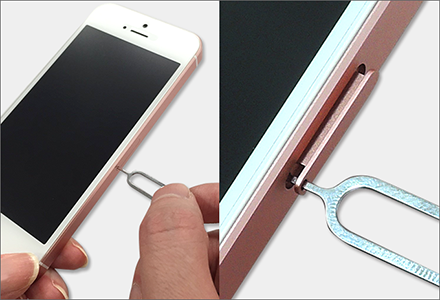 ※ Note
Depending on your smartphone model, you may be able to open the SIM card tray without using a SIM ejector tool.② Replace the SIM Card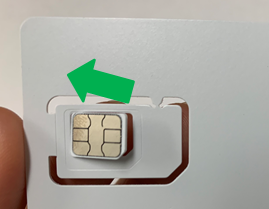
Select the SIM card size that matches your smartphone, then remove the appropriate SIM card from the included SIM card holder.
Place the SIM card in the SIM card tray and carefully insert the tray back into your smartphone.
※ Note
The SIM card can be punched out into three different sizes to fit different devices.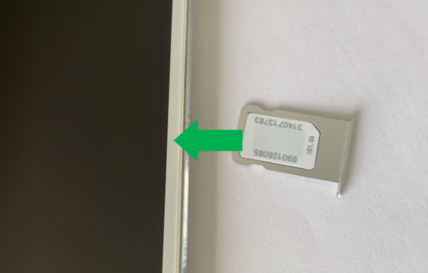 ※ Note
The orientation of the SIM card's metal contacts may vary depending on your smartphone model.③ Restart Your Smartphone and Check the SignalRestart your smartphone and check the connection using the replacement SIM card. Once the signal is stable and you can connect normally, the setup is complete.
Voicemail SetupIf you need to set up voicemail, please follow the instructions below.
〈Voicemail Setup Instructions〉
Having Trouble After Replacing the SIM Card?
If you cannot receive a signal, make calls, or experience any other issues after replacing the SIM card, please contact UNIVERSAL Mobile Customer Support.
View detail 0 0 -
To cancel your service, please contact Customer Support and provide the following information.
Cancellation requests are accepted only by email or through the Customer Support Portal (ticket system).
Please note: Cancellation requests cannot be made by phone.
Please provide:
Name of the account holder
Phone number registered to the account
Cancellation date
Reason for cancellation
There are no cancellation fees or early termination penalties.
======================
Contact Information:
UNIVERSAL Mobile Customer Support
Email: customer@universalmobile.us
======================
Note 1)
The billing cycle closes on the 10th of each month. If you contact us to cancel after the 10th, you will be charged the monthly fee for that billing cycle.
Please note that there are no prorated refunds.
Note 2)
If you cancel before completing one full month of service (i.e., within 10 days before the billing cutoff date), the full monthly fee will still be charged.
Note 3)
For the Mini Plan, call charges, and for the Premium Plan, international calling and international roaming charges may be billed in the following or second month after usage. Therefore, any charges incurred may still be billed after the cancellation process has been completed.
Note 4)
If you purchased a mobile device through an installment payment plan, you must pay the remaining balance of the device in full before the service can be canceled.
Note 5)
You do not need to return the SIM card. Please dispose of it yourself.
Note 6)
If you transfer your service to another provider, you must still contact us to complete the cancellation procedure after the transfer has been completed.
Your service will not be automatically canceled. If you do not contact us, billing will continue.
Transfer your phone number to another provider:
https://shorturl.at/fgmHQ
Note 7)
Once the cancellation procedure is completed, your phone number will be lost and cannot be used again after cancellation.
If you are transferring your phone number to another provider, you must complete the transfer before requesting cancellation.
View detail 0 0 -
Contact the new provider you'd like to port your current phone number to, and they will let you know what details they'll need in order to port it.
*Customers with Premier Plan*
If you are with Premier Plan and plan to transfer your current number to T-mobile, the process will take longer than usual due to the transfer process between the same carriers.
Please be sure to start the procedure well in advance of the date.
Also, please note that in rare cases, T-mobile, which process the transfer procedure, may determine that transfer procedures between the same carriers are not possible.
View detail 0 0 -
apanese toll-free and Navi Dial numbers are only accessible within Japan. Unfortunately, they cannot be called from overseas phone numbers.
View detail 0 0 -
Please start using the service in your destination country within 180 days after receiving the activation completion email.
*Menu options on your device may vary depending on the model and OS version.
1. Connect to Wi-Fi, then go to [Settings] > [Cellular]
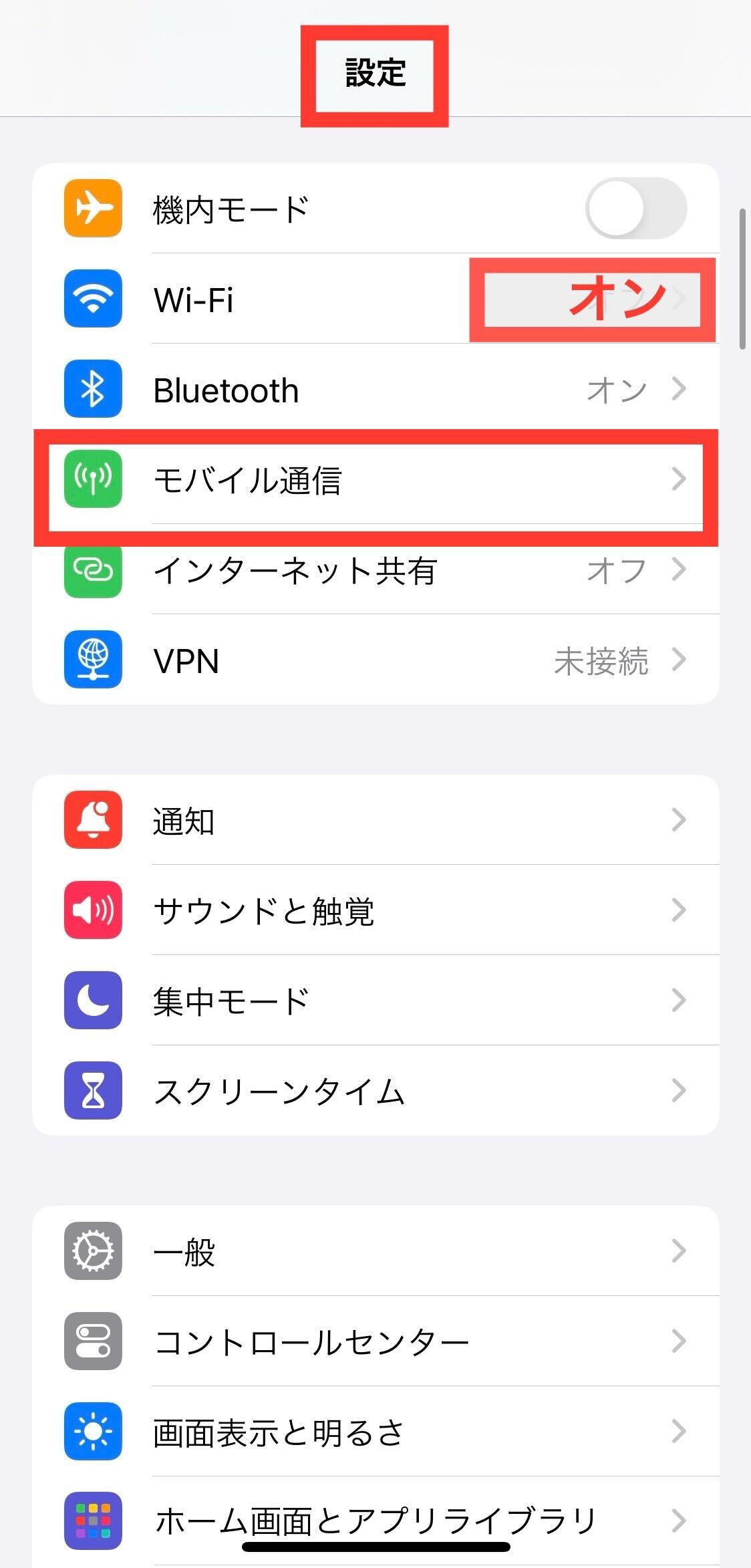
2. Tap [Add eSIM]
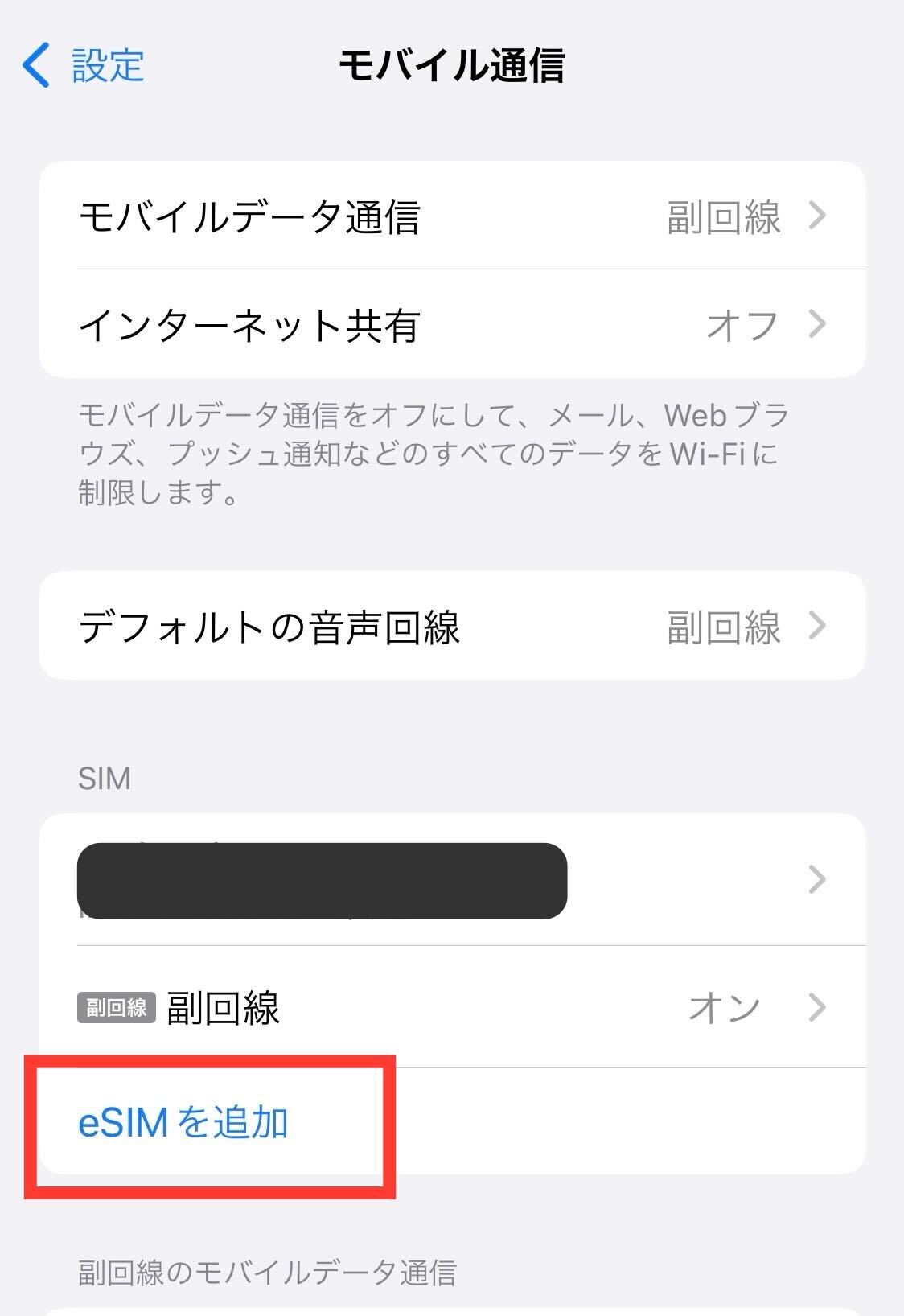
3. Tap [Use QR Code]
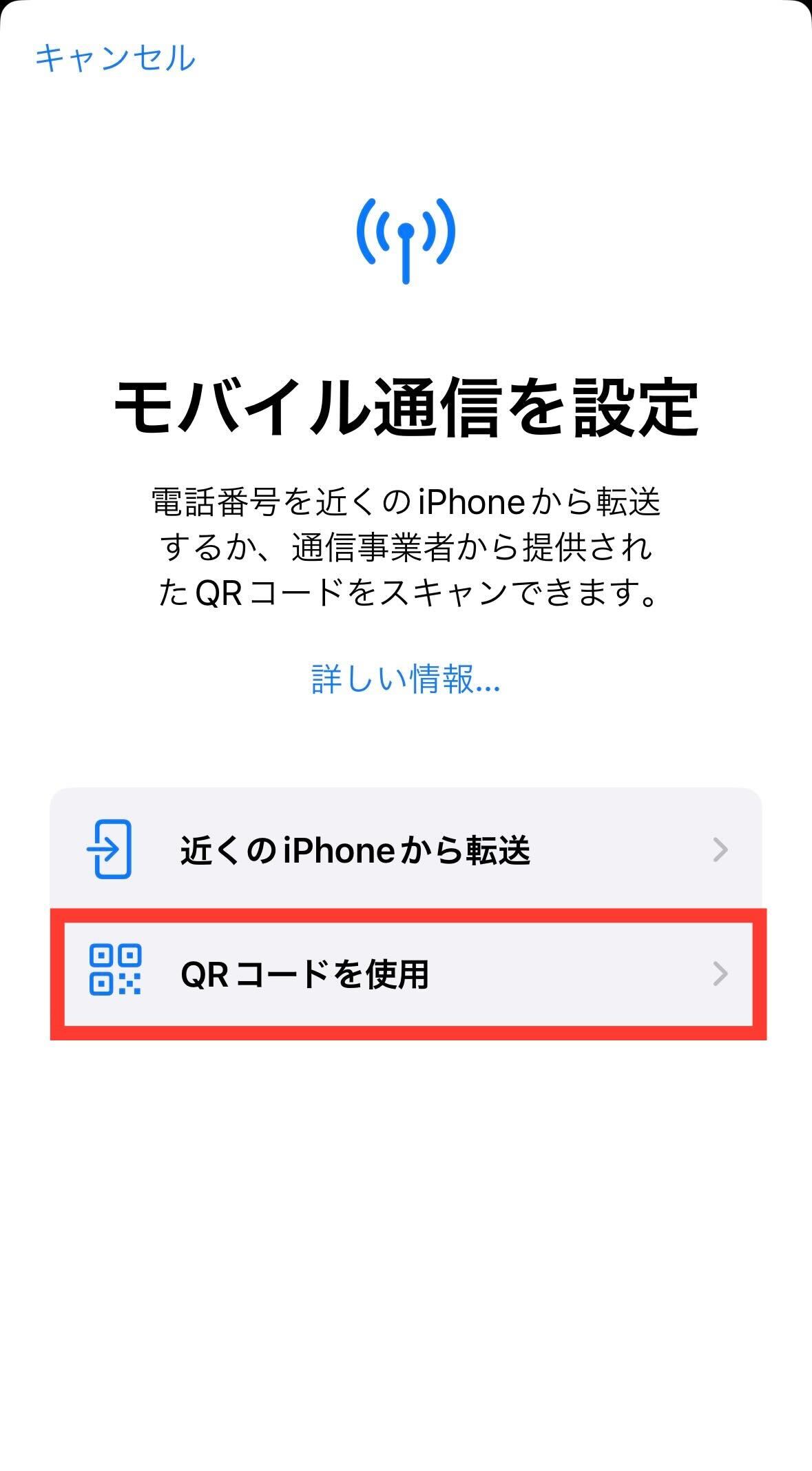
4. Scan the QR code, or tap [Enter Details Manually]
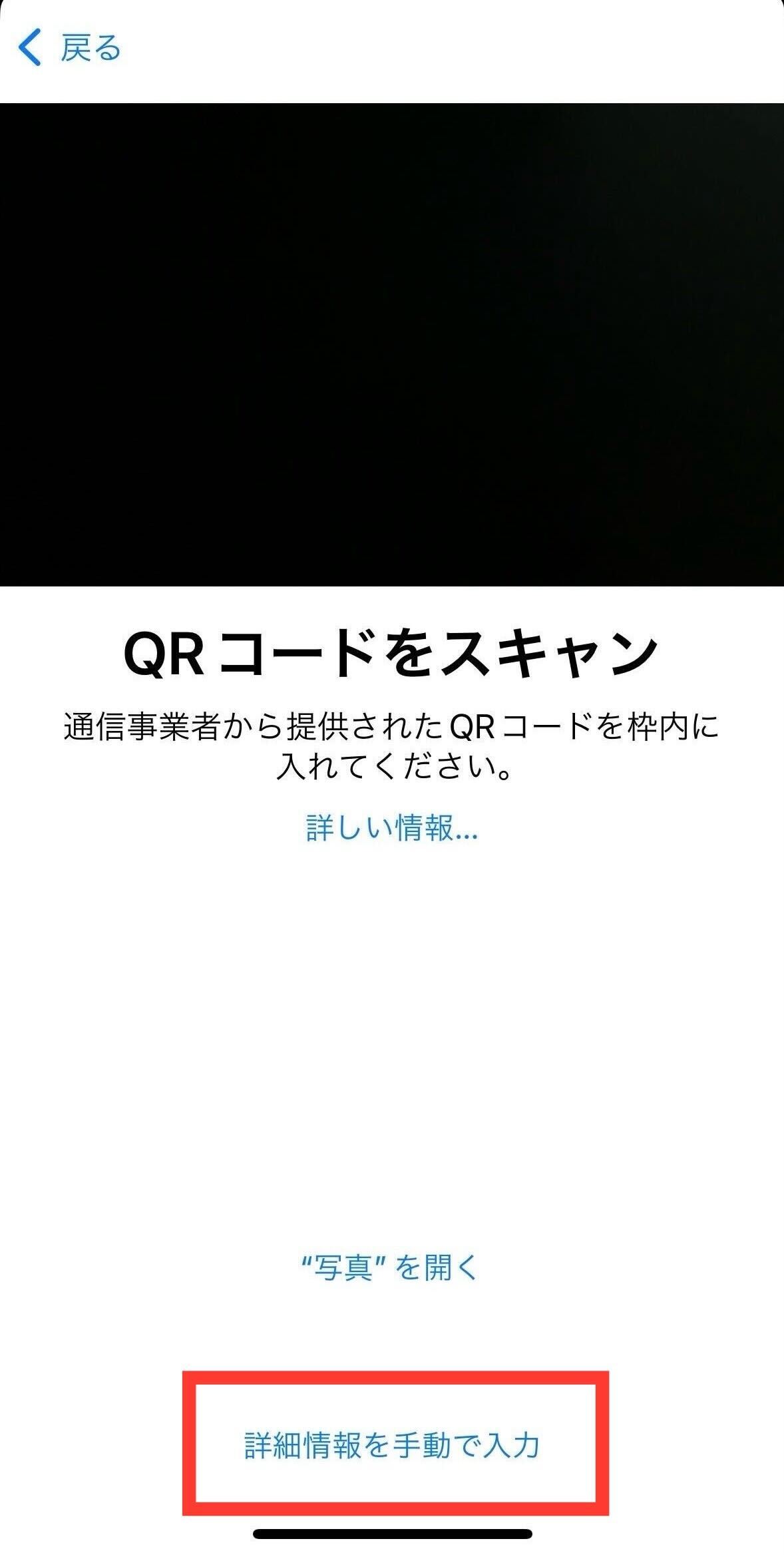
5. If you selected [Enter Details Manually], enter your activation details
*Your activation code has been sent to you via email.
================
• SM-DP+ Address
• Activation Code
*Confirmation code is not required.
================
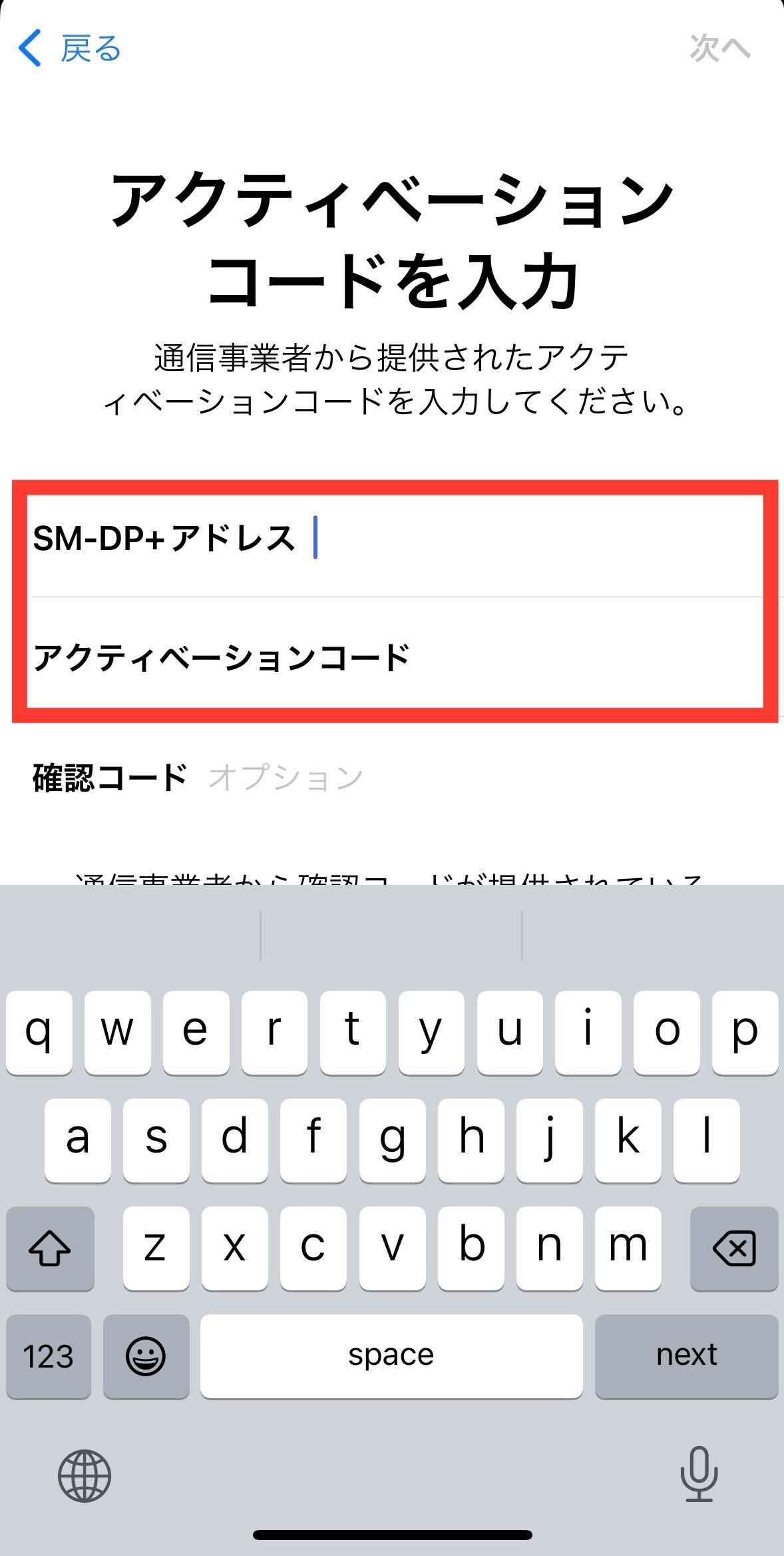
6. Tap [Continue] when "Activate eSIM" appears on the screen
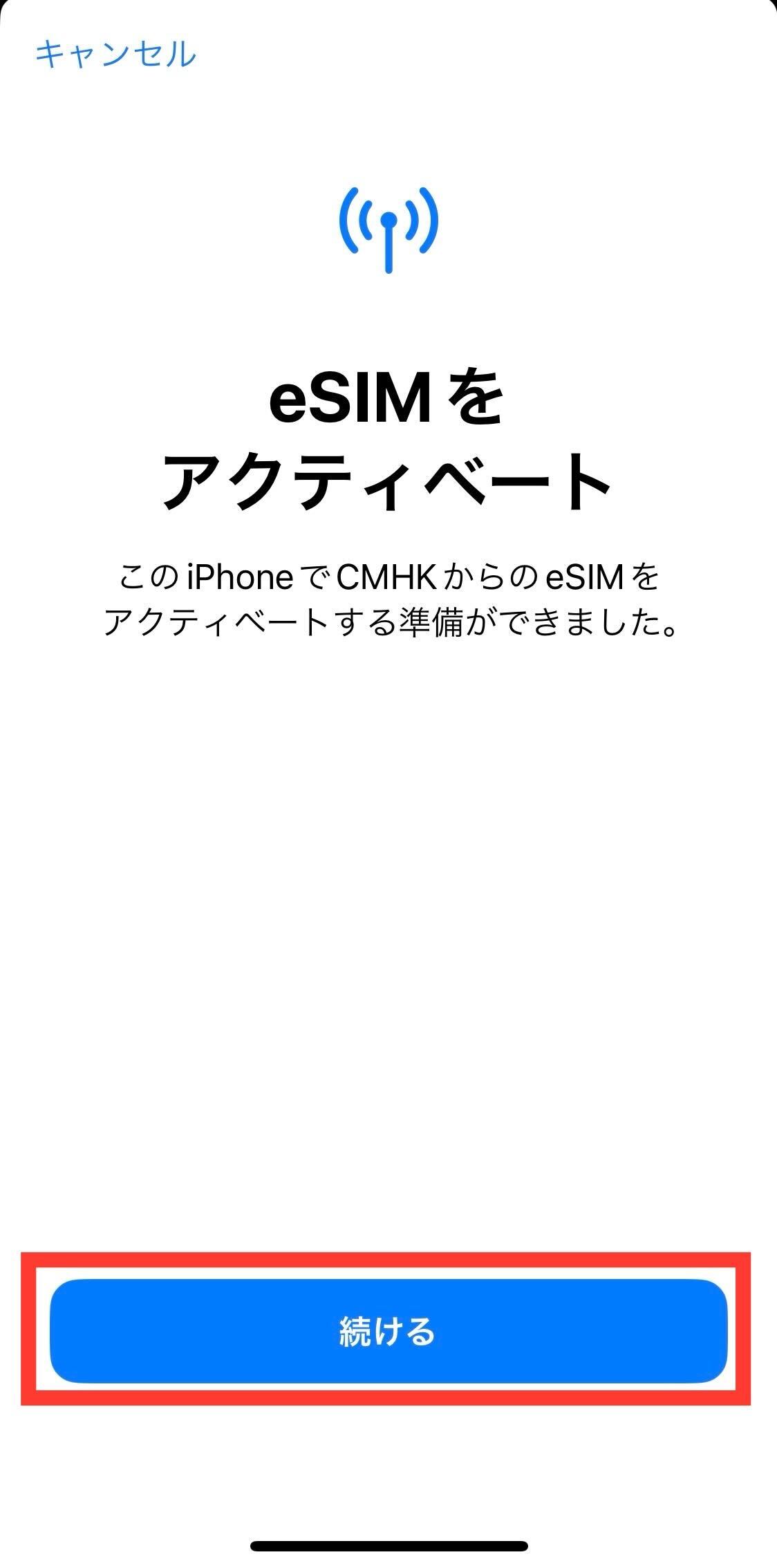
7. Tap [Done] when "Cellular Setup Complete" appears on the screen
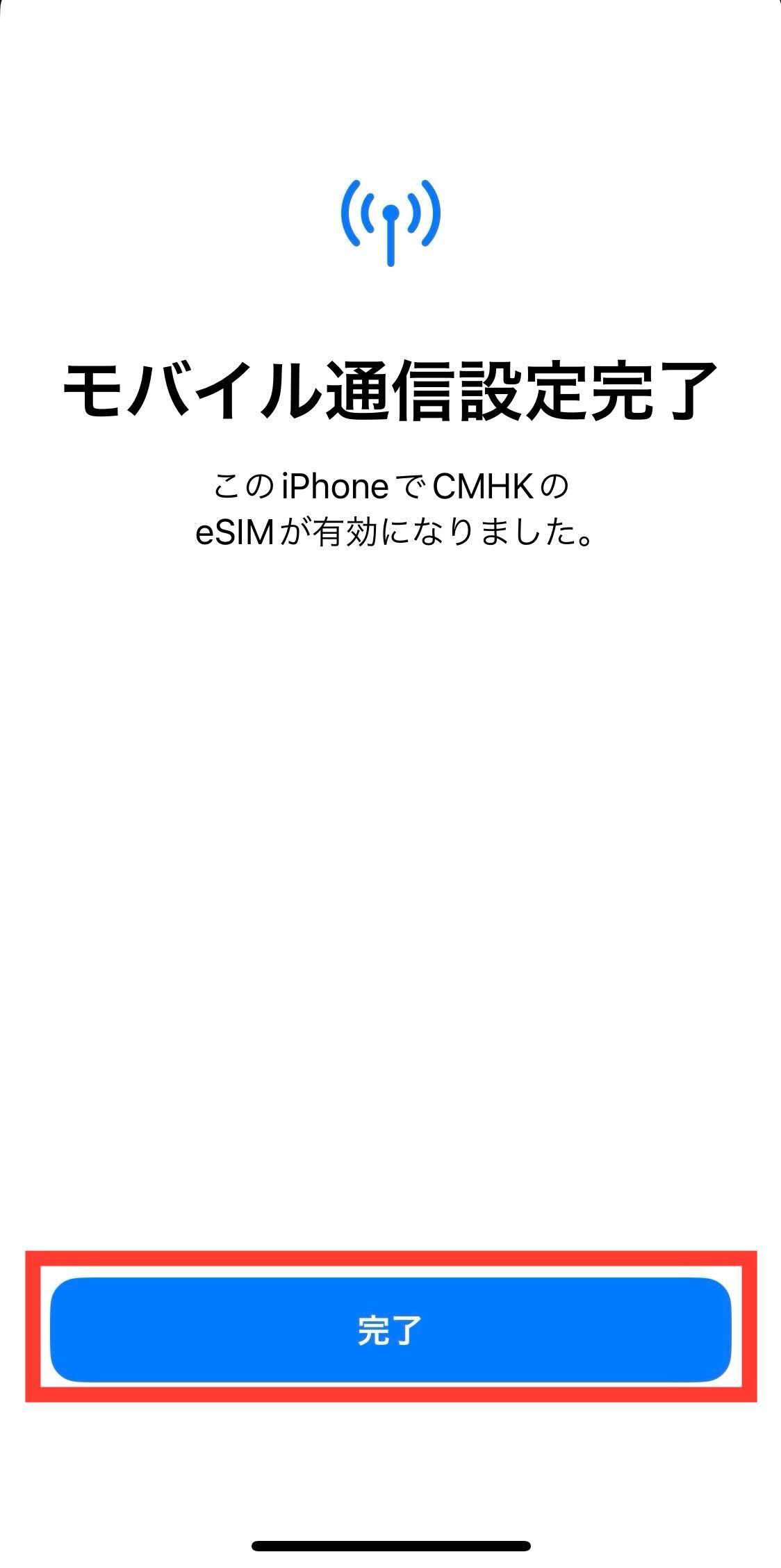
8. Confirm that the eSIM has been added under Cellular, then turn [Data Roaming] ON
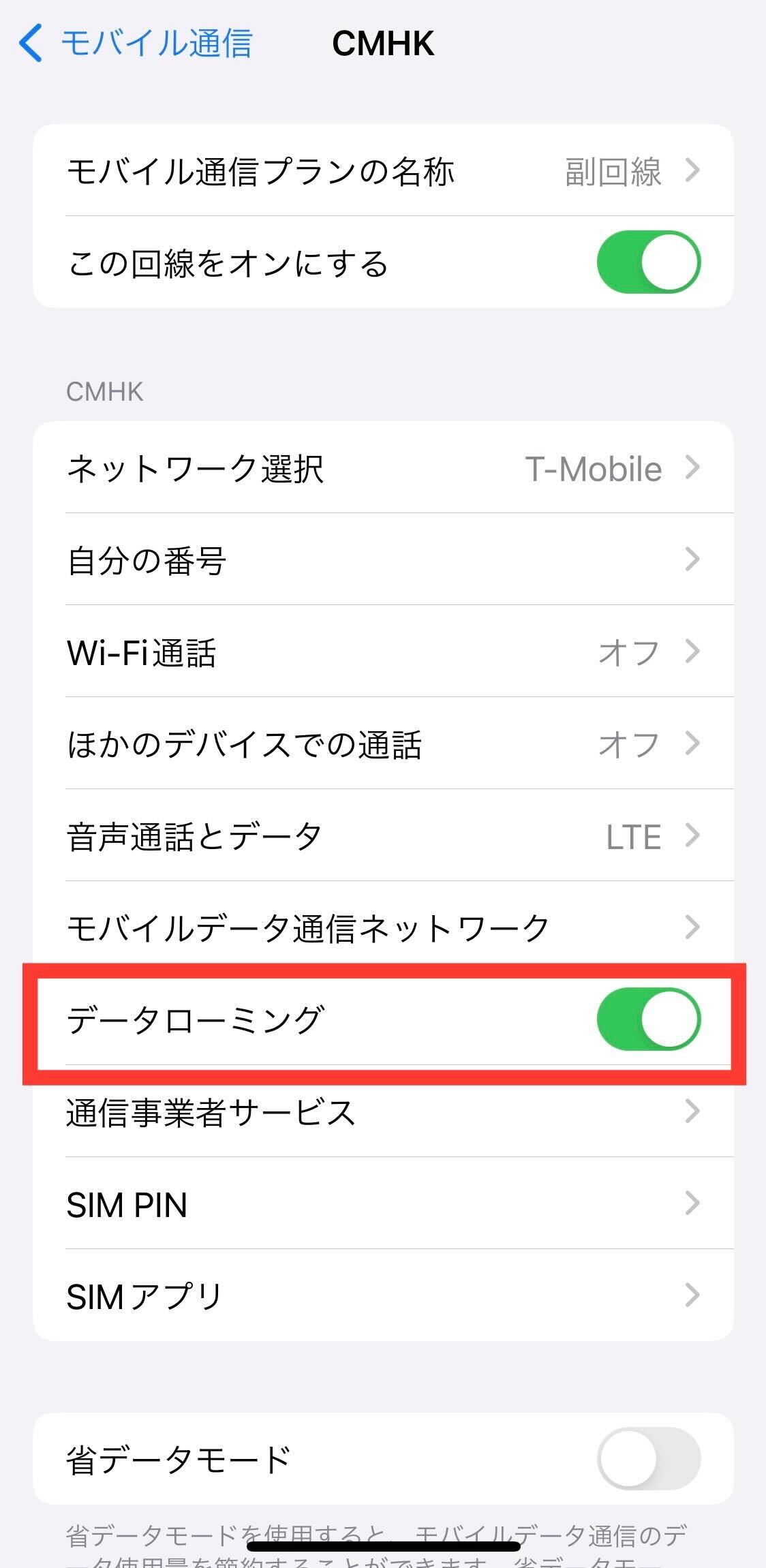
eSIM setup is now complete.
Please make sure you are connected to the Internet.
*If you are using an Android device and need to configure the APN settings, please set it up according to your destination country.
Click here for APN settings by country
• Please start using the service in the covered country within 180 days of placing your order.
• The service period begins on the day your device connects to the network.
• The validity period includes the start date.
• The plan will automatically expire after the validity period ends (no cancellation procedure required).
Example: For a 7-day plan
• Date network connected: July 1
• Service validity period: July 1 – July 7
• Voice calls and SMS are not supported.
• If daily data usage exceeds the allocated limit (500MB/day), your connection speed will be reduced.
• Once connected to the network, the service period cannot be paused or stopped.
View detail 0 0 -
Configuration instructions and APN list by country
If APN configuration is required on your Android device, please set up the following APN details:
Settings > Connections > Mobile networks > Access Point Names (APN) > Tap "+" at the top rightNorth America & Japan
Country / Region Operator APN Japan KDDI cmlink/cmhkUSA T-Mobile / AT&T cmlink/sp.telus.comCanada Bell / Rogers / Telus cmlink/orangeAsia - 14 Destinations
Country / Region Operator APN Japan KDDI cmlink/cmhkChina China Mobile cmlink/cmhkHong Kong CMHK cmlink/cmhkMacau CTM cmlink/cmhkTaiwan Chunghwa cmlink/cmhkSingapore Singtel cmlink/cmhkMalaysia Umobile / Celcom mobile.three.com.hkThailand TRUE cmlink/cmhkIndonesia XL (Excelcom) cmlink/smartoneVietnam Vinaphone / Mobifone (VMS) cmlink/internet.proximus.beCambodia Smart (Hello) cmlink/smartonePhilippines Smart mobile.three.com.hkLaos LTC mobile.three.com.hkEurope
Country / Region Operator APN Montenegro Telenor cmlink/cmhkAlbania Vodafone cmlink/cmhkFaroe Islands Faroese Telecom cmlink/cmhkCroatia Vipnet / TELE2 cmlink/internet.proximus.beLatvia SIA BITE LATVIJA / Tele2 cmlink/internet.proximus.beLithuania Tele2 / UAB BITE LIETUVA (ex- UAB BITE GSM) cmlink/internet.proximus.bePoland P4 / Orange / Plus (Polkomtel) cmlink/internet.proximus.beAustria A1 / Orange (H3G) cmlink/internet.proximus.beBelgium Orange (Mobistar) / Base / Proximus cmlink/orangeEstonia TELE2 / Estonia EMT cmlink/internet.proximus.beFinland ELISA / ALANDS MOBILTELEFON AB / DNA cmlink/internet.proximus.beFrance SFR / Bouygues / Orange cmlink/internet.proximus.beGibraltar GIBTELECOM cmlink/internet.proximus.beGreece Wind Hellas / Vodafone cmlink/internet.proximus.beSpain Telefonica / Xfer / Vodafone cmlink/internet.proximus.beMoldova Orange cmlink/cmhkSlovenia Telekom (Mobitel) / Si Mobile / Telemach cmlink/internet.proximus.beBulgaria Telenor / Mobitel (A1) cmlink/internet.proximus.beSerbia Telenor cmlink/cmhkDenmark Telenor / TDC A/S cmlink/internet.proximus.beIceland Sýn hf (Vodafone) / SIMINN (LANDSSIMINN) cmlink/internet.proximus.beNorway Netcom (Telia) / Telenor cmlink/internet.proximus.beUkraine VEON KYIVSTAR cmlink/internet.proximus.beSweden Telenor / Tele2 / Telia Sonera cmlink/internet.proximus.beSlovakia Telefonica O2 / Orange Slovensko cmlink/internet.proximus.beMalta GO / VODAFONE MALTA LIMITED cmlink/internet.proximus.beIreland Hutchison / Meteor cmlink/internet.proximus.beBosnia and Herzegovina Mtel JSC / BH TELECOM cmlink/internet.proximus.beCyprus MTN Cyprus / CYTA cmlink/internet.proximus.beGermany Telefonica O2 / VODAFONE cmlink/internet.proximus.beLuxembourg P&T (Post) / TANGO SA cmlink/internet.proximus.beNetherlands KPN / VODAFONE cmlink/internet.proximus.bePortugal TMN / NOS cmlink/internet.proximus.beRomania Vodafone cmlink/internet.proximus.beBelarus FE VELCOM cmlink/sp.telus.comRussia T2 Mobile (MTT) / MTS cmlink/cmhkHungary Vodafone / Telenor cmlink/orangeCzech Republic Vodafone / Telefonica O2 cmlink/orangeUK Telefonica O2 / 3UK / EE / VODAFONE cmlink/orangeItaly Vodafone / Iliad Italia / WIND / H3G cmlink/internet.proximus.beSwitzerland Salt / Sunrise cmlink/internet.proximus.beView detail 0 0 -
Please use the following information as a guide when choosing your SIM plan.
* The table below shows what you can do with approximately 1GB of data for each type of usage.
* Please note that this does not mean that 1GB is sufficient for all usage scenarios.
Data Usage Guide: What You Can Do with 1GBUsage What You Can Do with 1GB Video Streaming
(High to Low Quality)Approx. 60–240 minutes Apple Music
(High to Standard Quality)Approx. 5–8 hours Email
(Without Attachments)Approx. 204,000 emails TikTok Approx. 60–240 minutes Instagram Approx. 60–240 minutes Map Apps Approx. 10,000 km LINE
(Text Only)Approx. 50,000 messages LINE
(Stickers, Photos & Videos)Approx. 340 times LINE Voice Calls Approx. 15 hours LINE Video Calls / Zoom Approx. 60–240 minutes FaceTime
(Audio)Approx. 15 hours FaceTime
(Video)Approx. 120–360 minutes Opening a Search Engine Homepage
(Yahoo!, Google, etc.)Approx. 1,000 times * Data usage figures are approximate and may vary depending on your connection environment, video quality, audio quality, and the presence and amount of image data.
* Map apps may consume more data in areas with many buildings or when zooming in or out on the map.
Commonly Recommended Ways to Reduce Data UsageThe effectiveness of the above settings may vary depending on your device and data connection environment.
Please make sure you understand the effects before changing these settings.
View detail 0 0 -
Pocket WiFi Reservation Guide
STEP 1Access the page below to open the Pocket WiFi reservation form.
https://universalmobile.us/wifi/order
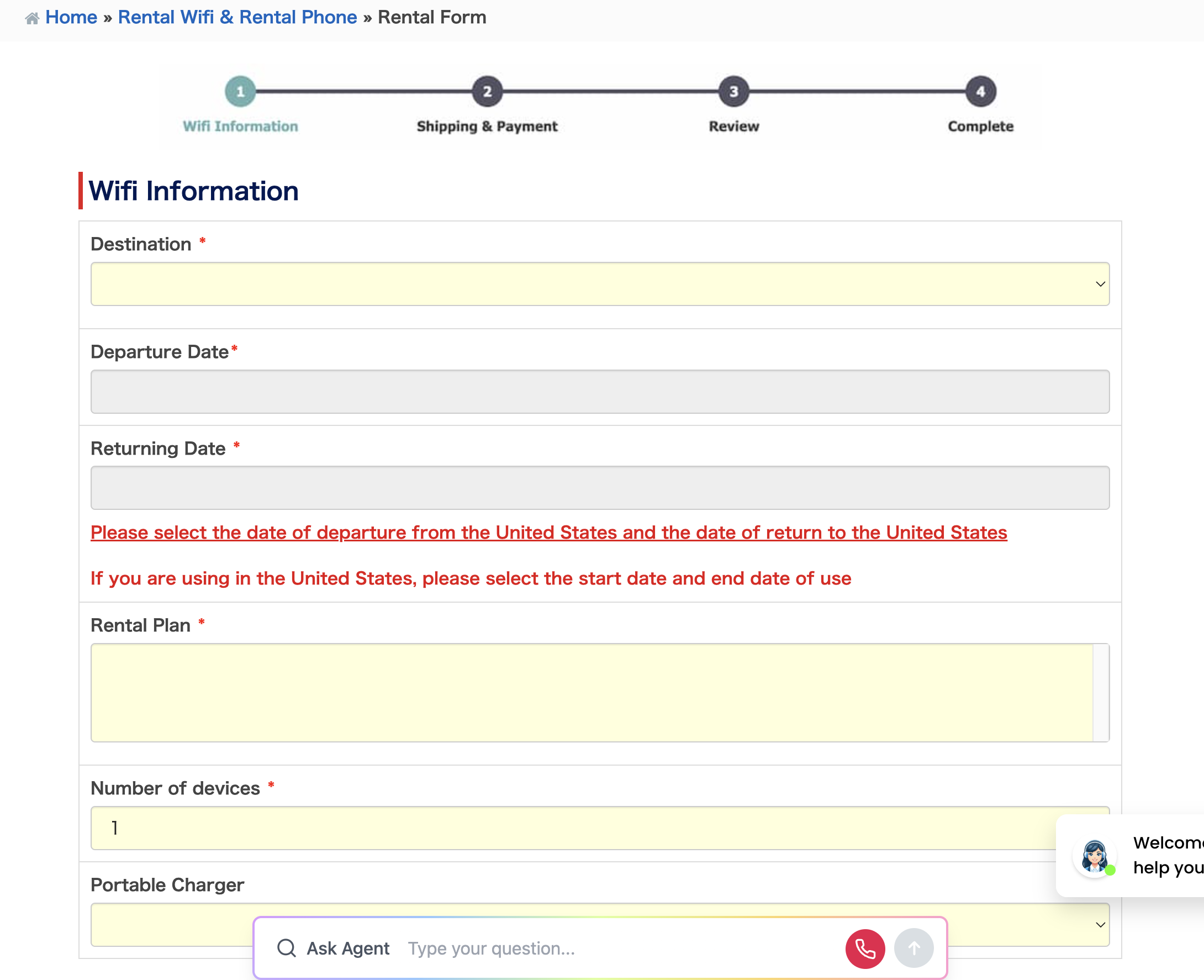 STEP 2
Select your destination country, then choose your desired date from the calendar.
Important: The date cannot be entered manually. Please select your date from the calendar.
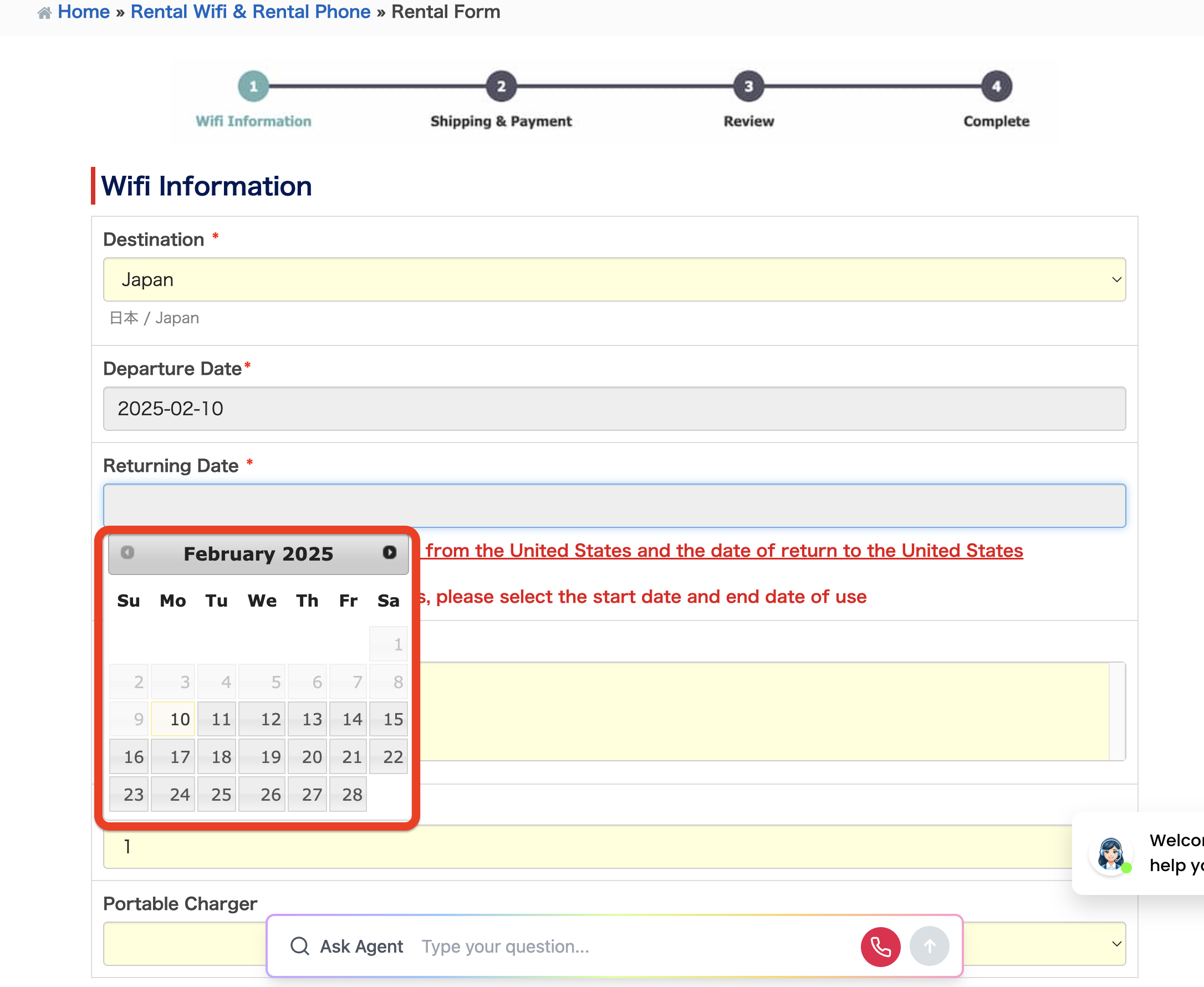 View detail 0 0
 -
You can keep your U.S. phone number when switching to another carrier through number portability (number transfer).
Information Required for Number Transfer
When transferring your phone number to another carrier, you will need the following information:
• Account Number
• Transfer PIN
Need Your Account Number or Transfer PIN?
If you need your Account Number or Transfer PIN, please contact us through the form below.
Important Note
Please note that your phone number cannot be transferred if your current service is canceled or becomes inactive before the number transfer is completed, or if your prepaid service expires.
View detail 0 0 -
Yes, a pocket Wi-Fi allows you to connect multiple devices at once.
You can typically connect up to five devices simultaneously.
Just keep in mind that the more devices you connect, the slower the internet speed might be.
View detail 0 0 -
Your activation completion email may have been delivered to your spam or junk mail folder.
Please check your spam or junk mail folder. Alternatively, please add customer@universalmobile.us to your trusted or safe sender list to ensure you receive our emails.
View detail 0 0 -
" You can change your registered email address at any time from My Page. "
After logging in to My Page in the upper-right corner of the UNIVERSAL Mobile website, please go to Profile to make the change.
View detail 0 0 -
Pickup service is not available on weekends or public holidays.
If you would like to request an earlier pickup date,
please contact us through our Contact Form .
View detail 0 0 -
About the Roaming Service
This service allows you to connect to local mobile networks in the countries you are staying in without using a Wi-Fi router.
The service is available without an additional application or registration only for customers subscribed to the $60 Premium Plan.
For details about roaming rates, please see here .
※Roaming charges will be billed as “Usage Charges” on the invoice for the following month.
Note: Data and voice services using roaming may have an unstable connection depending on the area of the country you are staying in.
Please adjust the following settings on your smartphone.
View detail 0 0 - View detail 0 0
-
The following frequency bands are required to use our service in the United States.
Support for the following primary frequency bands is required: Band 2, 4, 12, 66, and 71 (4G), and n71 and n41 (5G).
※ Please note that devices that support the frequency bands listed below but do not support VoLTE cannot be used with our service.
Note 1) If you plan to continue using a mobile phone purchased from another carrier, please make sure that the SIM lock has been removed before using our service.
Note 2) Mobile phones purchased in Japan, including many models from Japanese electronics manufacturers such as SONY and SHARP, may not support the frequency bands used in the United States. Please check device compatibility before use.
View detail 0 0 -
Roaming Rates for $60 Premier Plan
・Data: Unlimited *Speeds are throttled to 2G
・SMS: Unlimited
・Voice Calls: $0.25 / min *Charges apply to both outgoing/incoming calls and add-on services
*No extra usage charges apply in Canada and Mexico. The above rates apply to all other countries.
Roaming Rates for $15, $30, and $45 Plans
Rates for Use in Japan
・Data: $0.20 / per MB
・SMS: $0.05 / per SMS
・Voice Calls: $0.25 / per min
*Rates for other countries are listed below.
View detail 0 0 -
You can switch your current physical SIM to an eSIM.
You can continue using your current phone number.Steps
1 Send Us Your Device Information
We need the following information to switch your SIM to an eSIM.
Please send us the information by email.EID The unique identifier for your eSIM IMEI Your device's unique identification number Current Phone Number If you wish to keep your current number How to find your EID and IMEI:
How to Find Your EID and IMEI2 We Process Your eSIM Request
Once we receive your EID and IMEI, we will process the switch to an eSIM.
The process usually takes 1–2 business days.3 Install Your eSIM
Once the process is complete, we will send you an eSIM QR code or activation code by email.
Follow the instructions in your device settings to install the eSIM.Important Notes
- Once you switch to an eSIM, your current physical SIM will no longer work.
- Only eSIM-compatible devices can be switched to an eSIM. Please make sure your device supports eSIM.
- You can continue using your current physical SIM until the switch is complete.
- You can keep your current phone number after switching to an eSIM.
Contact Us
If you would like to request a SIM-to-eSIM switch or have any questions, please contact our customer support team.
UNIVERSAL Mobile Customer Support
support@universal-mobile.comView detail 0 0 -
You do not need to return your physical SIM card.
Once the switch to an eSIM is complete, you may dispose of your physical SIM card.
You do not need to send it back to us.Important
Once the switch to an eSIM is complete, your physical SIM card will be automatically deactivated.
You will no longer be able to use the physical SIM card after the switch.If you have any questions, please feel free to contact us.
UNIVERSAL Mobile Customer Support
customer@universalmobile.usView detail 0 0 -
What is the New Premier Plan?
T-Mobile 5G Ready! This is the upgraded "New Plan" that enhances our existing Premier Plan with additional features.
The "New Plan" is the only plan that includes international roaming, allowing you to use your phone seamlessly when temporarily returning to Japan or traveling abroad!☆
Features Included in the New Premier Plan
■ International Roaming
■ Unlimited Usage in Canada & Mexico (Includes calls to Canadian & Mexican numbers)
■ Outbound International Calling
■ Music & Video Streaming
This T-Mobile 5G Compatible New Premier Plan includes all of the above services by default.
There is no need to select separate add-on options.
Please note that usage fees vary depending on the feature—some are free, while others incur charges.
Please review the details for each service below.
【 Service Details 】
【 International Roaming 】
Enjoy free, unlimited internet roaming in approximately 120 countries worldwide, including Japan!
You can use local mobile networks even without Wi-Fi, making it extremely convenient for temporary visits back to Japan!
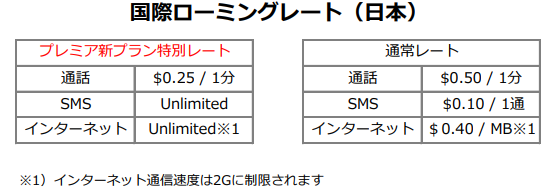
Roaming speeds may vary slightly by country.
To check roaming rates for countries other than Japan, please contact Customer Support.
【 Unlimited Usage in Canada & Mexico (Includes Calls to Canadian & Mexican Numbers) 】
Enjoy free and unlimited usage within Canada and Mexico!
Outbound calls from the U.S. to phone numbers in Canada and Mexico are also free and unlimited.
You can also use your service seamlessly at Mexican resort destinations like Cancun and Los Cabos at no additional cost♪
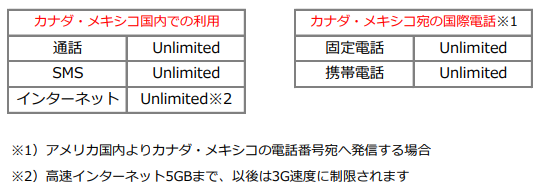
【Outbound International Calls 】
International calling service is supported.
*Please note that outbound international calls are not free.
Depending on your call frequency, you can subscribe to optional add-on plans.
The following options are available: Special International Calling Rates ($15/month) and Japan Call ($15/month).
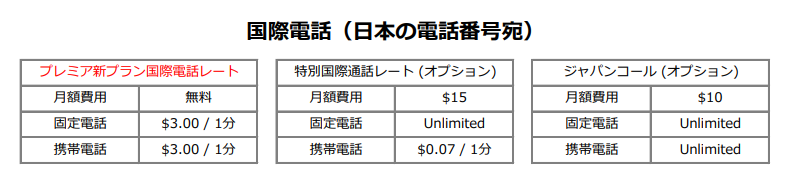
【 Music & Video Streaming 】
Streaming on partner music and video platforms (including those listed below) will not count against your data limit.
Enjoy seamless music and video streaming anytime on a high-speed network connection.
TikTok, Apple Music, Spotify, YouTube Music
Amazon Video, Disney Channel
Netflix, YouTube, Hulu, HBO, and more
How to Switch to the New Premier Plan
Upgrading to the T-Mobile 5G New Plan requires a SIM card replacement (limited quantities available!).
For details, please contact Customer Support via the "Inquiry Form".
【 Contact Us 】
If you have any questions regarding the New Premier Plan,
please reach out to us via the "Inquiry Form" (available 24/7).
=========================
UNIVERSAL Mobile Customer Support
Email: customer@universalmobile.us
=========================
View detail 0 0