
Frequently Asked Questions
Search for answers to common questions
Results for "Wi-Fi": 18
- Troubleshooting Signal / Data Speed Last updated: January 11, 2025
Troubleshooting: Weak Signal, Slow Data Speed, or No Signal (SOS Only)
If you are experiencing sudden signal loss, slow data speeds, or your phone shows "SOS only", please try the following steps in order.
? Steps to Try
1Restart your smartphone
2Remove and reinsert your SIM card
Gently clean the gold contacts on the SIM card with a cotton swab or soft cloth before reinserting.3Turn off Wi-Fi and Bluetooth, power off your device, wait about 1 minute, then turn it back on
4Enable Airplane Mode for about 30 seconds, then disable it
5Toggle Mobile Data off and on several times
6Check for carrier settings updates and update to the latest iOS / OS version
7Reset Network Settings (iPhone)
"Settings" → "General" → "Reset" → "Reset Network Settings"
⚠️ This will erase all saved Wi-Fi passwords. Please note this before proceeding.
8Temporarily disable or uninstall any antivirus apps (e.g., Norton)
9Turn off any VPN settings
10Reconfigure your APN settings (Android only)
※ For APN setup instructions, see APN Settings Guide.⚠️ If the issue persists after trying all the above
Please contact our customer support with the following information:
- Account holder name
- Phone number
- Device make, model name, and IMEI number (15 digits)
※ Dial "*#06#" on your phone to display the IMEI number. - Location of use (ZIP code or city name)
If you have any questions, please feel free to contact us.
UNIVERSAL Mobile Customer Support
customer@universalmobile.usView detail 1 0 - Pocket WiFi ご利用案内
ポケットWiFi レンタル期間変更・延長・キャンセル・返却について
UNIVERSAL Mobile Customer Support
Please contact to UNIVERSAL Mobile Customer Support during our business hours.
Email : customer@universalmobile.us
Hours: 9:00 a.m. to 5:00 p.m. (Monday - Friday) *Closed on Saturday, Sunday, and holidays (U.S. West Coast time)
お問い合わせ・レンタル期間変更について
ポケットWi-Fiのレンタル期間変更、延長、キャンセルは、下記受付時間内にカスタマーサポートまでご連絡ください。
お問い合わせ先:UNIVERSAL Mobile カスタマーサポート
Eメール:customer@universalmobile.us
受付時間:午前9時~午後5時(月~金)※土・日・祝日はクローズ(米国西海岸時間)
■ To Change
To change your Rental Date, Please contact Customer Support before the Start Date with the following information.
*Reservation Number
*Reservation Name
*Email address
*New Rental Date■ 期間変更
レンタル期間変更は、ご利用開始日までにカスタマーサポートまでご連絡ください。
・予約番号
・お名前
・Eメールアドレス
・変更希望の日程■ To Extension
To extend your Rental Date, Please contact Customer Support before your Rental Period during our business hours with the following information.
*Reservation Number
*Reservation Name
*Email address
*Extension Date■ 延長
レンタル期間の延長は、ご利用終了日までにカスタマーサポートの営業時間内にご連絡ください。
・予約番号
・お名前
・Eメールアドレス
・延長期間■ To Cancel
To Cancel your order, Please contact Customer Support before the Start Date with the following information.
*Reservation Number
*Reservation Name
*Email addressIf you cancel your order after the start date, we will charge the fee based on the number of days passed.
If you cancel your order after we shipped the wifi , we won't refund the shipping fee.
■ キャンセル
キャンセルをご希望の場合はカスタマーサポートまでご連絡ください。
キャンセル料金はかかりませんが、ご連絡をいただいたタイミングによりご返金額が異なります。
●ポケットWiFi発送前のキャンセル(郵送の場合) 全額ご返金いたします ●ポケットWiFi発送(受取)後、利用開始日前のキャンセル(郵送の場合) 送料を除く金額を返金いたします ●ポケットWiFi発送(受取)、利用開始日後のキャンセル(郵送の場合) 送料、利用開始日を経過した日数分のレンタル費用を除く金額を返金いたします ※料金はご利用台数ごとに発生します
■ Late Fee
Return Due Date is the next business day of the Returning Date.
Please send / drop of the Pocket WiFi within the next business day of the Returning Date.
We will charge you the following late fee until we receive the wifi after the due date.
- Late Fee: $12 per day ( plus Rental Insurance Fee)
If the rental cost exceeds $12, the original rental price will be charged for the days overdue.
■ 延滞料金
返却期限:
- ご帰国日の翌営業日までに発送手続きをしてください
- 持込で返却される場合はご帰国日の翌営業日までにReturn Boxへ返却してください
ご返却の確認ができない場合、延滞料金として[1日あたり一律$12、( + 安心補償パック)× 超過日数分]が請求されます。
※レンタル費用が$12を超えるプラン場合は、レンタル費用× 超過日数分をご請求させていただきます。
View detail 0 0 -
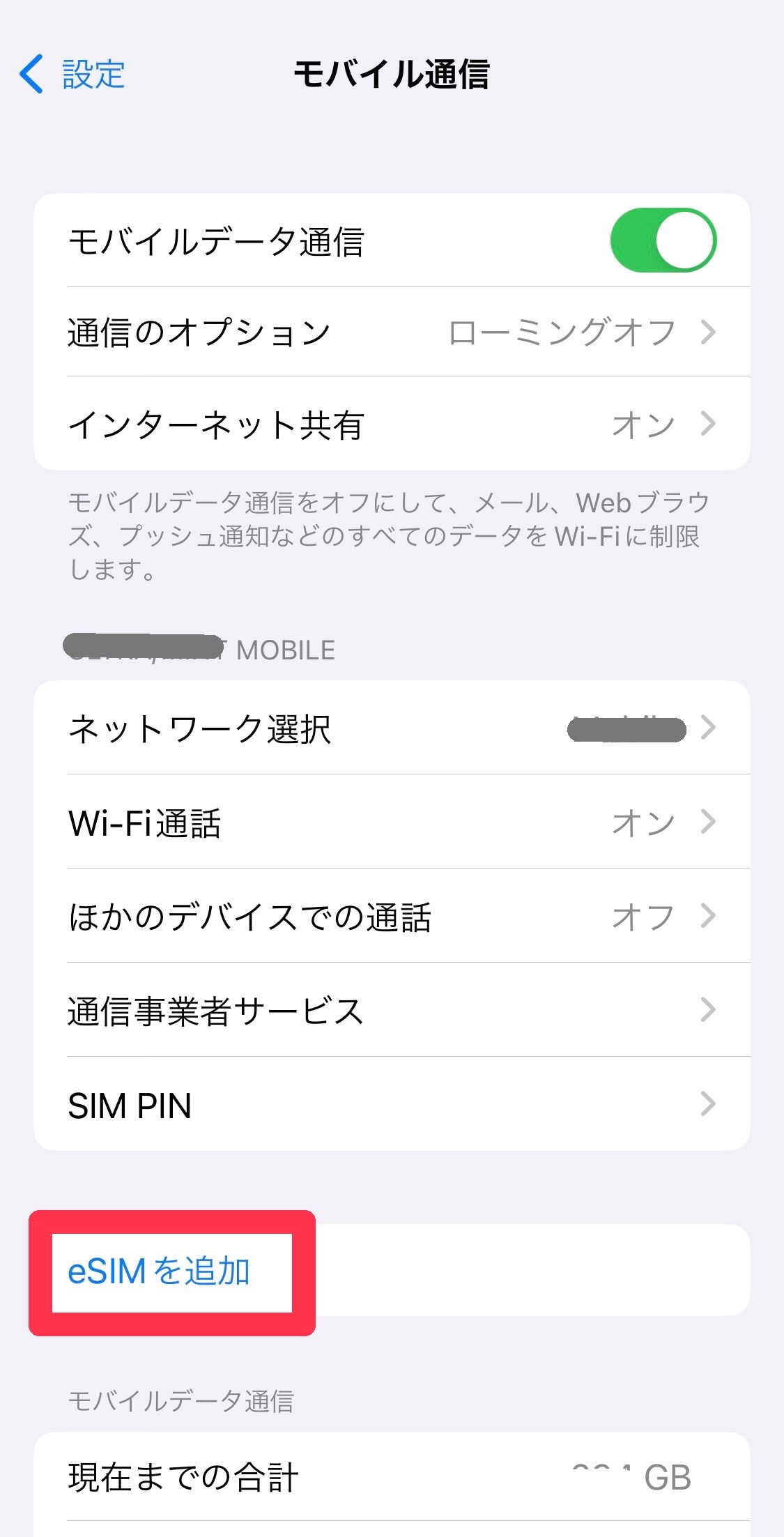
① Open the “Settings” app on your smartphone and tap “Mobile Service.”

② Tap “Add eSIM.”
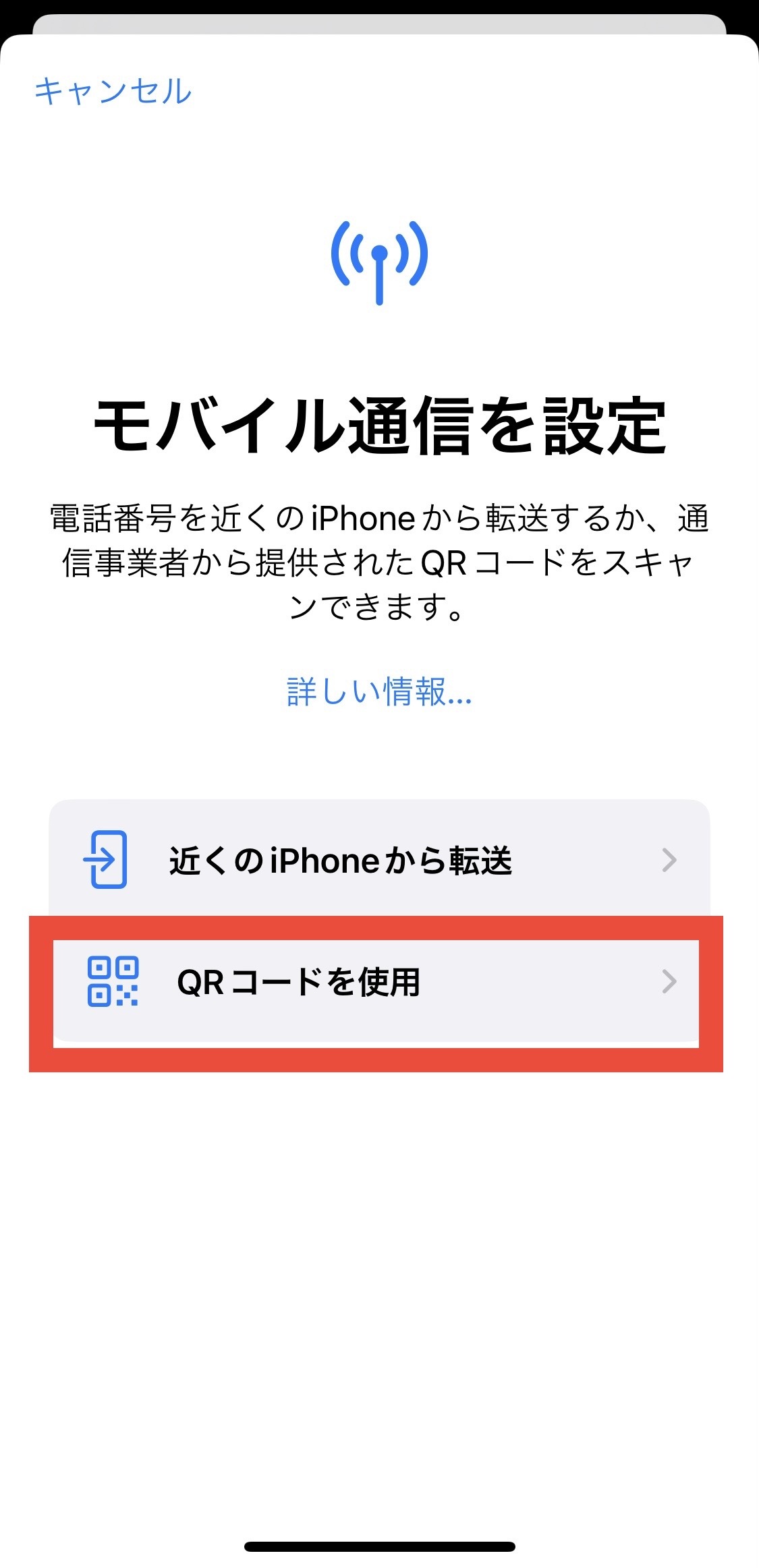
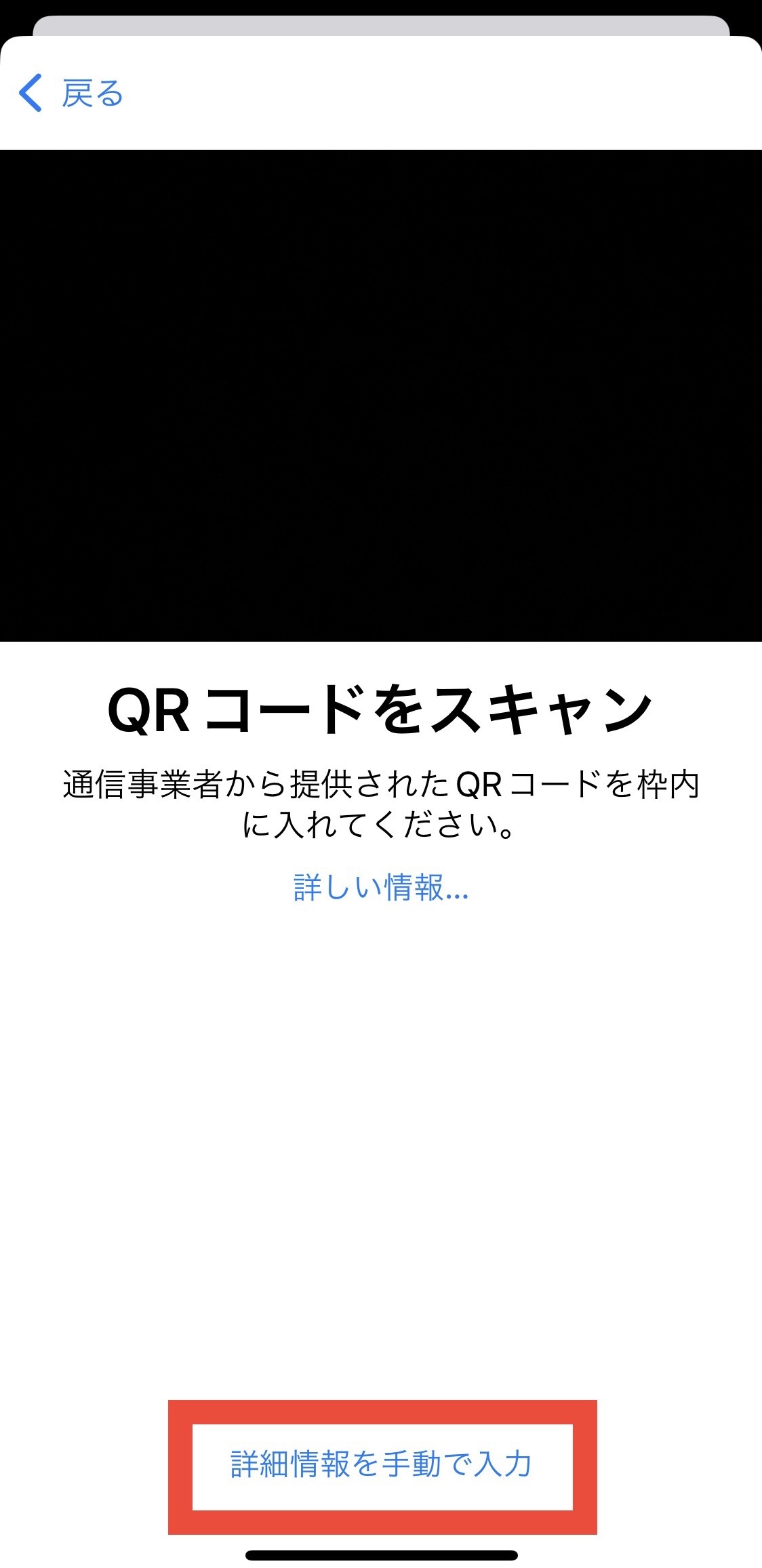
③ Tap “Use QR Code” → “Enter Details Manually.”
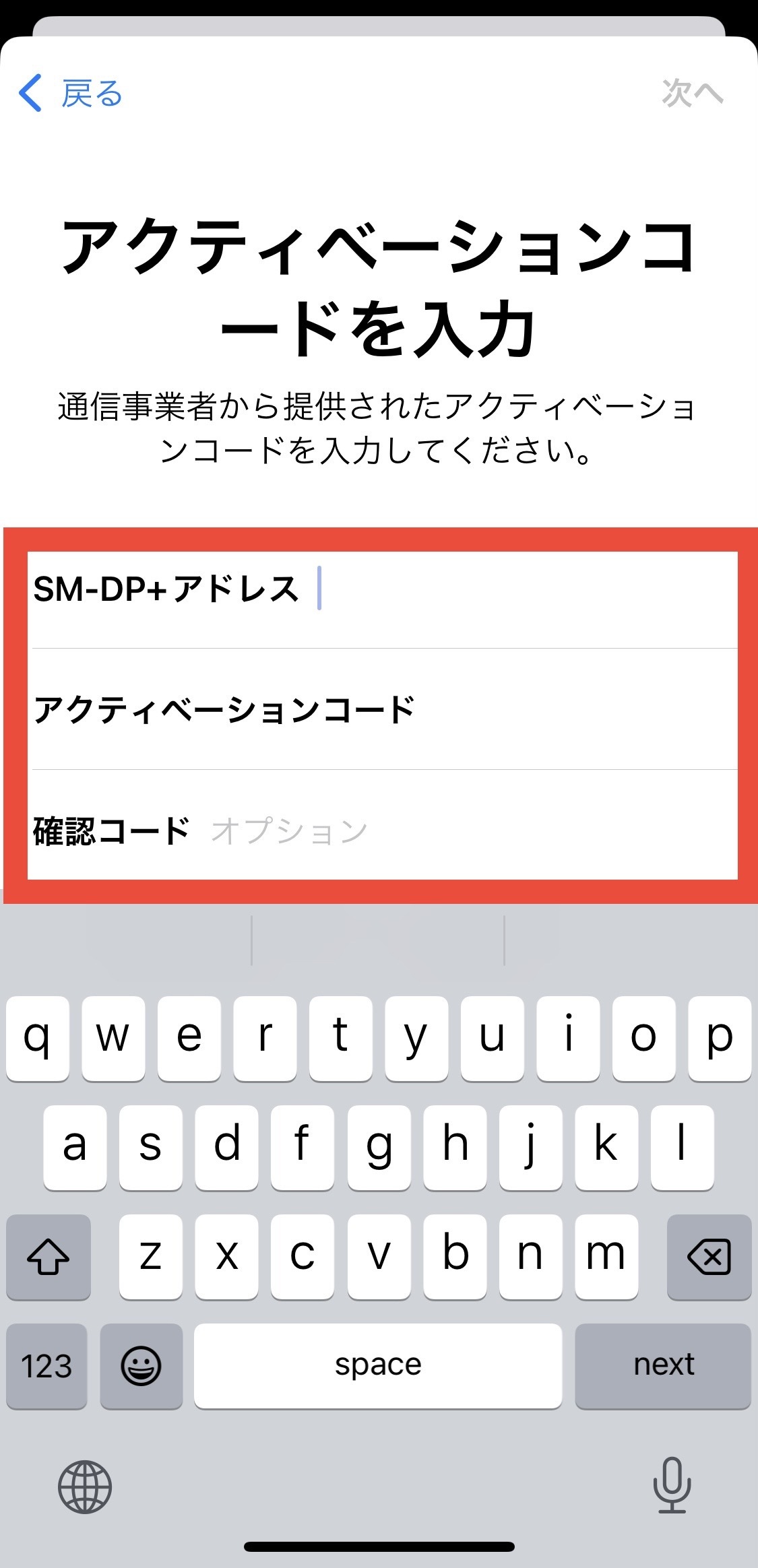
SM-DP+ Address: Enter T-MOBILE.GDSB.NET
Do not enter the Activation Code or Confirmation Code. Tap “Next” to continue.
④ When “Activate eSIM” appears, tap “Continue.”
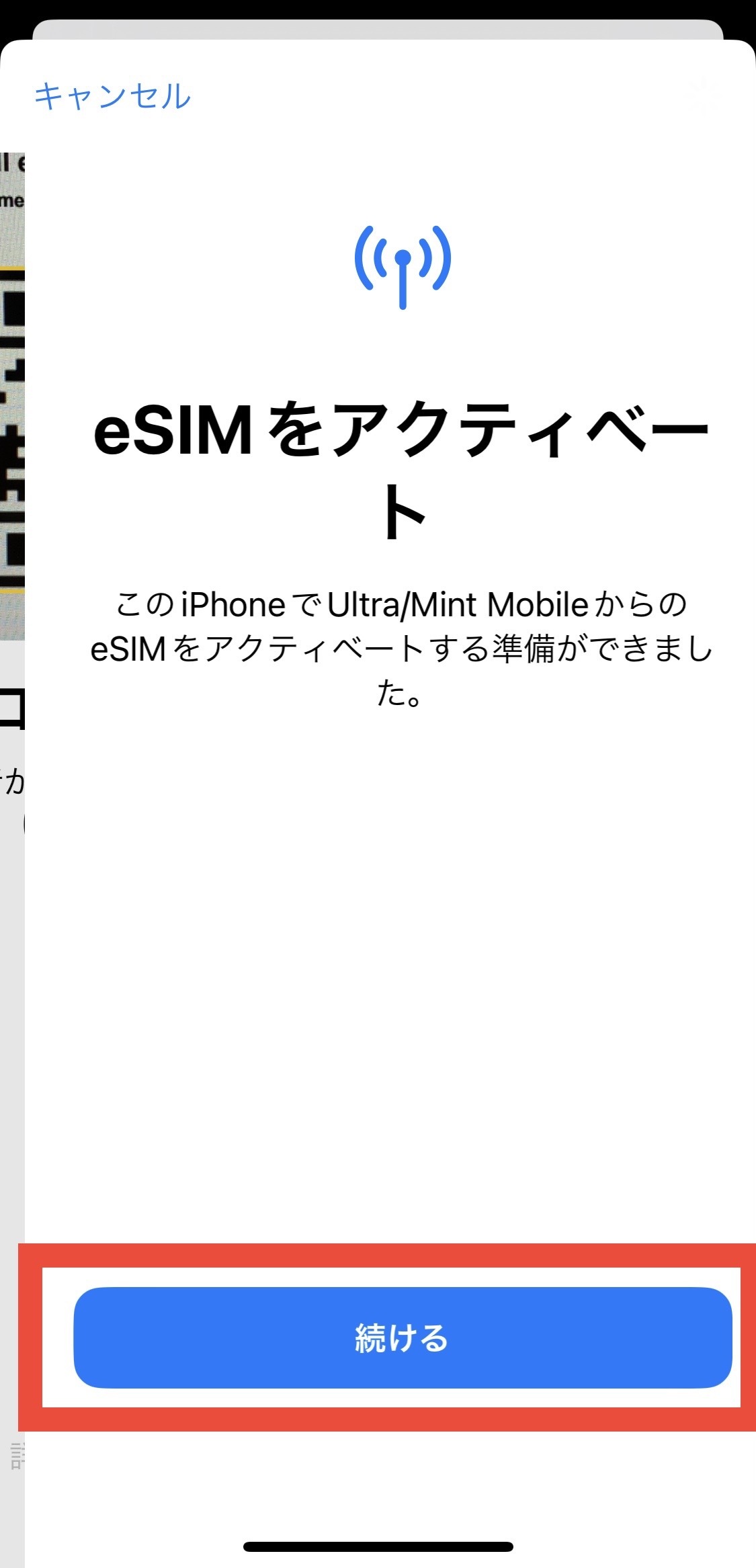
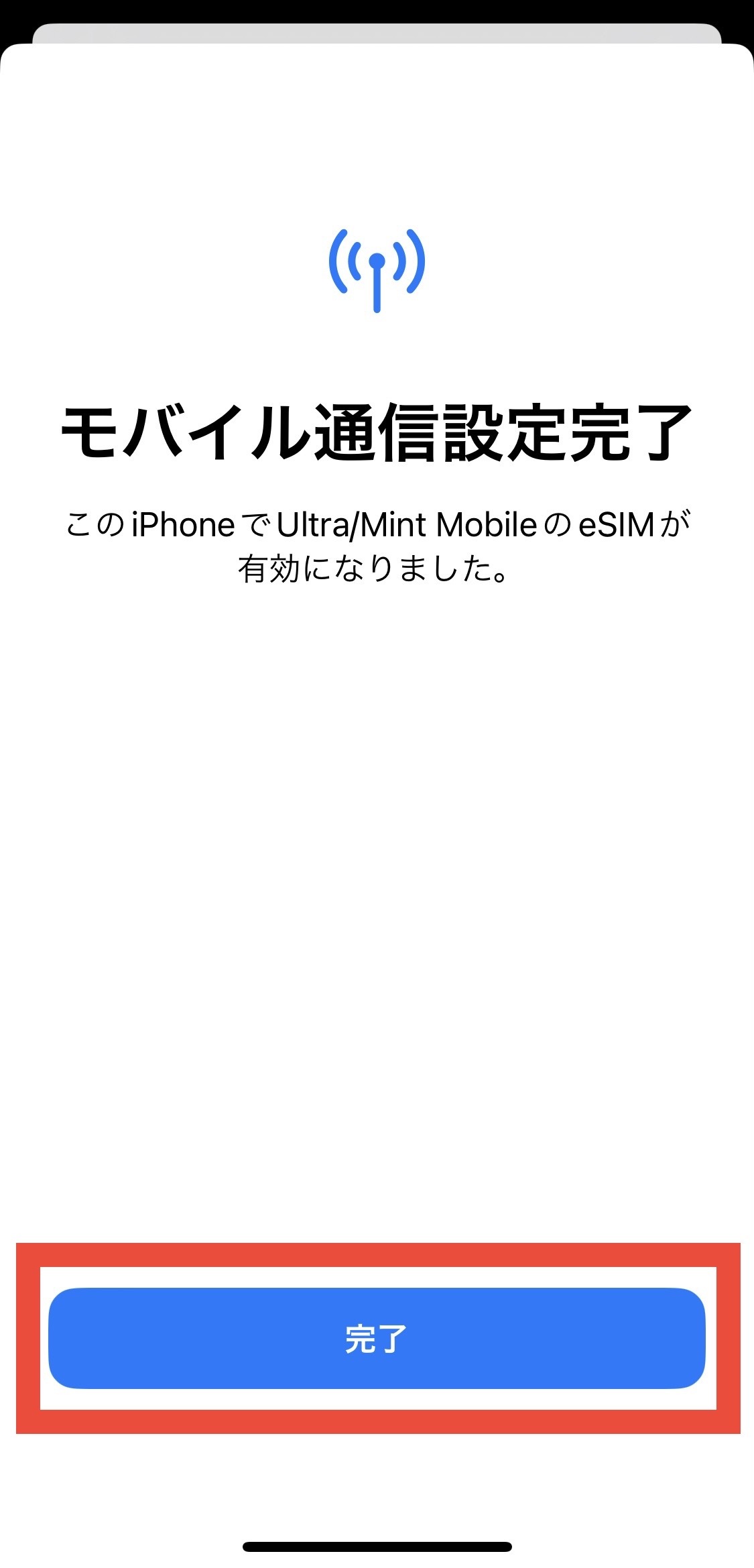
⑤ When “Mobile Service Setup Complete” appears, tap “Done.”
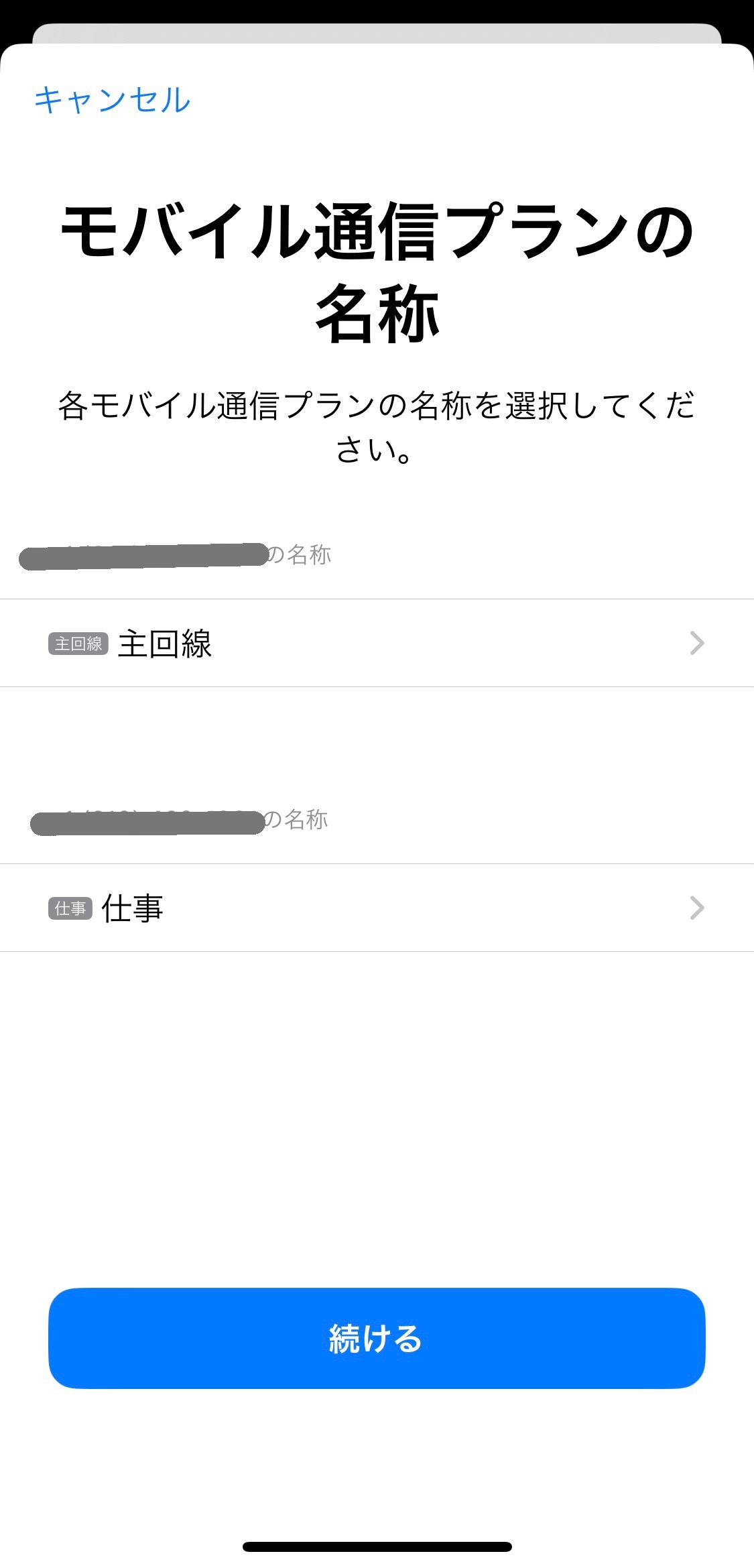
⑥ Set a name for your mobile service plan and tap “Continue.”
⑦ In the “Mobile Service” section of the “Settings” app, make sure that your phone number is displayed under “SIMs.”
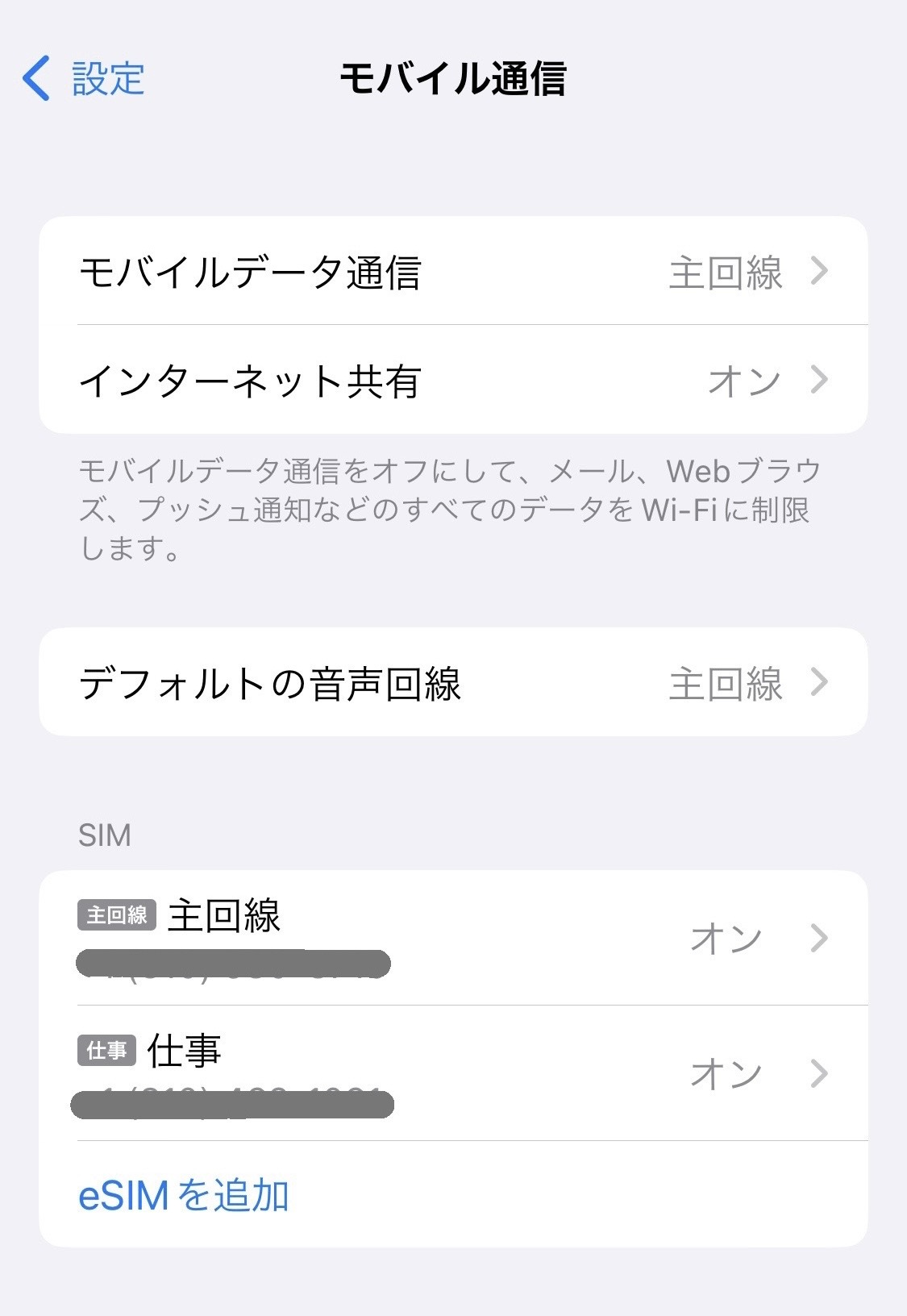
Once you confirm that your device has a cellular signal, the eSIM activation is complete.
=====================
Troubleshooting: If you are unable to add the eSIM
・Try adding the eSIM while connected to Wi-Fi.
・ Check for a carrier settings update and make sure your iPhone is updated to the latest version of iOS.
・ Turn Airplane Mode on for about 30 seconds, then turn it off again.
・ Reset your network settings.
“Settings” → “General” → “Transfer or Reset iPhone” → “Reset” → “Reset Network Settings”
※Please note that resetting your network settings will remove your saved Wi-Fi settings.
・ Turn off any VPN or antivirus/security apps (such as Norton).
View detail 0 0 -
Once your service start date (U.S. time) arrives, add the eSIM to the smartphone you will be using.
※You cannot set up the eSIM before your service start date.
① Connect to Wi-Fi, then tap [Settings] → [Cellular].
※Please make sure Airplane Mode is turned off.
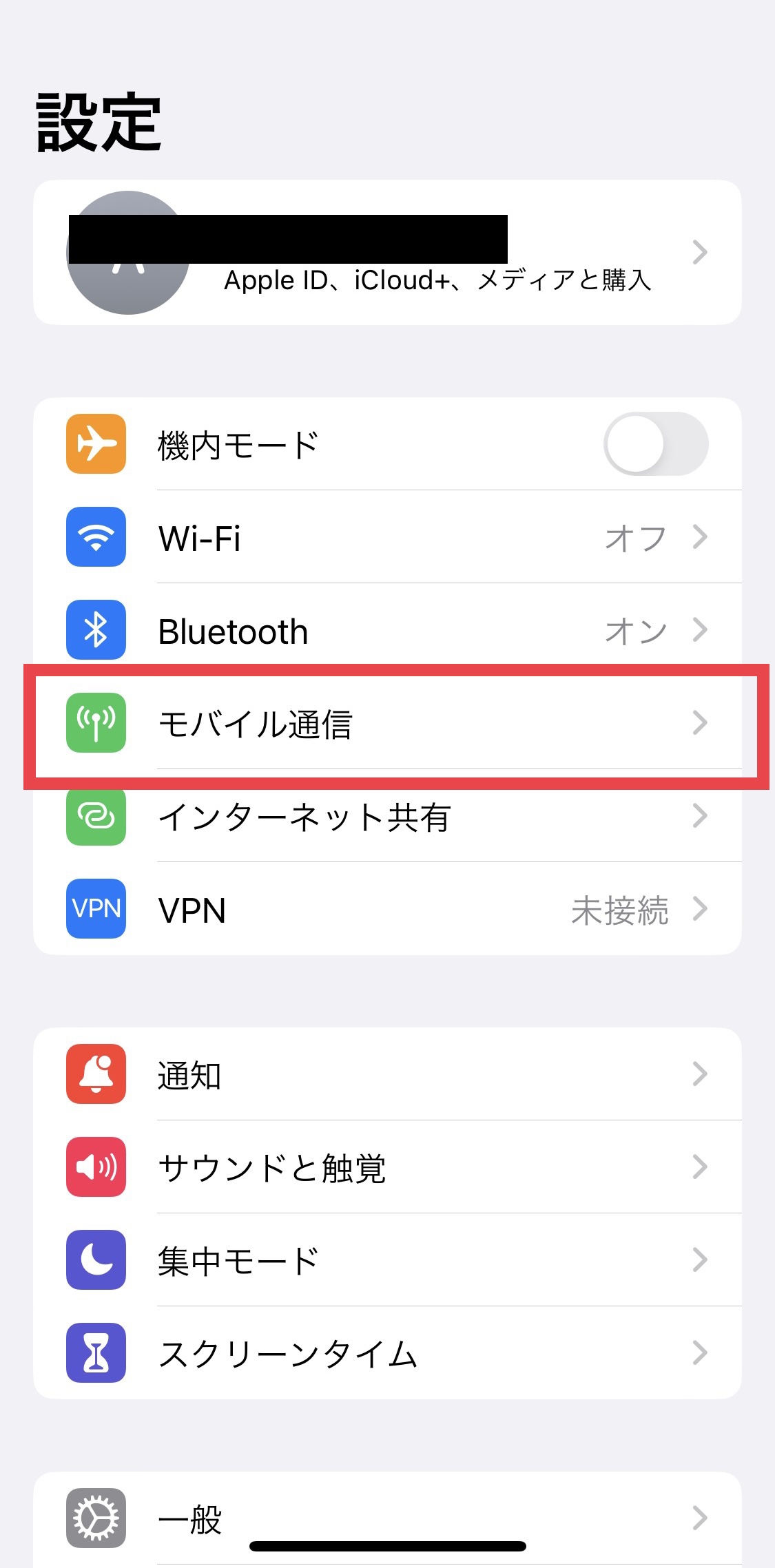
② Tap [Add eSIM].
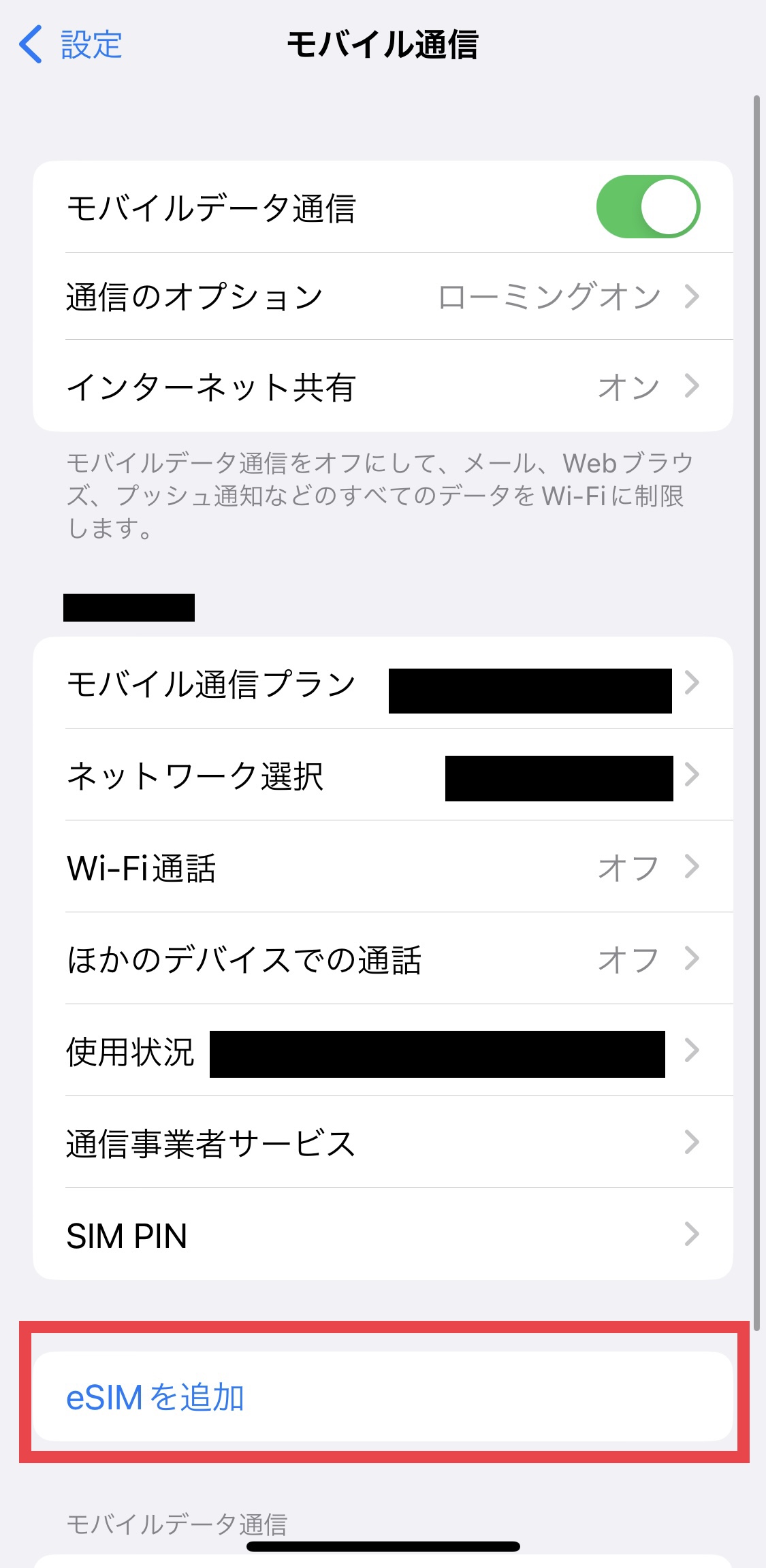
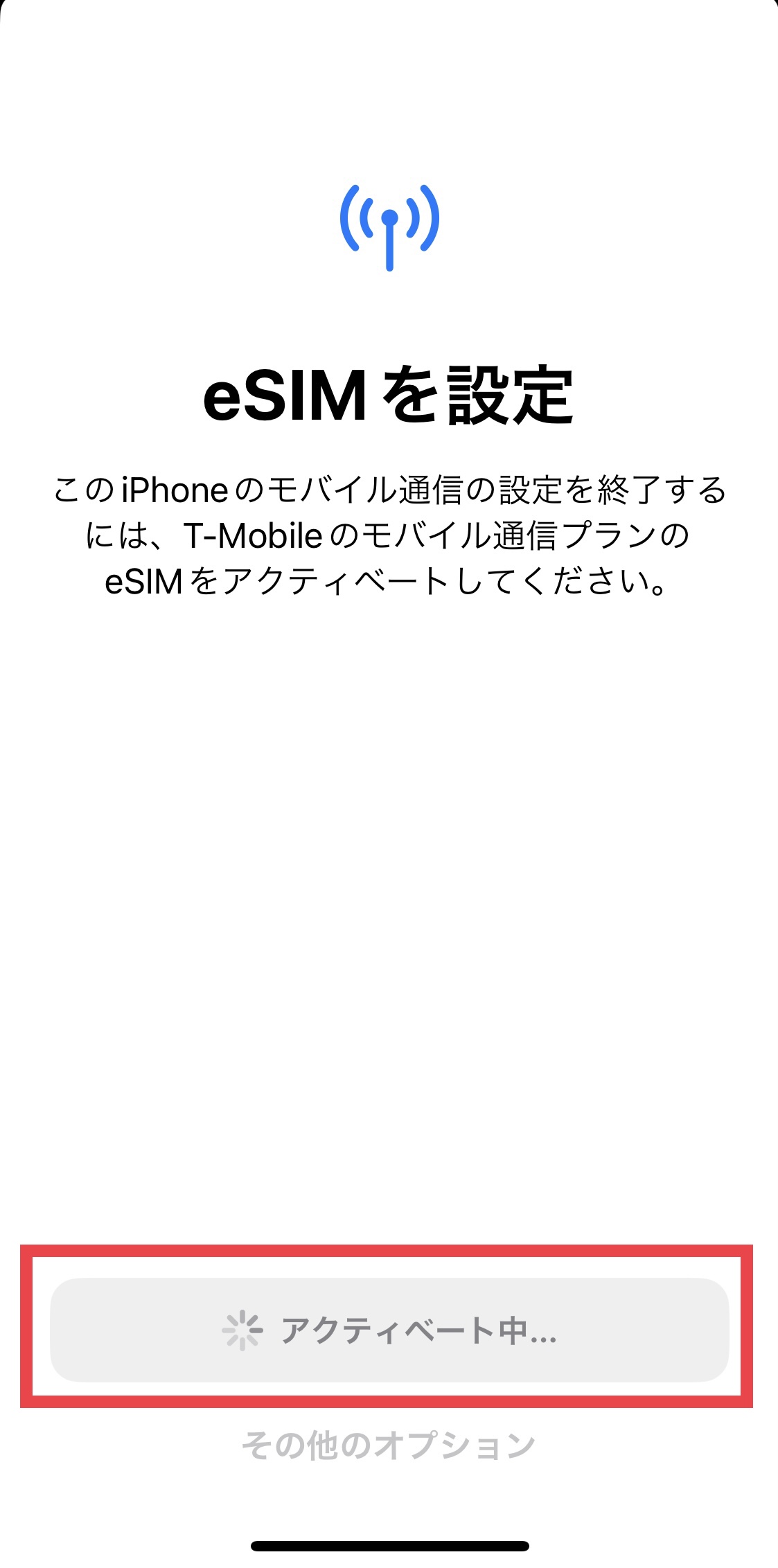
③ Tap [Set Up eSIM].

Setup takes approximately 30 seconds.
Please wait while the screen displays [Activating].
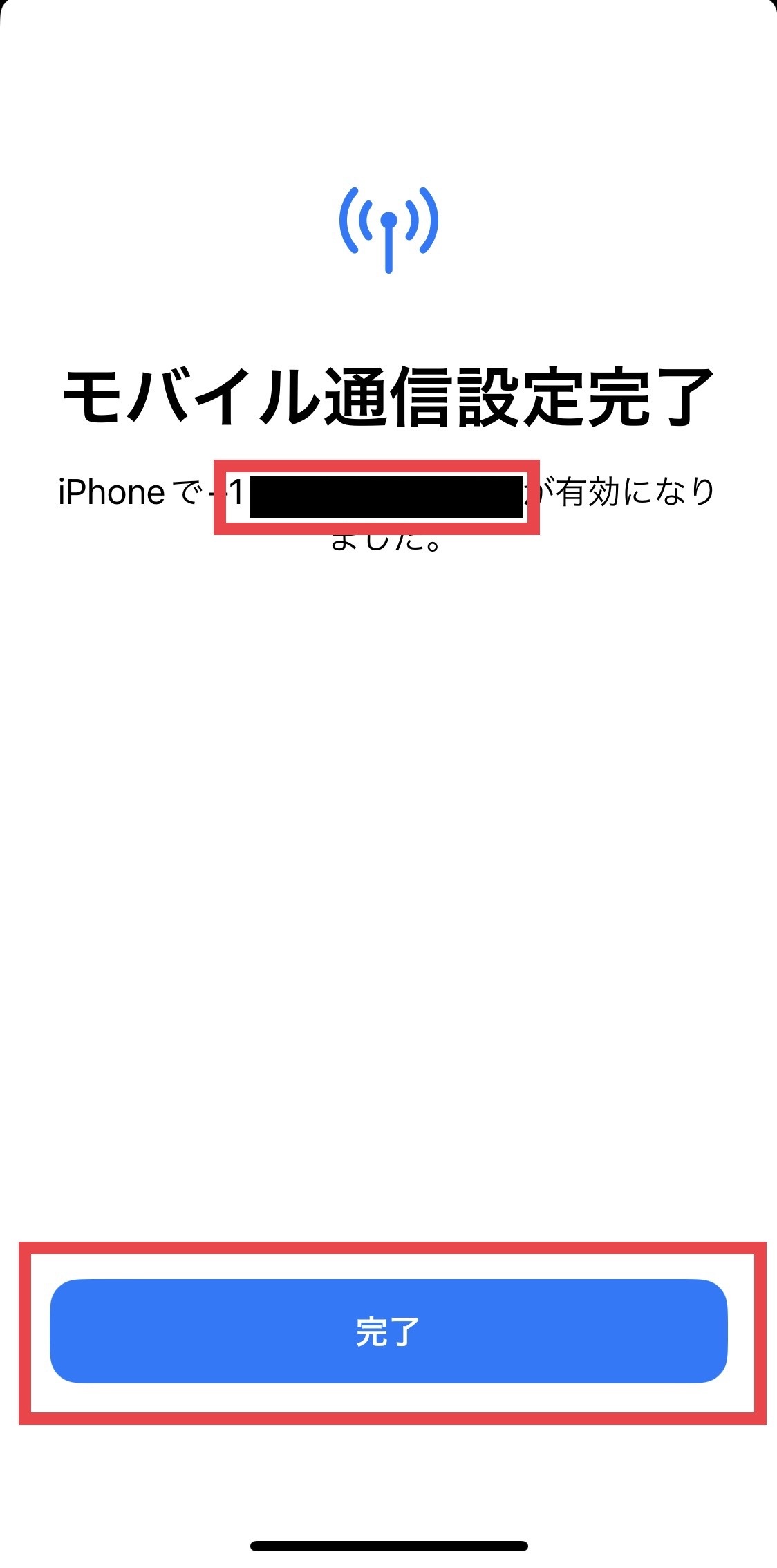
④ The message “Cellular Setup Complete” will be displayed.
The phone number displayed on the screen is your assigned phone number.
Tap [Done] to proceed to the next screen.
⑤ Set a name for your cellular plan.
You can choose any name you like.
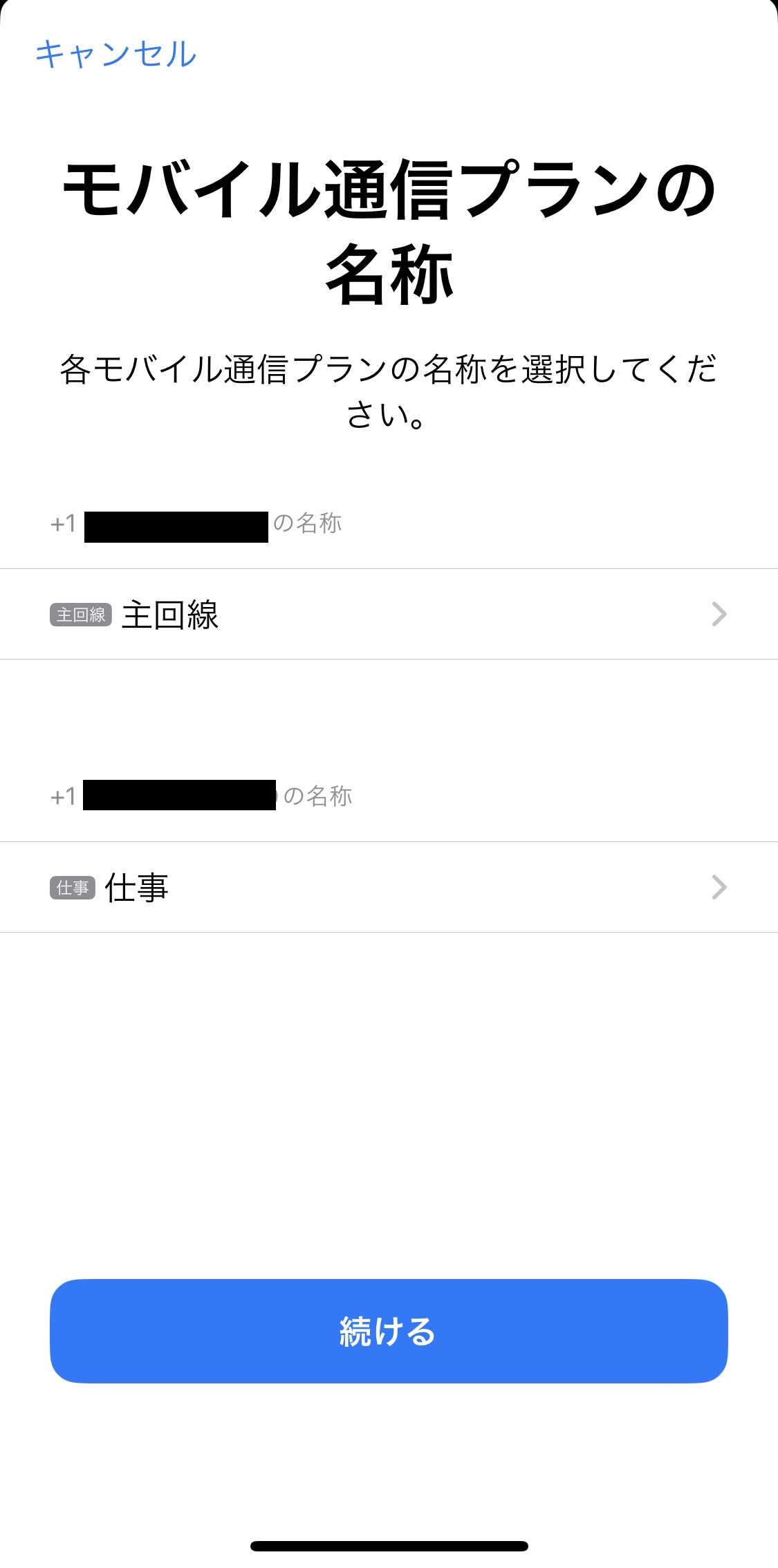
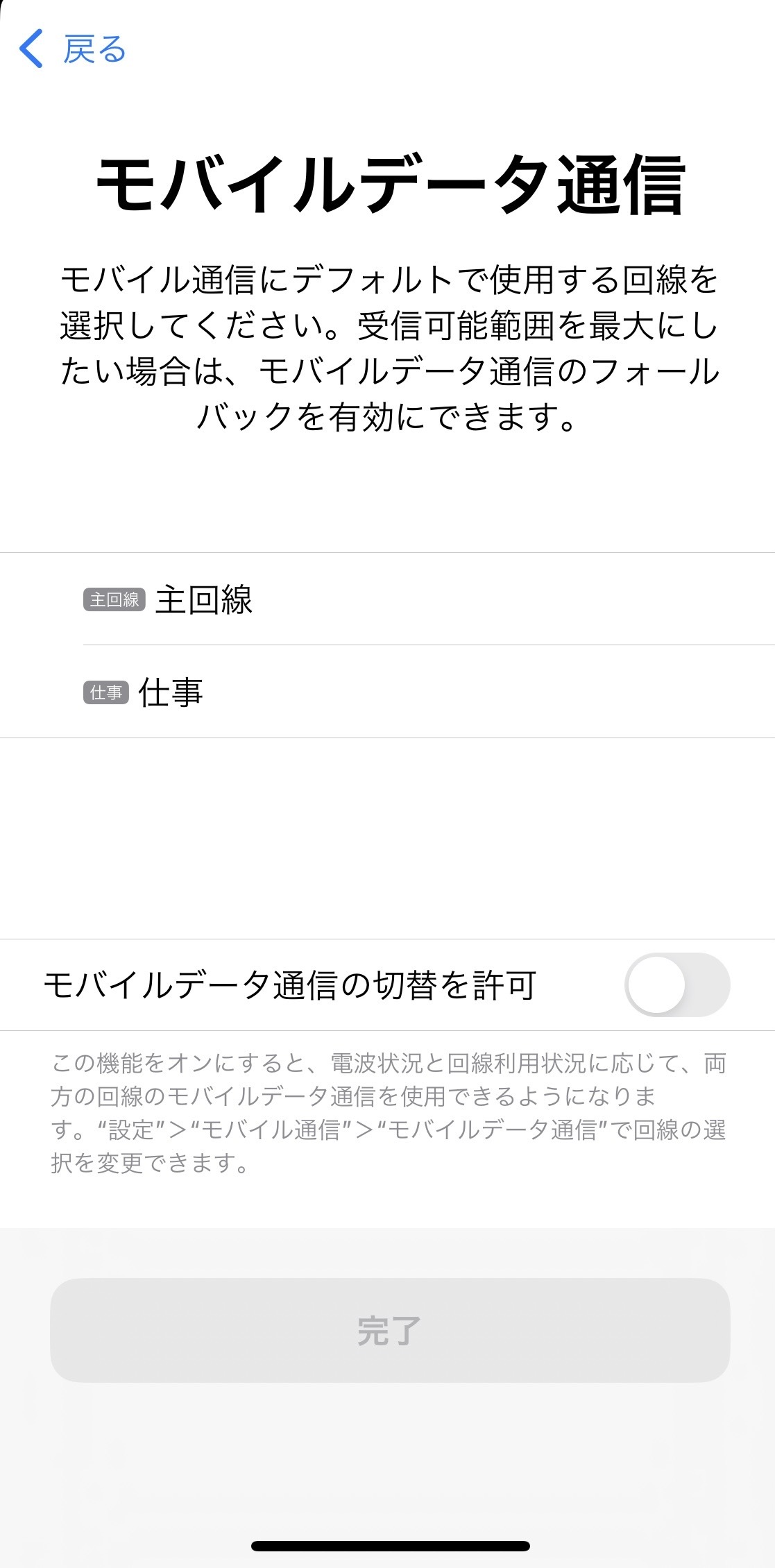
On the next screen, select the newly added eSIM (the plan name you just set) as the default cellular plan.
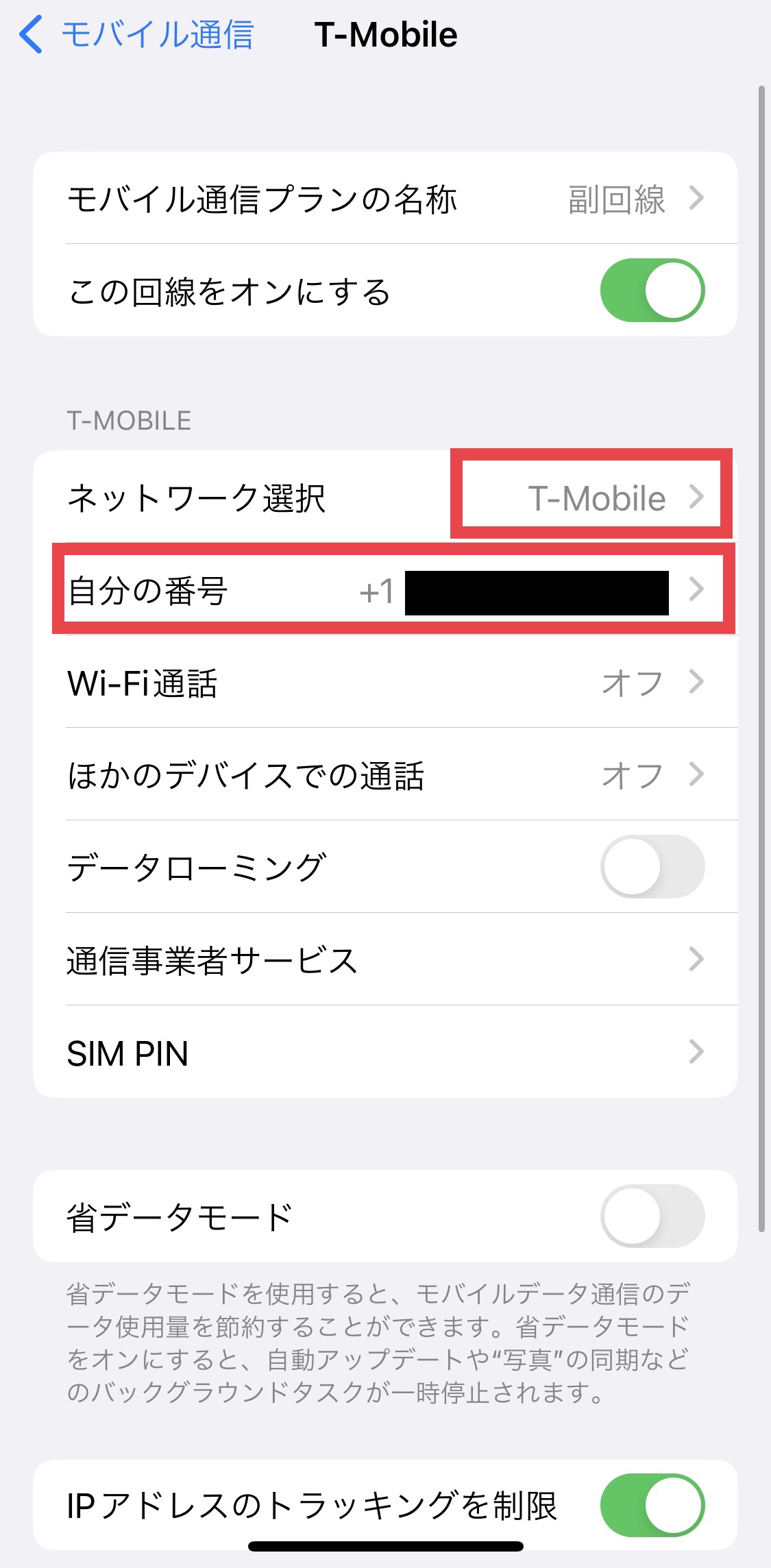
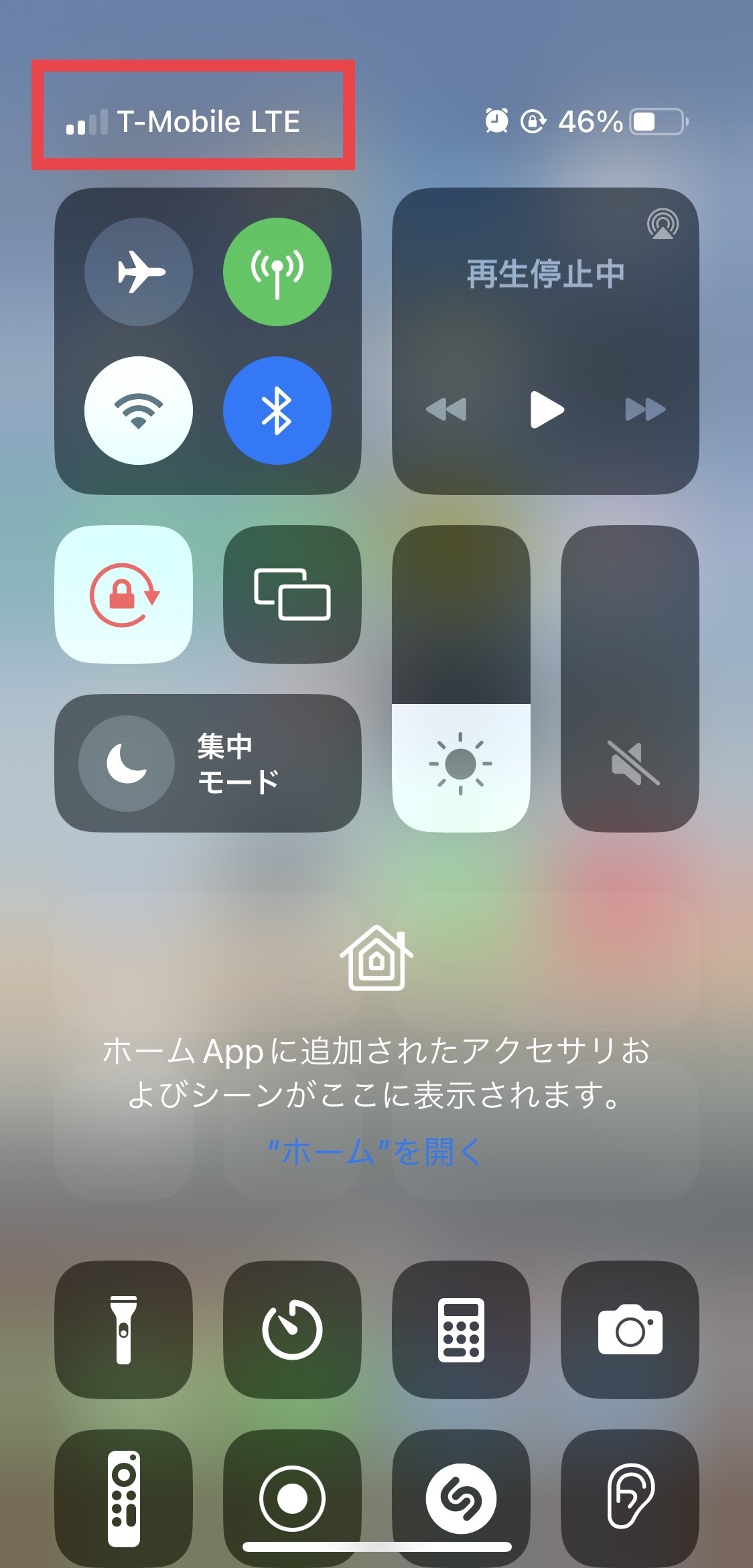
⑥ T-Mobile and your assigned phone number will be added under [Cellular].
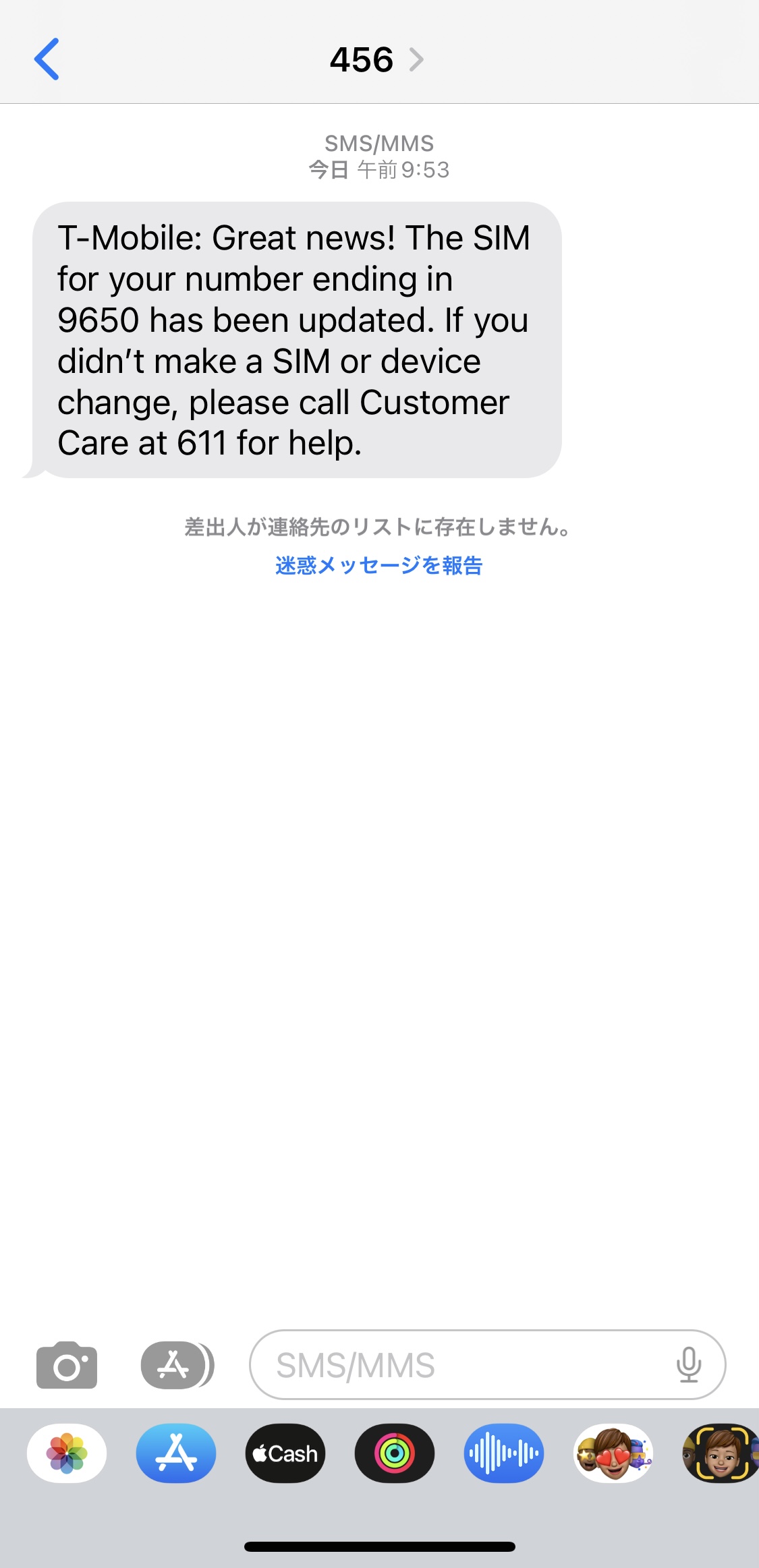
Once the eSIM has been added and set up, you will receive an SMS.
⑦ Check that you have a T-Mobile signal.The eSIM setup is now complete.
=====================
〈How to Check Your Phone Number〉
▼For Android devices
[Settings] → [About Phone] → [Phone Number]
▼For iOS devices (iPhone)
[Settings] → [Phone] → [My Number]
※If your phone number is not displayed, please restart your smartphone.
=====================
〈Troubleshooting: If You Cannot Add the eSIM〉
・Try adding the eSIM after connecting to Wi-Fi.
・Check for any carrier settings updates and update your iPhone to the latest version of iOS.
・Turn Airplane Mode on for about 30 seconds, then turn it off again.
・Reset your network settings.
[Settings] → [General] → [Transfer or Reset iPhone] → [Reset] → [Reset Network Settings]
※Please note that resetting your network settings will also reset your saved Wi-Fi settings.
・Turn off VPNs and antivirus/security software (such as Norton).
View detail 0 0 -
How you can use the service depends on your plan.
********************************************
For customers on the following plans
● $45/month Business Plan
● $30/month Lite Plan
● $15/month Minimum Plan
⇒ Available via Wi-Fi Calling and Wi-Fi data.
********************************************
For customers on the following plan
● $60/month Premium Plan
⇒ Available via Wi-Fi Calling, Wi-Fi data, or international roaming.
〈 What is International Roaming? 〉
International roaming allows you to connect to a local mobile network in the country you are visiting without needing a Wi-Fi router.
You will be charged only for the services you use, based on the applicable rates in the country you are visiting.
※ International roaming charges will appear as “Usage Charges” on the bill for the month following your usage.
※ International roaming is available only with the $60/month Premium Plan.
For questions about your plan, please contact Customer Support .
● International Roaming Rates in Japan
・Data - Unlimited ※ Speeds are limited to 2G
・SMS - Unlimited
・Calls - $0.25/minute ※ Charges apply to both outgoing and incoming calls, as well as optional services.
● Please check the international roaming rates for each country .
〈 How to Use International Roaming 〉
International roaming is available only with the Premium Plan (dedicated SIM card).
Please contact Customer Support if you have questions about your plan.
〈 Smartphone Settings 〉
Configure your smartphone as follows.
〈 iPhone 〉
【1】Turn on Data Roaming
Open the Settings app
Tap Cellular
Tap Cellular Data Options
Turn Data Roaming on
→ When the switch is green, it is enabled.
【2】Turn on Voice Roaming (if needed)
In Cellular Data Options, turn on Voice Roaming.
→ This is required if you want to make and receive calls while abroad.
〈 Troubleshooting International Roaming Issues 〉
1. Turn Airplane Mode on for about 30 seconds, then turn it off again.
Your smartphone will automatically select the best available network.
2. If the date and time are incorrect after arriving at your destination, go to Settings > General > Date & Time and make sure Set Automatically is turned on.
3. Turn off Automatic under Network Selection.
Available networks will appear after a short wait. This may take about 2 minutes.
Return to the main Settings screen and wait for your smartphone to connect to the appropriate network.
If the issue persists, please contact UNIVERSAL Mobile Customer Support and provide the following information:
your current country/area and your smartphone make and model.
********************************************Contact Information:
UNIVERSAL Mobile Customer Support
Email: customer@universalmobile.us
********************************************〈 Other Ways to Use the Service Outside the United States 〉
・Use UNIVERSAL Mobile's Pocket Wi-Fi Rental Service .
・Purchase a local SIM plan.
・Connect to local Wi-Fi.
View detail 0 0 -
◆ Tethering (Personal Hotspot) is a feature that allows you to use your smartphone as a Wi-Fi access point to connect devices such as computers and gaming consoles to the internet.
◇ Please turn ON the tethering (Personal Hotspot) setting on your mobile device to use this service.
◇ No application or registration is required.
◇ Please check in advance, as tethering may not be supported depending on your device model.
◇ High-speed 4G LTE tethering data allowances vary depending on your plan.
• $15/month Plan ⇒ Up to 2GB of 4G LTE tethering
• $30/month Plan ⇒ Up to 2GB of 4G LTE tethering
• $45/month Plan ⇒ Up to 6GB of 4G LTE tethering
• $60/month Plan ⇒ Up to 10GB of 4G LTE tethering
*Once the 4G LTE tethering data limit above is exceeded, tethering will remain available at reduced speeds up to 2G.
View detail 0 0 -
Wi-Fi Calling is a feature that allows you to make phone calls and send SMS over a Wi-Fi network.
With Wi-Fi Calling, you can make/receive calls and send/receive text messages even in areas with weak coverage, outside service areas, or outside the U.S.
● No separate plan application required
● No extra charge for using the Wi-Fi Calling feature (Note 1)(Note 2)
(Note 1) For Premier Plan (T-Mobile), calling charges of $0.25/min apply for each call (outgoing/incoming).
(Note 1) For Premier Plan (Verizon), Wi-Fi Calling is not available.
(Note 2) For Minimum Plan, calling charges of $0.25/min apply for each call (outgoing/incoming).
==============================
■ Making / Receiving calls to/from U.S. phone numbers
・$60/mo Premier Plan ⇒ Yes (Note 1)
・$45/mo Business ⇒ Yes
・$30/mo Lite Plan ⇒ Yes
・$15/mo Minimum Plan ⇒ Yes (Note 2)
■ Sending / Receiving SMS to/from U.S. phone numbers
・$60/mo Premier Plan ⇒ Yes
・$45/mo Business ⇒ Yes
・$30/mo Lite Plan ⇒ Yes
・$15/mo Minimum Plan ⇒ Yes
【 When using the Wi-Fi Calling feature in Japan 】
■ Making calls to Japanese phone numbers (Japan Call)
・$60/mo Premier Plan ⇒ Yes (Note 1)
・$45/mo Business ⇒ Yes
・$30/mo Lite Plan ⇒ Yes
・$15/mo Minimum Plan ⇒ Yes (Note 2)
■ Receiving calls from Japanese phone numbers
・$60/mo Premier Plan ⇒ Yes (Note 1)
・$45/mo Business ⇒ Yes
・$30/mo Lite Plan ⇒ Yes
・$15/mo Minimum Plan ⇒ Yes (Note 2)
■ Sending / Receiving SMS to/from Japanese phone numbers
・$60/mo Premier Plan ⇒ Yes
・$45/mo Business ⇒ Yes
・$30/mo Lite Plan ⇒ Yes
・$15/mo Minimum Plan ⇒ Yes
==============================
< Smartphone Setup Instructions >
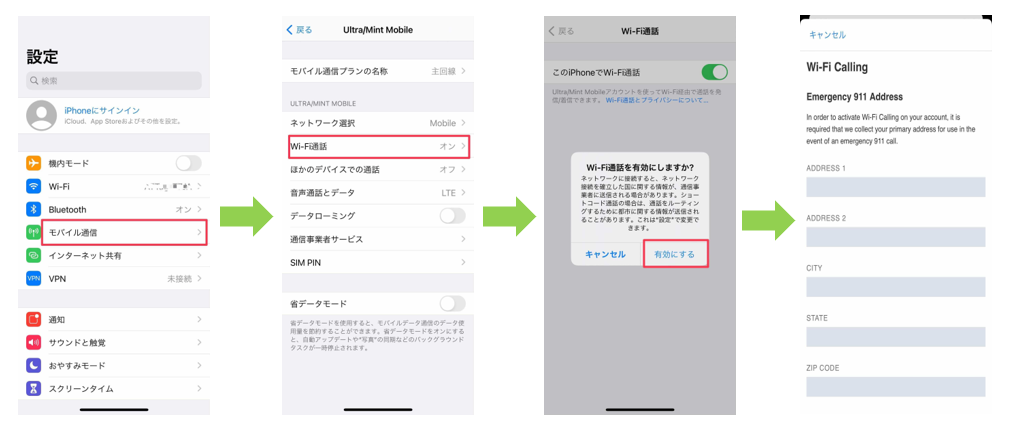
iPhone
Settings > Cellular > Wi-Fi Calling > On > Enable > Register Emergency 911 Address
*Please register a U.S. address for the Emergency 911 Address
*When using the Wi-Fi Calling feature, please set Data Roaming to OFF
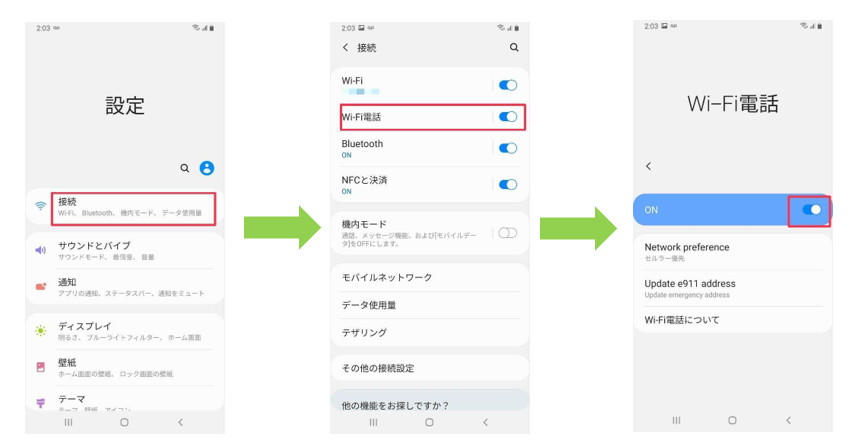
Android
Settings > Connections > Wi-Fi Calling > On > Register Emergency 911 Address
*Please register a U.S. address for the Emergency 911 Address
*Depending on the smartphone model, you may not be able to register this Emergency 911 Address. If you cannot use the Wi-Fi Calling feature due to registration issues, please contact UNIVERSAL Mobile Customer Support.
*Menu options may differ depending on your smartphone model.
*When using the Wi-Fi Calling feature, please set Data Roaming to OFF
==============================
About UNIVERSAL Mobile Pocket Wi-Fi Rental!
● Available in over 120 countries worldwide, including Japan, Canada, and Mexico.
● Affordable rental rates starting from $5/day.
■ Click here to check details on Pocket Wi-Fi rentals for over 120 countries worldwide.
=========================
Contact Us:
UNIVERSAL Mobile Customer Support
Email: customer@universalmobile.us
=========================
View detail 0 0 -
★ How to Reserve Pocket Wi-Fi for Use in Japan ★
① UNIVERSAL Mobile US SIM Plan members: First, please Log in to My Page
↓ ↓ My Page ↓ ↓
https://universalmobile.us/mypage/login?redirecturl=/mypage
② From [Rental Wi-Fi] on My Page, please access <Wi-Fi Rental Form>
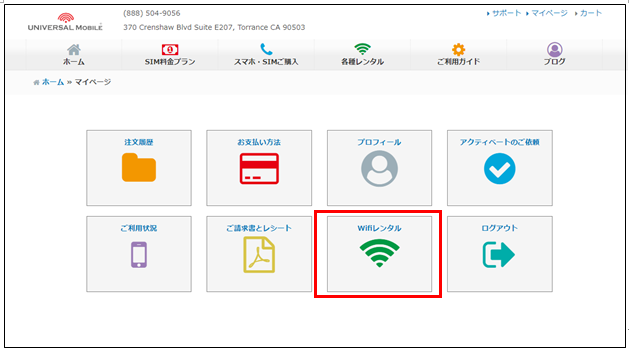
③ Enter your rental information
Note: Please select [Japan Pocket Wi-Fi (Members Only)] for your rental plan
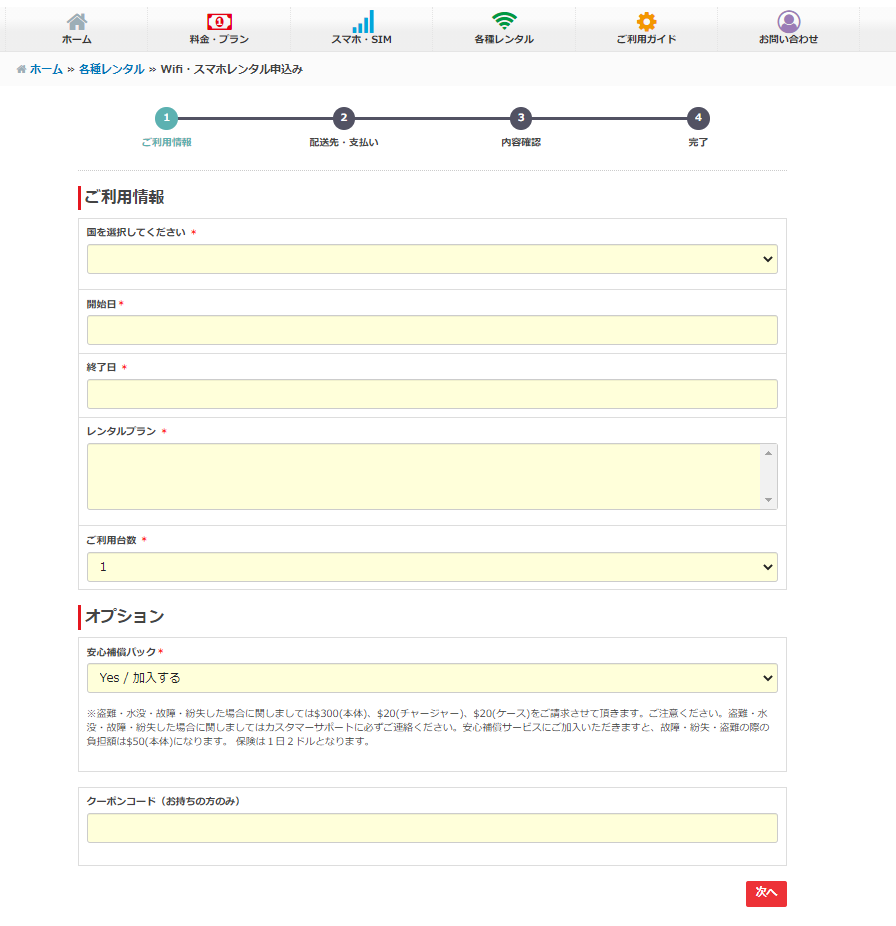
* Member Discount Price: $35 (Up to 30 days. From day 31, regular daily rates apply)
You can check the total price after clicking "Next".
* Discounts do not apply to Minimum Plan members.
* [Japan Pocket Wi-Fi (Members Only)] quantity is limited.
* The member-exclusive plan cannot be selected if out of stock.
* [Japan Pocket Wi-Fi (Members Only)] is limited to 1 unit per person.
{ Pocket Wi-Fi Pick-up & Shipping Options }
[ Delivery by Mail ]
● Shipped via USPS Priority Mail from Torrance, CA to US addresses only.
* We do not ship to Japan.
● Orders are shipped to arrive by your specified pick-up/start date.
● Shipping Fee: $10 (An additional $10 applies if a return envelope & label are requested).
* For last-minute orders, delivery by your desired date may not be possible.
In some cases, we may have no choice but to cancel your reservation, so please make your reservation well in advance.
[ Office Pick-up ]
● We will notify you by email once your Pocket Wi-Fi is ready.
You can pick it up at our office listed below on or after your start date.
UNIVERSAL Mobile
370 Crenshaw Blvd Ste E202K Torrance, CA 90503[ Return Due Date ]
● Please return the device by the "Return Date (End Date)" selected at the time of reservation.
[ Extension & Late Fees ]
● For details regarding Pocket Wi-Fi extension and late fees, please check here.
View detail 0 0 -
In some cases, incoming calls may go straight to voicemail without ringing.
Here are 4 possible reasons and troubleshooting steps to resolve this issue:
1. Check "Do Not Disturb" Mode
If "Do Not Disturb" mode is turned on, incoming calls will not ring, will go straight to voicemail, and will only show as missed calls in your call log.
→ Go to "Settings" → "Focus" → turn off "Do Not Disturb".
2. Check Your Speaker
A speaker issue may prevent incoming call ringtones from sounding.
→ Open "Voice Memos" → tap the red button to record your voice → tap the play button to listen. If you hear no sound even after adjusting the volume, your speaker may be malfunctioning.
3. Network Signal
If your phone rings sometimes but not always, it may be due to signal conditions.
In areas with poor reception, incoming calls will not ring and will automatically go straight to voicemail, leaving only a missed call notification.
→ Try moving to a different spot or turning off Wi-Fi.
4. Reset Network Settings
Resetting your iPhone's network settings may help resolve the issue.
→ Go to "Settings" → "General" → "Transfer or Reset iPhone" → "Reset" → "Reset Network Settings"
*Please note that resetting network settings will clear your saved Wi-Fi connections and passwords.
If the issue persists after trying the steps above, please contact Customer Support with your iPhone's 15-digit IMEI number, city name, and ZIP code.
======================
Contact Us:
UNIVERSAL Mobile Customer Support
Email: customer@universalmobile.us
======================
View detail 0 0 -
Following an iOS update, issues such as inability to make phone calls or connect to the internet may occur.
If you suddenly experience issues on your iPhone, please try the following steps first:
• Remove and reinsert your SIM card• Restart your iPhone
• Toggle Airplane Mode on and off several times
• Toggle Cellular Data on and off several times
• Reset Network Settings
Go to "Settings" → "General" → "Transfer or Reset iPhone" → "Reset" → "Reset Network Settings"
*Please note that resetting network settings will clear your saved Wi-Fi connections and passwords.
If the issue persists after trying the steps above, please contact UNIVERSAL Mobile Customer Support.Contact Us:
UNIVERSAL Mobile Customer Support
Email: customer@universalmobile.us
Phone: 888-504-9056
View detail 0 0 -
\\\\ Easy Online Application ////
■ First-time UNIVERSAL Mobile users, please complete "New Member Registration".
■ If you have already registered an account with UNIVERSAL Mobile, please log in to "My Page" before submitting your application.
◆ SIM Plans ◆
https://universalmobile.us/pages/plan
Select your desired monthly SIM plan and click "Add to Cart" to complete your purchase.
◆ Mobile Devices ◆
https://universalmobile.us/products/products
Select your smartphone model, storage capacity (GB), and color, then click "Add to Cart" to purchase.
*Mobile devices cannot be purchased standalone. Please purchase a SIM plan together with your device.
◆ Pocket Wi-Fi ◆
https://universalmobile.us/pages/pocketwifi
Please fill out the required information on the "Reservation Form" to place your reservation.
View detail 0 0 -
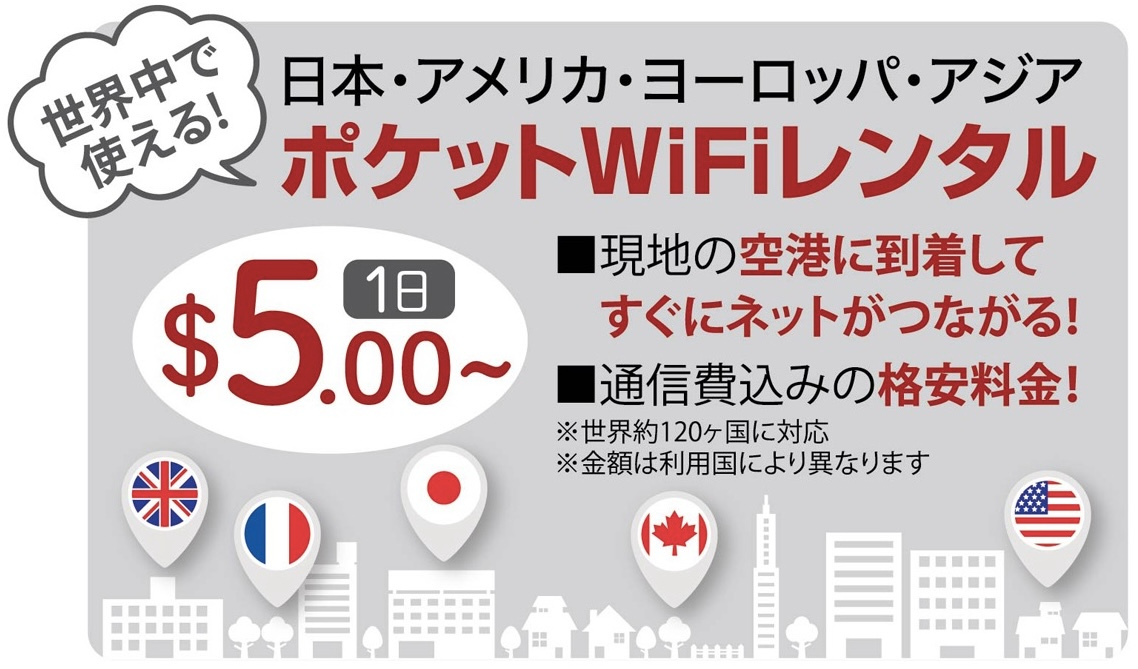
★☆Our products are available to use in 120 countries in the world - United States, Japan, Mexico, Europe, and Asia☆★
↓↓Click the link for Reservation↓↓
https://universalmobile.us/pages/pocketwifi?language=en
***Please make a reservation in advance because it may be impossible to rent the product immediately depending on the status of stocks.
【Plan & Price】
● $5〜 / day*
*Our price is subject to change depending on the area and seasons to use.
【User Guide】
● Please click the following link to check how to use the Pocket WiFi.
https://www.youtube.com/watch?v=JEi36HCZzYs
【How to Receive the Pocket WiFi】
● Option 1. Shipping (USPS)
- We will deliver by USPS from Torrance, CA to your U.S. address. *We will not deliver to Japan.
- The ordered items will be arrived by at least three days before your departure date.
*** Please note that we may not deliver the items before your departure date if you place an order at the last minutes. In that case, we may have to cancel your request. So, please place an order in advance.
● Option 2. Pickup at our office
- We will send you the email when your item is ready to pick up. You can pick it out at our office since "pick-up start date" shown in the email.
<Our office location>
Universal Mobile
370 Crenshaw Blvd Suite E207, Torrance, CA 90503
<Business hours>
10am-5pm (Mon-Fri), Sat, Sun, Holiday is closed (Pacific Standard Time)
【How to Return the Pocket WiFi】
● Please return the item within 5 business days after the end of use. You can return it by shipping or dropping it off to our office.
【Extension & Late Fees】
● Please click here to check for extension the Pocket WiFi and late fees.
View detail 0 0 -
A. You can easily extend your Pocket Wi-Fi rental period directly from My Page.
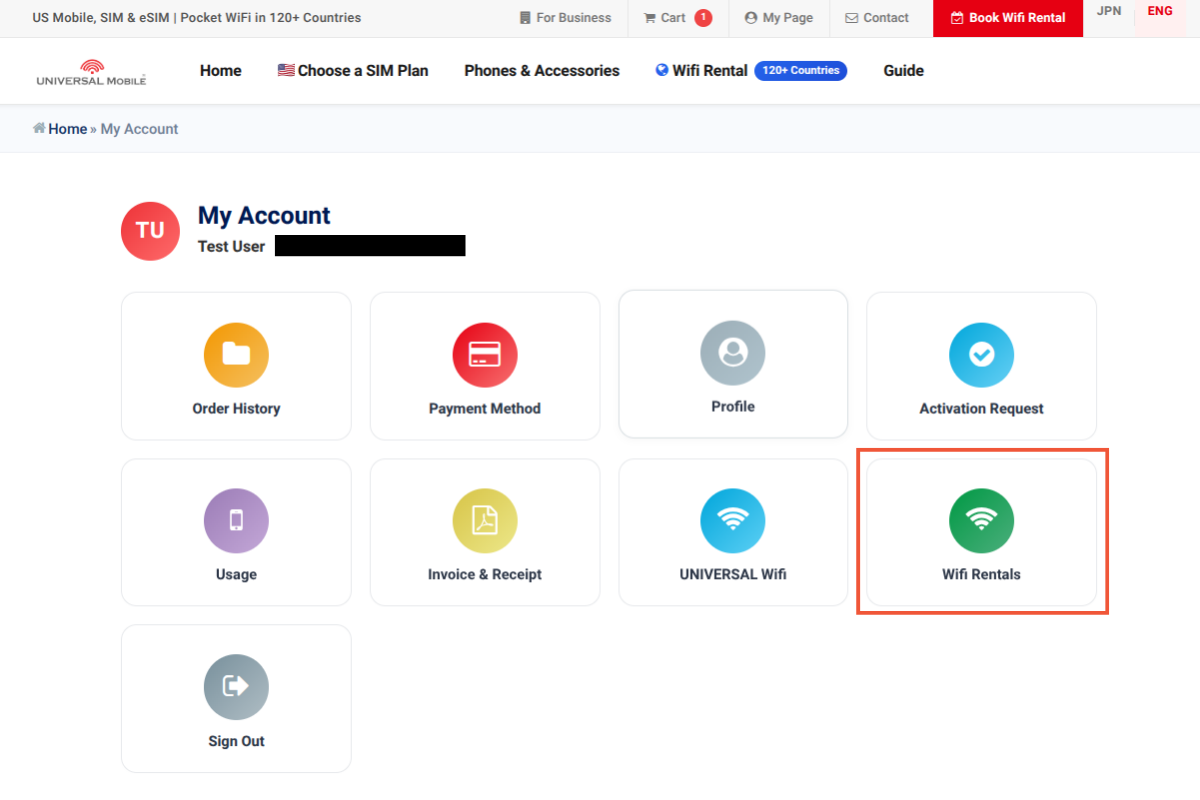
How to Extend via My Page1. Select "Wifi Rentals" on My Page
Log in to your account and click the "Wifi Rentals" icon on the My Page dashboard.
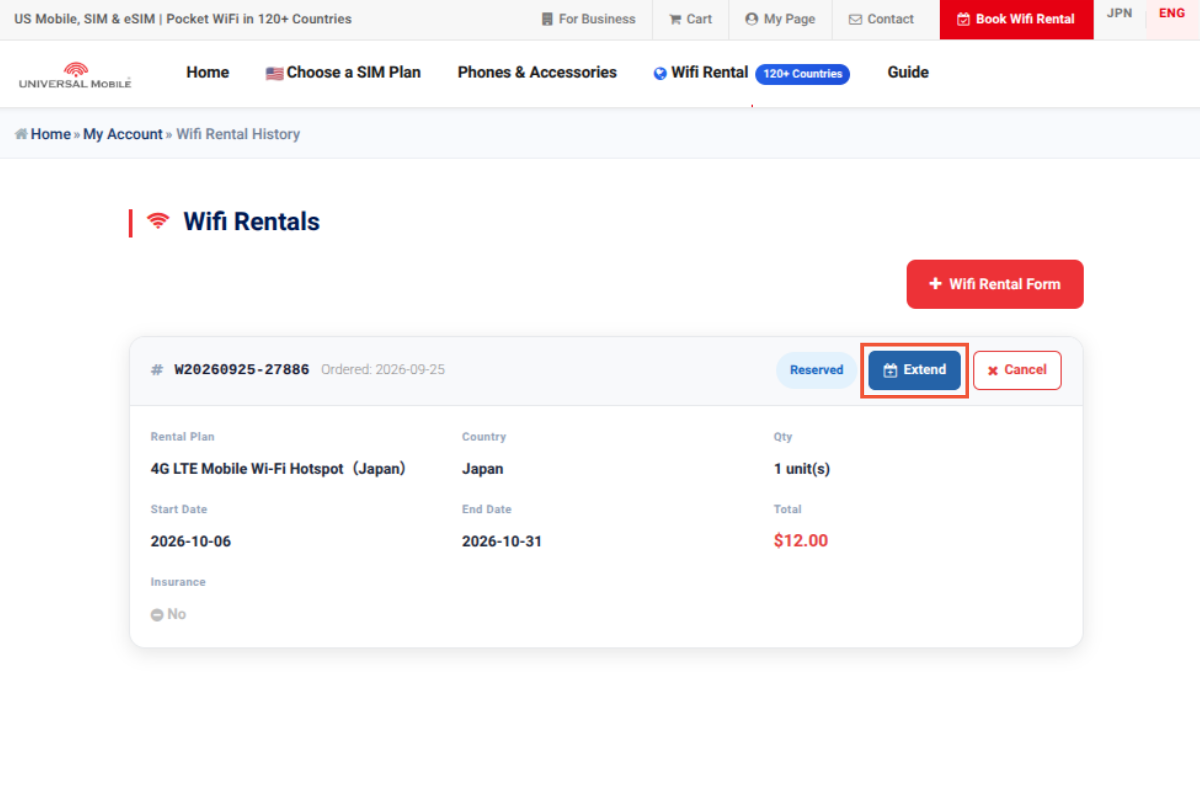
2. Click "Extend" for your order
Locate your current rental order and click the "Extend" button on the right.
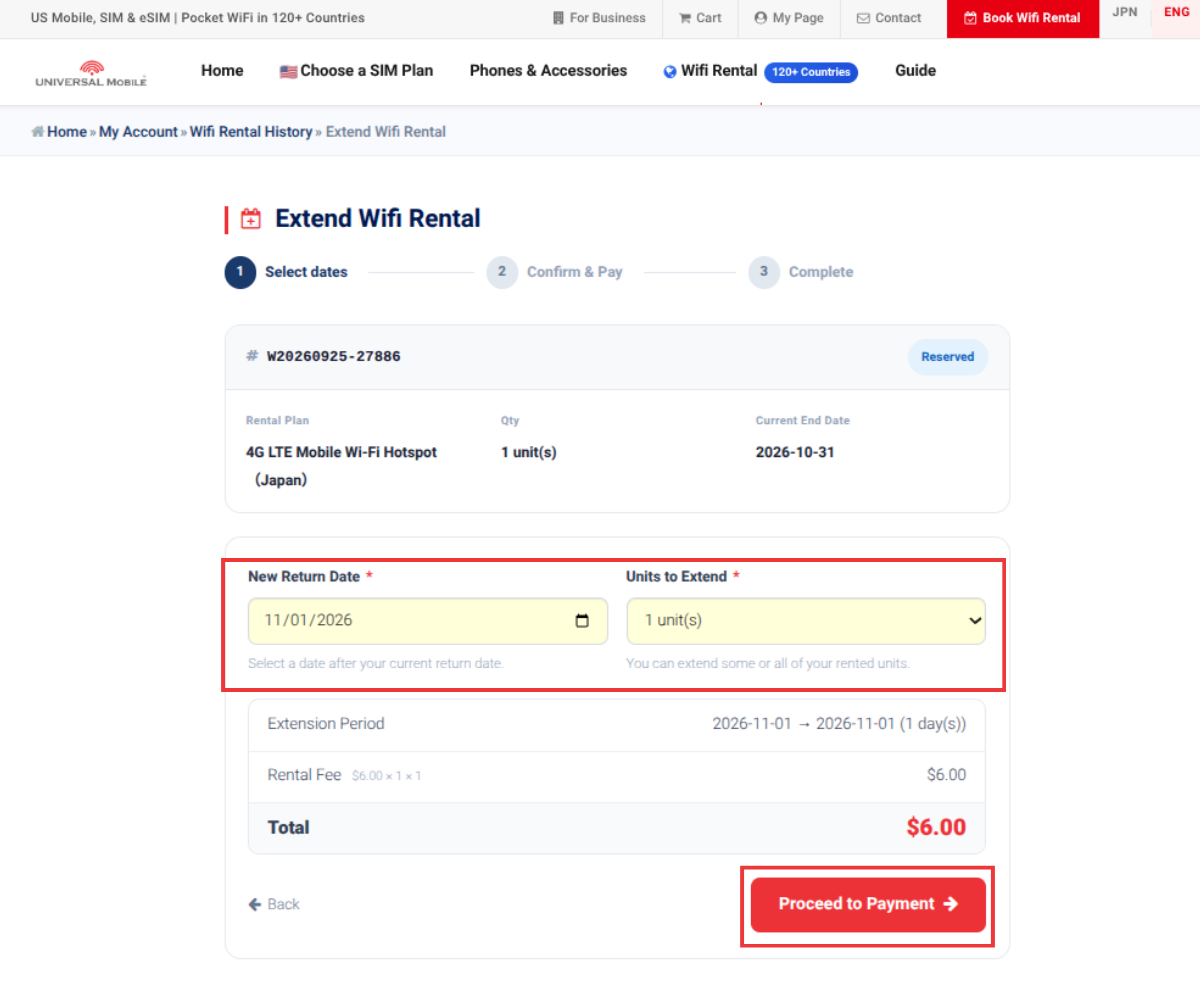
3. Select your new return date
Choose your preferred new return date under "New Return Date", confirm the quantity, and click "Proceed to Payment".
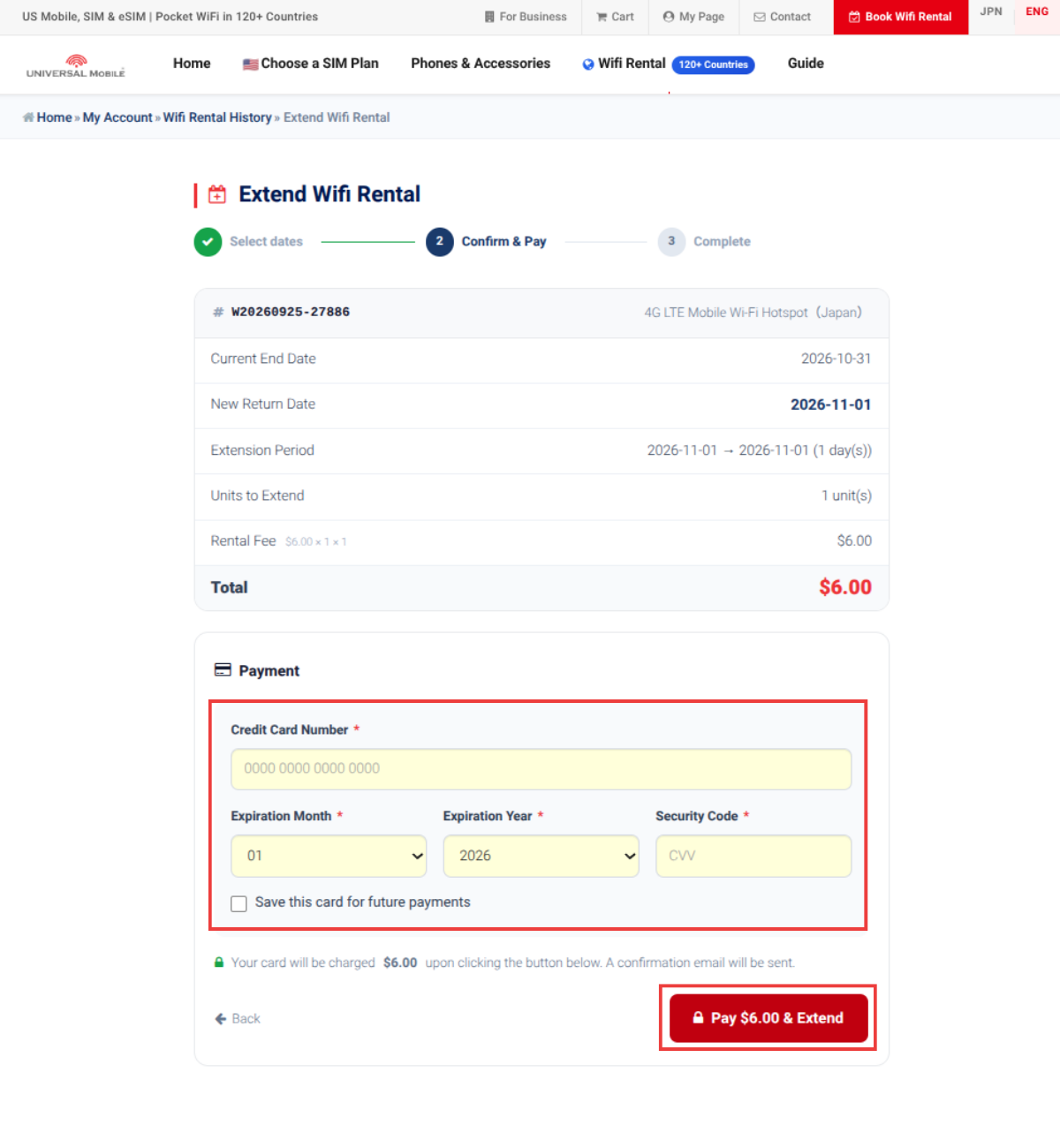
4. Complete the payment
Enter your credit card details and click "Pay & Extend" to complete the extension.
Need Help?
If you have difficulty completing the process through My Page, you can also contact our customer support team to request an extension, change your plan, or pay the applicable fees. Please provide the following information:
・ Reservation name
・ Email address
・ Extension period (new return date)
Important: Fees and return rules vary depending on whether you request an extension in advance or return the device late without prior notice.
If you request an extension in advanceIf you contact customer support before your scheduled return date and receive approval, your request will be processed as a standard rental extension. The extension fee is calculated based on the regular daily rate for your destination multiplied by the number of extended days. If you have selected any optional services, such as Safety Compensation Coverage ($2.00/day), the applicable daily fee will also be charged for each extended day.
Example 1
Extending 5 days in the United States ($7.50/day) with Safety Compensation Coverage.
Extension fee ⇒ $7.50 × 5 days = $37.50
Safety Compensation ⇒ $2.00 × 5 days = $10.00
Total ⇒ $47.50
Example 2
Extending 3 days in Japan ($6.00/day) without Safety Compensation Coverage.
Extension fee ⇒ $6.00 × 3 days = $18.00
If you do not contact us in advance to request an extensionIf the device is not returned by the due date and no prior notice is provided, the following schedule and policies will apply.
1–13 Days Overdue
We will send you a return reminder email. No additional late fees or penalties will be charged during this period (up to Day 13). Please return or drop off the device as soon as possible.
14+ Days Overdue (Lost / Unreturned Device)
If the device is not returned within 14 days after your rental end date, it will be considered lost, and the following replacement fees will be charged to your credit card:
• Main Unit (Pocket Wi-Fi): $400.00
• Power Bank: $200.00
• Charger: $20.00
• Carrying Case: $20.00
*If you subscribed to the Safety Compensation Service ($2.00/day), all of the replacement fees above will be waived in full.
Return due date: Please return the device by the next business day following your rental end date (or the extended rental end date).Contact Information / Return Address
UNIVERSAL Mobile
20705 S. Western Ave., Suite 209, Torrance, CA 90501
View detail 0 0 -
A. If the signal condition is suddenly bad, the communication speed slows down, or the signal does not come in, please check and set the following items.
■ Restart the terminal
■ Insert and remove the SIM card
■ Wipe the metal part of the SIM card with a cotton swab or a soft cloth
■ Turn off Wi-Fi and Bluetooth, turn off the power, wait about 1 minute, and turn on the power again.
■ Enable "Airplane mode" for about 30 seconds, then disable it again
■ Switch mobile data communication on and off several times
■ Check for carrier settings updates and update to the latest version or iOS if needed
■ Reset network settings
"Settings"-> "General"-> "Reset"-> "Reset network settings"
*Please note that resetting the network settings will reset the connected Wi-Fi settings.
■ Try deleting or stopping your antivirus software (Norton, etc.)
■ Turn off VPN settings
■ Reset APN settings (Android models only) *Please check here for APN settings.
If the situation does not improve even after trying the above, please contact UNIVERSAL Mobile Customer Support with the following information.
・Contractor name
・Phone number
・Terminal model and model name
・Your area (ZIP code or city name)
======================
Contact Information:
UNIVERSAL Mobile Customer Support
Email: customer@universalmobile.us
======================
View detail 0 0 -
Yes, a pocket Wi-Fi allows you to connect multiple devices at once.
You can typically connect up to five devices simultaneously.
Just keep in mind that the more devices you connect, the slower the internet speed might be.
View detail 0 0 -
About the Roaming Service
This service allows you to connect to local mobile networks in the countries you are staying in without using a Wi-Fi router.
The service is available without an additional application or registration only for customers subscribed to the $60 Premium Plan.
For details about roaming rates, please see here .
※Roaming charges will be billed as “Usage Charges” on the invoice for the following month.
Note: Data and voice services using roaming may have an unstable connection depending on the area of the country you are staying in.
Please adjust the following settings on your smartphone.
View detail 0 0 - View detail 0 0
-
Please use the following information as a guide when choosing your SIM plan.
* The table below shows what you can do with approximately 1GB of data for each type of usage.
* Please note that this does not mean that 1GB is sufficient for all usage scenarios.
Data Usage Guide: What You Can Do with 1GBUsage What You Can Do with 1GB Video Streaming
(High to Low Quality)Approx. 60–240 minutes Apple Music
(High to Standard Quality)Approx. 5–8 hours Email
(Without Attachments)Approx. 204,000 emails TikTok Approx. 60–240 minutes Instagram Approx. 60–240 minutes Map Apps Approx. 10,000 km LINE
(Text Only)Approx. 50,000 messages LINE
(Stickers, Photos & Videos)Approx. 340 times LINE Voice Calls Approx. 15 hours LINE Video Calls / Zoom Approx. 60–240 minutes FaceTime
(Audio)Approx. 15 hours FaceTime
(Video)Approx. 120–360 minutes Opening a Search Engine Homepage
(Yahoo!, Google, etc.)Approx. 1,000 times * Data usage figures are approximate and may vary depending on your connection environment, video quality, audio quality, and the presence and amount of image data.
* Map apps may consume more data in areas with many buildings or when zooming in or out on the map.
Commonly Recommended Ways to Reduce Data UsageThe effectiveness of the above settings may vary depending on your device and data connection environment.
Please make sure you understand the effects before changing these settings.
View detail 0 0