
Frequently Asked Questions
Search for answers to common questions
Results for "ポケットWifi": 7
- WiFi / Pocket WiFi Charging Last updated: October 24, 2024
How to Charge Your Pocket WiFi
⚠️ Please verify charging before your departure
After receiving your Pocket WiFi, please confirm that the charging device works correctly before you start using it (before your departure).
? Correct Charging Method
1Always charge directly from a wall outlet
⚠️ Do not charge via a laptop, in a car, or on an airplane. Voltage differences may prevent proper charging and could damage the device.
2Confirm the charging light (blue) is on
The charging light will turn blue while charging. Please make sure it is lit.
If the charging light is not on, check the following:
- Make sure the connector is securely plugged in
- Check for any malfunctions in the charging device
- If you have a similar charger and cable, try using a different charging device
3Charge to 100% with the device powered off
While charging, the battery icon on the screen will animate. When fully charged, "100" will appear on the battery icon.
4Check battery level via the top-right icon when powered on
When the device is on, you can check the remaining battery level by looking at the small battery icon in the top-right corner of the screen.
ℹ️ "No Valid Order" displayed on screen
Before your service start date, you will not be able to connect to the internet and the screen will show "No Valid Order".
On your start date, you will be able to connect to the internet in your selected country.⚠️ What to Do If Charging Does Not Work
- Confirm that the charging cord is securely connected to both the Pocket WiFi and the adapter
- If the device is powered on, turn it off and try charging again
- Try charging from a different outlet
- Wait a few minutes and try charging again
Replacing the charging device may take several days. If you have a compatible charger and cable, please use your own device to charge in the meantime.
If you have any questions, please feel free to contact us.
UNIVERSAL Mobile Customer Support
customer@universalmobile.usView detail 0 0 - WiFi / Pocket WiFi How to Use Last updated: October 24, 2024
UNIVERSAL Mobile Pocket WiFi User Guide
⚠️ Please verify the device is working before your departure
Once you receive your Pocket WiFi kit, please make sure to check that the charging equipment is functioning properly before you begin using it (before your departure).
→ How to charge your Pocket WiFiHow to Connect
1Press and hold the power button on the right side of the device for approximately 3 seconds to turn it on.
Press the power button briefly, or press the display toggle key to wake the screen.2Turn on the WiFi setting on your device (smartphone, laptop, etc.) and look for the SSID shown on the WiFi display, then select it.3When prompted to enter a password, type in the password (PWD) shown on the WiFi display.※ Internet access will be available within the country of your selected plan starting from your service start date.Display Information
- The display shows battery level, network connection status, data usage, and device info (SSID & PWD).
- Press the display toggle key to cycle through the information screens.
- The display will automatically turn off after 15 seconds.
- Press the power button or toggle key briefly to turn the screen on or off.
⚠️ The "Purchase Package" feature is not available. Please do not scan the QR code on the device.
Powering Off & Charging
⏻ How to Power Off
Press and hold the power button on the right side for approximately 3 seconds to turn off the device.
? How to Charge
Connect a cable to the charging port (USB Type-C) at the bottom of the device and plug it into a power outlet.
Battery life is approximately 15 hours of continuous use from a full charge (may vary depending on usage). To save power, we recommend turning the device on only when needed.Troubleshooting Connection Issues
- Restart both the Pocket WiFi device and the device you are trying to connect.
- Try reducing the number of connected devices.
- Wait a moment and then try reconnecting.
- Check that the WiFi setting on your device has not been turned off.
⚡ If the Device Won't Turn On or Off
- Use the appropriate charging cable and adapter, charge the device fully, then try restarting. Also check that the charging port is not loose.
- Check that the power button is not loose or damaged.
- If the device powers on, press and hold the display toggle button for approximately 10 seconds while the device is on to perform a force reset.
⚠️ Lost or Stolen Device
If the Pocket WiFi device or any accessories are lost or stolen, the following charges will apply (if you are not enrolled in the Protection Plan).
Item Fee Pocket WiFi Device $400 Charging Equipment $20 Carrying Case $20 Portable Battery $200 Changing, Extending, or Canceling Your Rental Period
Please contact our customer support team directly.
→ Rental period changes, extensions, and cancellationsContact Us
UNIVERSAL Mobile Customer Support: customer@universalmobile.us
View detail 0 0 - Pocket WiFi ご利用案内
ポケットWiFi レンタル期間変更・延長・キャンセル・返却について
UNIVERSAL Mobile Customer Support
Please contact to UNIVERSAL Mobile Customer Support during our business hours.
Email : customer@universalmobile.us
Hours: 9:00 a.m. to 5:00 p.m. (Monday - Friday) *Closed on Saturday, Sunday, and holidays (U.S. West Coast time)
お問い合わせ・レンタル期間変更について
ポケットWi-Fiのレンタル期間変更、延長、キャンセルは、下記受付時間内にカスタマーサポートまでご連絡ください。
お問い合わせ先:UNIVERSAL Mobile カスタマーサポート
Eメール:customer@universalmobile.us
受付時間:午前9時~午後5時(月~金)※土・日・祝日はクローズ(米国西海岸時間)
■ To Change
To change your Rental Date, Please contact Customer Support before the Start Date with the following information.
*Reservation Number
*Reservation Name
*Email address
*New Rental Date■ 期間変更
レンタル期間変更は、ご利用開始日までにカスタマーサポートまでご連絡ください。
・予約番号
・お名前
・Eメールアドレス
・変更希望の日程■ To Extension
To extend your Rental Date, Please contact Customer Support before your Rental Period during our business hours with the following information.
*Reservation Number
*Reservation Name
*Email address
*Extension Date■ 延長
レンタル期間の延長は、ご利用終了日までにカスタマーサポートの営業時間内にご連絡ください。
・予約番号
・お名前
・Eメールアドレス
・延長期間■ To Cancel
To Cancel your order, Please contact Customer Support before the Start Date with the following information.
*Reservation Number
*Reservation Name
*Email addressIf you cancel your order after the start date, we will charge the fee based on the number of days passed.
If you cancel your order after we shipped the wifi , we won't refund the shipping fee.
■ キャンセル
キャンセルをご希望の場合はカスタマーサポートまでご連絡ください。
キャンセル料金はかかりませんが、ご連絡をいただいたタイミングによりご返金額が異なります。
●ポケットWiFi発送前のキャンセル(郵送の場合) 全額ご返金いたします ●ポケットWiFi発送(受取)後、利用開始日前のキャンセル(郵送の場合) 送料を除く金額を返金いたします ●ポケットWiFi発送(受取)、利用開始日後のキャンセル(郵送の場合) 送料、利用開始日を経過した日数分のレンタル費用を除く金額を返金いたします ※料金はご利用台数ごとに発生します
■ Late Fee
Return Due Date is the next business day of the Returning Date.
Please send / drop of the Pocket WiFi within the next business day of the Returning Date.
We will charge you the following late fee until we receive the wifi after the due date.
- Late Fee: $12 per day ( plus Rental Insurance Fee)
If the rental cost exceeds $12, the original rental price will be charged for the days overdue.
■ 延滞料金
返却期限:
- ご帰国日の翌営業日までに発送手続きをしてください
- 持込で返却される場合はご帰国日の翌営業日までにReturn Boxへ返却してください
ご返却の確認ができない場合、延滞料金として[1日あたり一律$12、( + 安心補償パック)× 超過日数分]が請求されます。
※レンタル費用が$12を超えるプラン場合は、レンタル費用× 超過日数分をご請求させていただきます。
View detail 0 0 - WiFi / Pocket WiFi Portable Charger Last updated: September 21, 2023
Portable Charger User Guide
The Portable Charger can charge your Pocket WiFi, smartphones, tablets, and other devices. It also supports USB-C and wireless charging.
? Parts Description
▼ Body (Front)
The battery level of the Portable Charger is displayed at the top.
You can also charge a wireless-charging-compatible smartphone by placing it on top of the unit.▼ Body (Right Side)
Short press the button on the side to display the remaining battery level.
*The display will turn off automatically.▼ Body (Top Side)
There are 4 cable outlets.
Port Type Qty QC (Output) USB Type-A 2 Input Micro USB Type-B 1 PD (Output) USB Type-C 1 ? Charging Instructions
?Charging Pocket WiFi from the Portable Charger
Use a [Micro USB Type-B] cable to charge your Pocket WiFi.
?Charging the Portable Charger itself
Use a [Micro USB Type-B] or [USB Type-C] cable to charge from a wall outlet.
⚡ Battery Specifications
Item Specification Battery Capacity 30,800mAh (133.96Wh) Type-C Input 5V/3A, 9V/2A (Max) Type-C Output 5V/3A, 9V/2.77A (Max), 12V/1.67A USB QC Output 5V/3A, 9V/2A, 12V/1.5A, 4.5V/5A Micro USB Input 5V/2.1A, 9V/2A Wireless Charging Output 15W (Max) ✈️ Airline Carry-On Notice
If you plan to bring this battery on a plane, please check your airline's restrictions on carry-on batteries in advance.
We cannot accept cancellations or refunds due to inability to carry the item on board after your rental has started.? Contact Us
For questions, please contact us at customer@universalmobile.us.
View detail 0 0 -
Yes, a pocket Wi-Fi allows you to connect multiple devices at once.
You can typically connect up to five devices simultaneously.
Just keep in mind that the more devices you connect, the slower the internet speed might be.
View detail 0 0 - View detail 0 0
-
★ How to Reserve Pocket Wi-Fi for Use in Japan ★
① UNIVERSAL Mobile US SIM Plan members: First, please Log in to My Page
↓ ↓ My Page ↓ ↓
https://universalmobile.us/mypage/login?redirecturl=/mypage
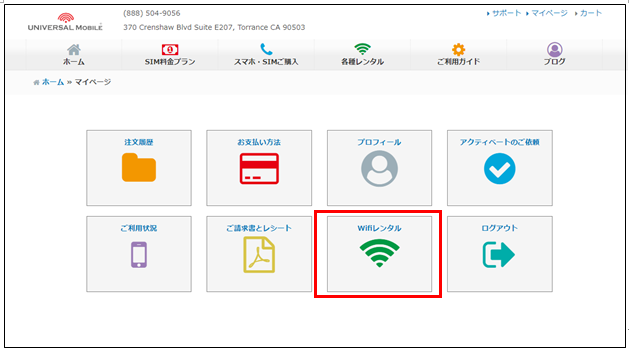
② From [Rental Wi-Fi] on My Page, please access <Wi-Fi Rental Form>
③ Enter your rental information
Note: Please select [Japan Pocket Wi-Fi (Members Only)] for your rental plan
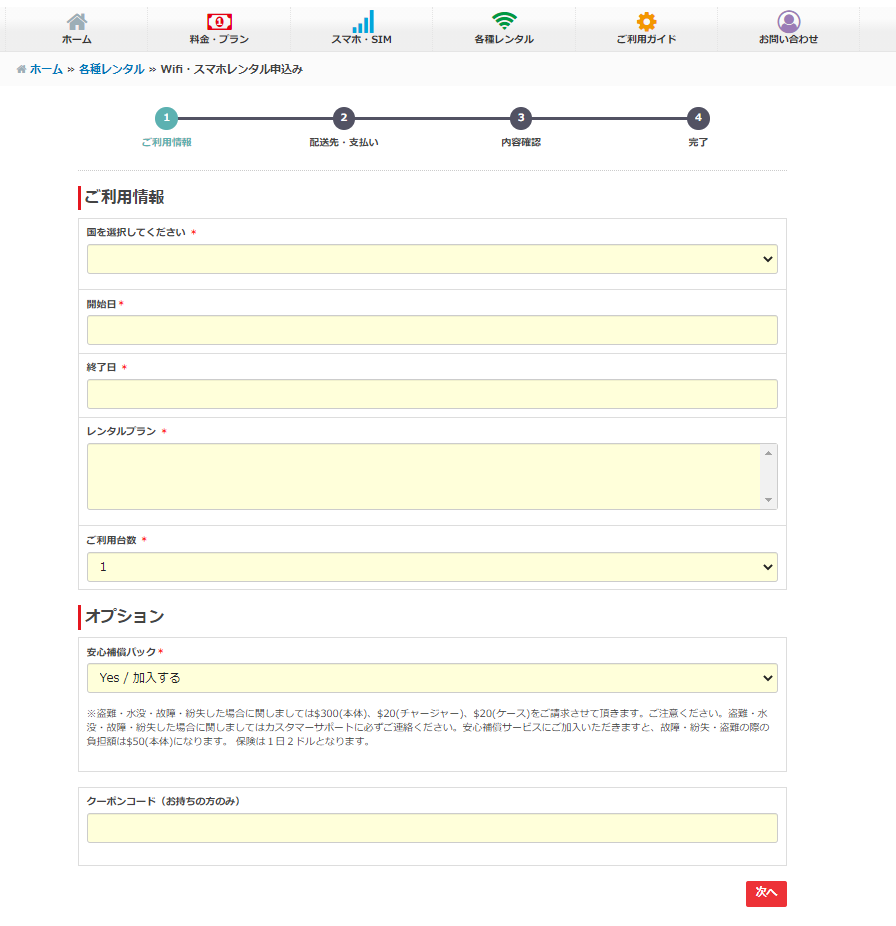
* Member Discount Price: $35 (Up to 30 days. From day 31, regular daily rates apply)
You can check the total price after clicking "Next".
* Discounts do not apply to Minimum Plan members.
* [Japan Pocket Wi-Fi (Members Only)] quantity is limited.
* The member-exclusive plan cannot be selected if out of stock.
* [Japan Pocket Wi-Fi (Members Only)] is limited to 1 unit per person.
{ Pocket Wi-Fi Pick-up & Shipping Options }
[ Delivery by Mail ]
● Shipped via USPS Priority Mail from Torrance, CA to US addresses only.
* We do not ship to Japan.
● Orders are shipped to arrive by your specified pick-up/start date.
● Shipping Fee: $10 (An additional $10 applies if a return envelope & label are requested).
* For last-minute orders, delivery by your desired date may not be possible.
In some cases, we may have no choice but to cancel your reservation, so please make your reservation well in advance.
[ Office Pick-up ]
● We will notify you by email once your Pocket Wi-Fi is ready.
You can pick it up at our office listed below on or after your start date.
UNIVERSAL Mobile
370 Crenshaw Blvd Ste E202K Torrance, CA 90503[ Return Due Date ]
● Please return the device by the "Return Date (End Date)" selected at the time of reservation.
[ Extension & Late Fees ]
● For details regarding Pocket Wi-Fi extension and late fees, please check here.
View detail 0 0